Managing your club's profile on Scottish Golf
Learn how to update your golf club's main description, amenities, and additional information through the Scottish Golf dashboard. This guide walks you through some of the area's in Clubhouse that you can edit to tailor your club's profile.
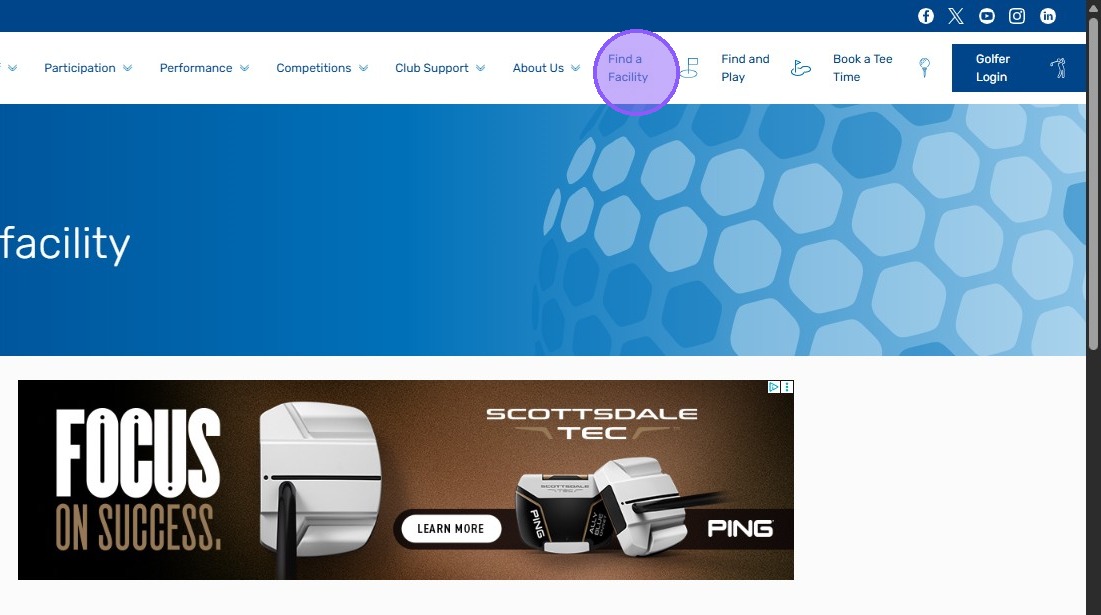
1. Firstly let's show you where your club profile page lives. Go to www.scottishgolf.org and click on "Find a Facility"
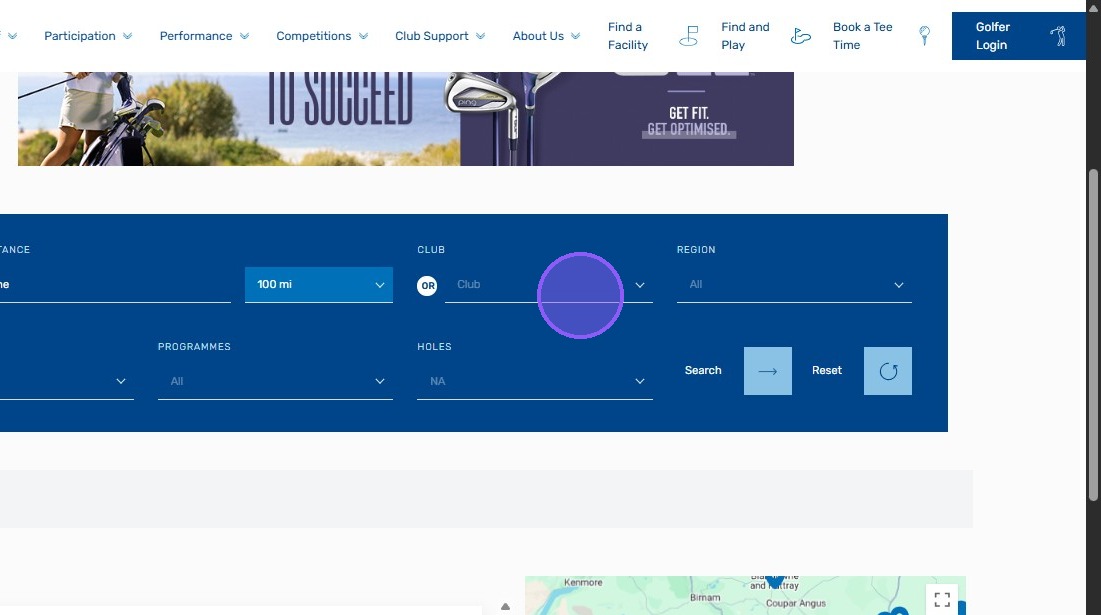
2. Click the "Club" field and find your club and click search.
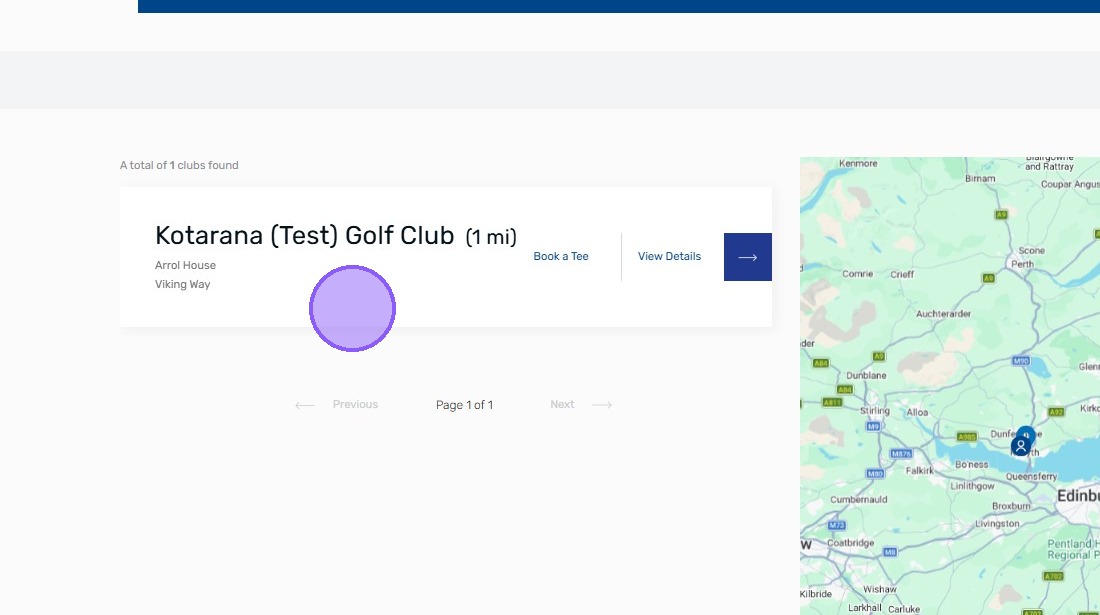
3. You'll see your clubs profile. If you have a tee booking url set in your Club Settings within Clubhouse then your listing will show a 'Book a Tee' prompt and take users to that chosen url.
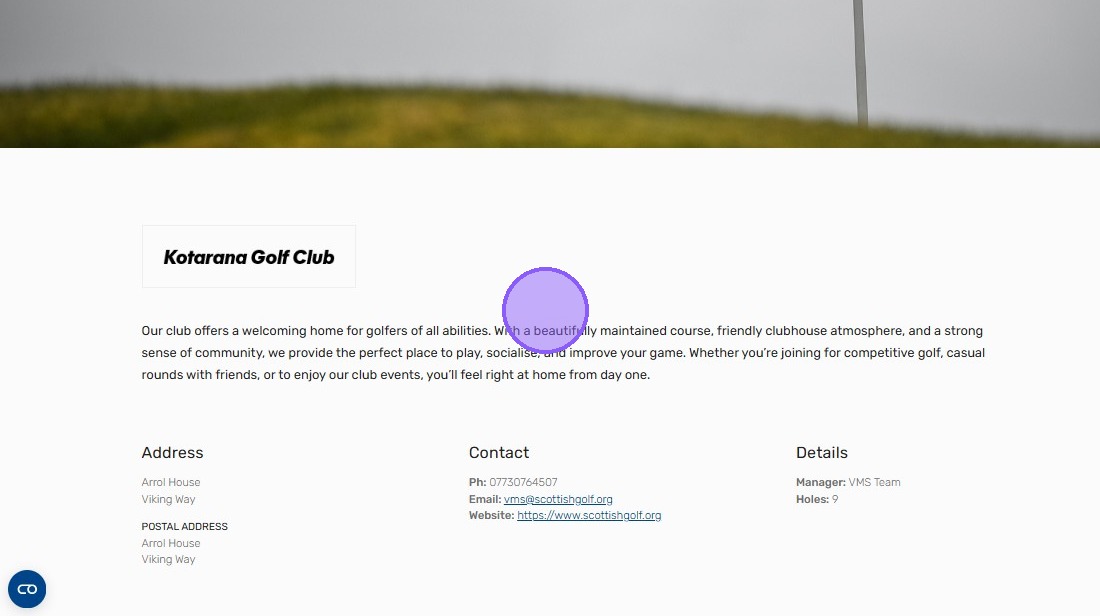
4. When viewing details you are then taking the your club's specific page and url.

5. This page has your logo, contact details and a short description which are all editable within your Clubhouse > Settings.
You can find the description in Clubhouse > Settings > Club Descriptions (Step 9).
You can find the description in Clubhouse > Settings > Club Descriptions (Step 9).
6. Click "Club Settings"
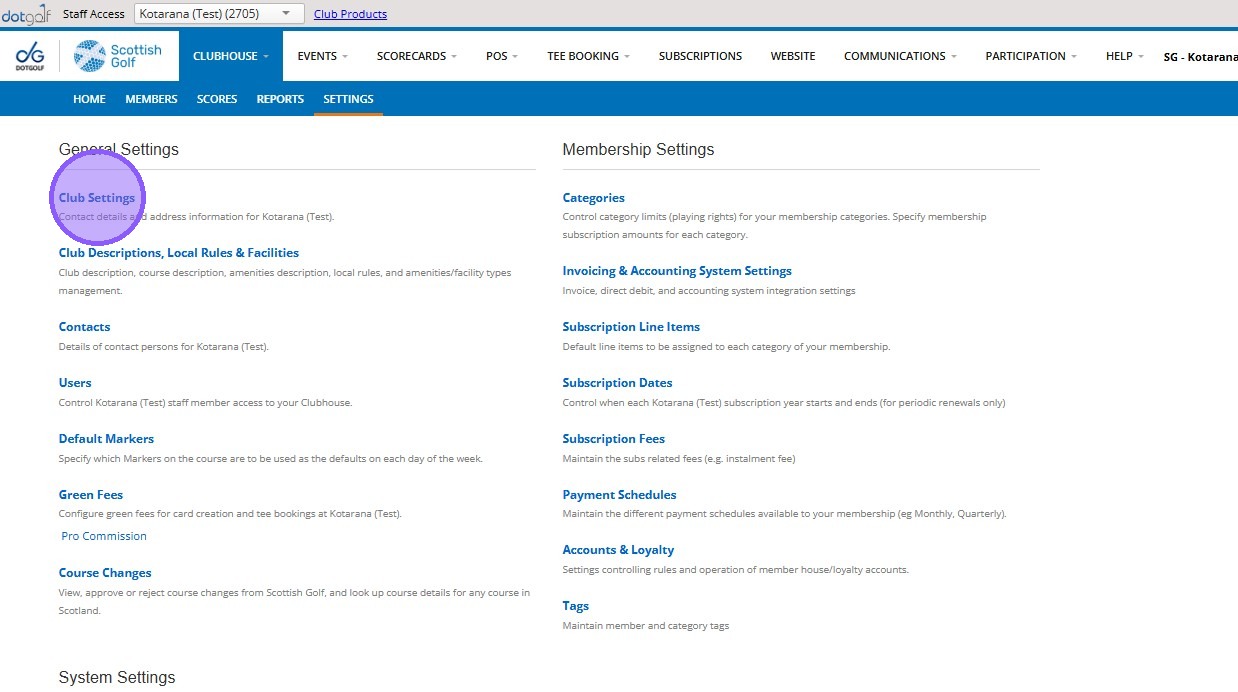
7. This is where you can edit your club address and contact details.
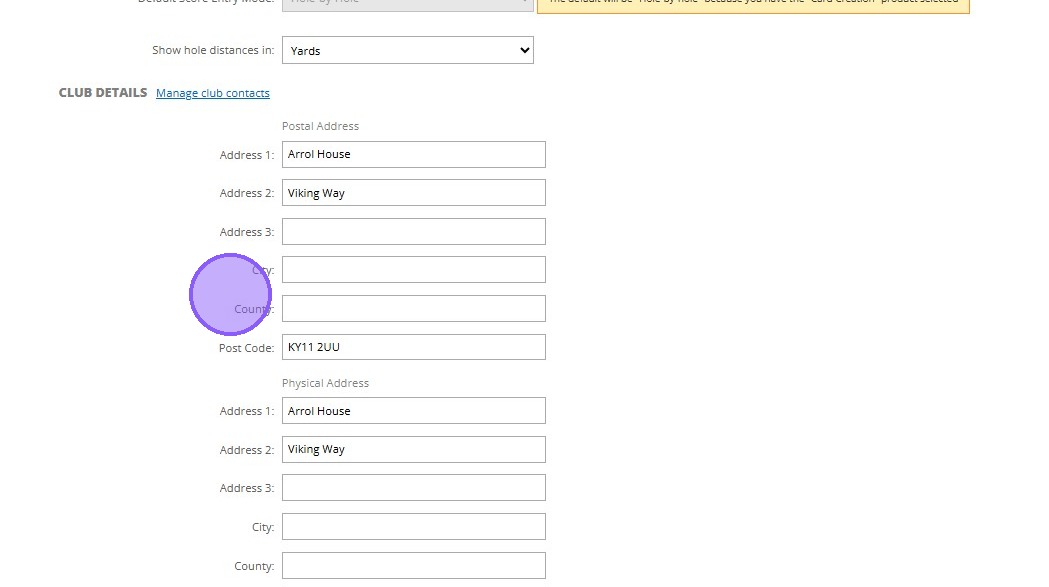
8. This section also allows you to add in those different url's to help direct users to your landing pages.
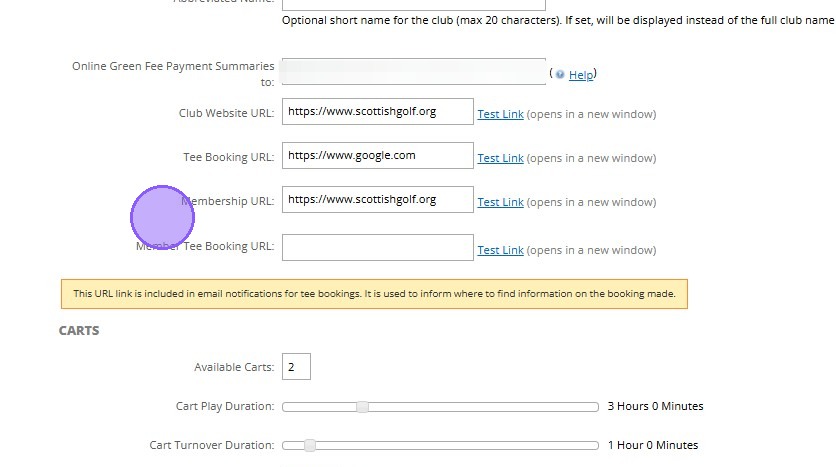
9. Click "Club Descriptions, Local Rules & Facilities"
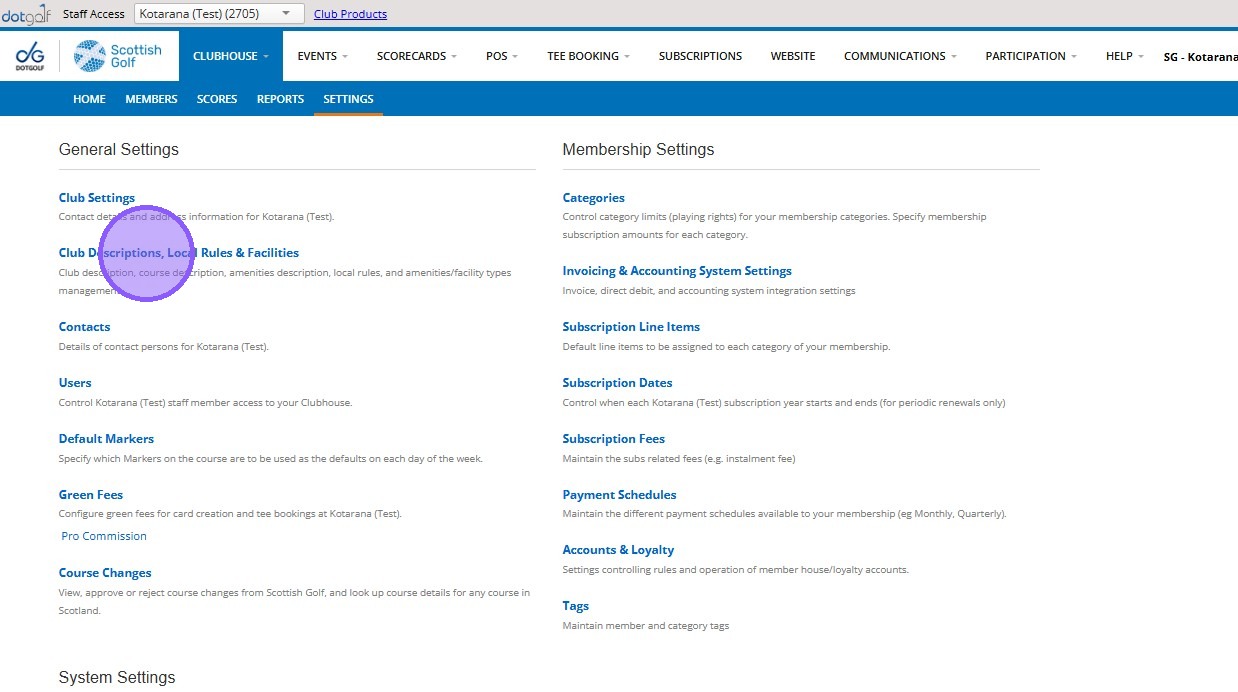
10. These are the fields where you can place valuable information about your club.
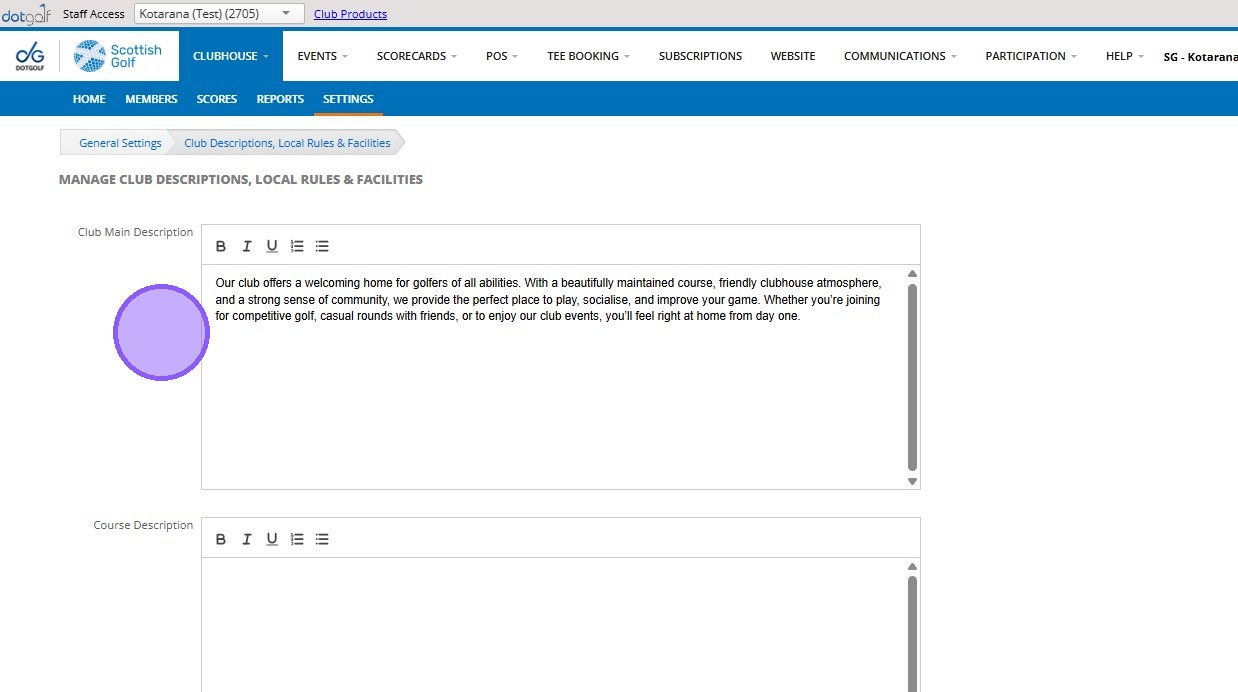
11. You can also upload a header image of your clubhouse or course to help show people visiting the page what your club/course is like. You can also add in what facilities you have.
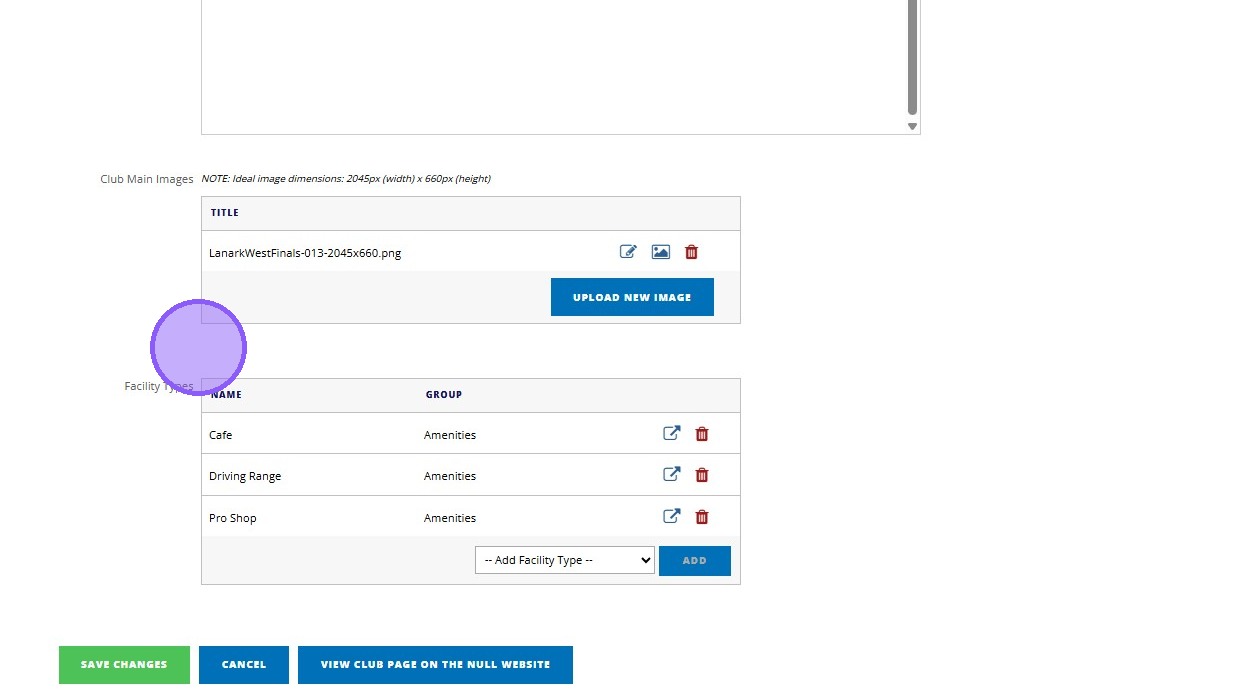
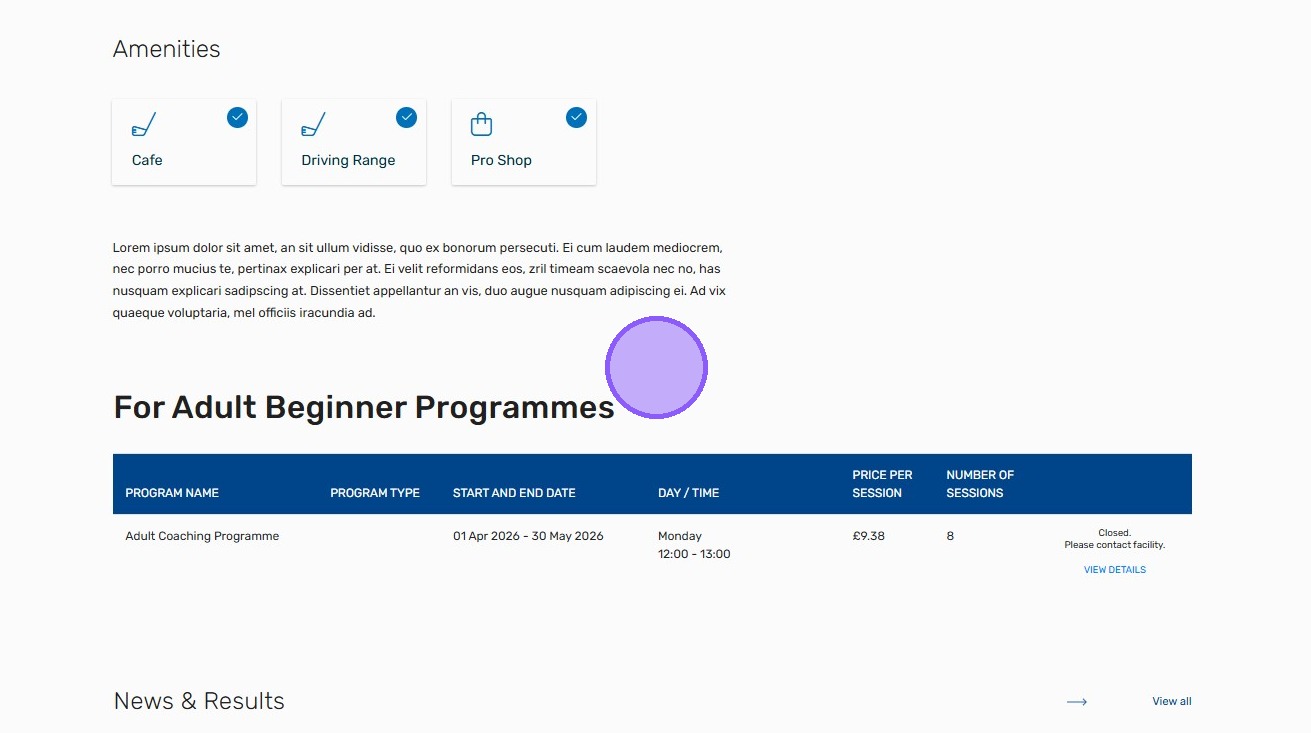
12. And these pull through to your club profile page, along side any programmes you may have live.
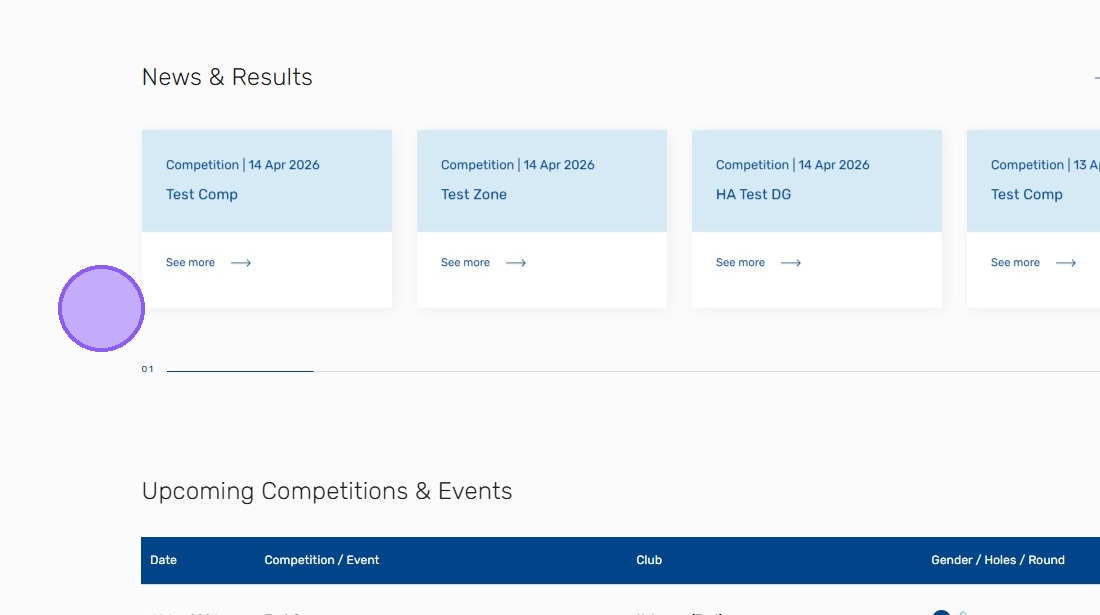
13. If you use VMS as your Competition software then your competition results will also pull through, along with some other system generated information like your course card.
Related Articles
How to open a Club Account on the Scottish Golf Clubhouse
1. Navigate to https://live.clubhouse.scottishgolf.org/TabMembers.aspx 2. Click on the Member in question. 3. Click "Accounts & Loyalty" to view any existing accounts, or to open a new account. 4. Click "Open Account..." 5. Click this dropdown to see ...Resetting a Members Scottish Golf App & Website Password
1. Go to the members profile within your DotGolf System. 2. Scroll down to the Registered Status. 3. Click "Reset Password" 4. You'll then get a box which populated a new password. You can either keep this password or you can replace this generated ...Resetting a Members Scottish Golf App & Website Password
1. Go to the members profile within your DotGolf System. 2. Scroll down to the Registered Status. 3. Click "Reset Password" 4. You'll then get a box which populated a new password. You can either keep this password or you can replace this generated ...Managing your DotGolf Website
To start editing your website, please log in via your DotGolf platform: This will then log you in as the website administrator and you should now have additional controls in the top right of your screen. You will now be able to edit content within ...How to Set Up Subscription Payments From Your Scottish Golf Members Account
How to Set Up Subscription Payments From Your Scottish Golf Members Account Made by Alan Brown with Scribe This guide will walk you through the process of making a payment on an account, specifically detailing the steps to navigate to the payment ...