Process Membership Renewals and Send Invoices
Process Membership Renewals and Send Invoices
Learn how to efficiently process membership renewals and generate invoices for your members. This guide will walk you through the steps to ensure accurate billing and timely communication.
1. Navigate to https://live.clubhouse.scottishgolf.org/TabSubs.aspx
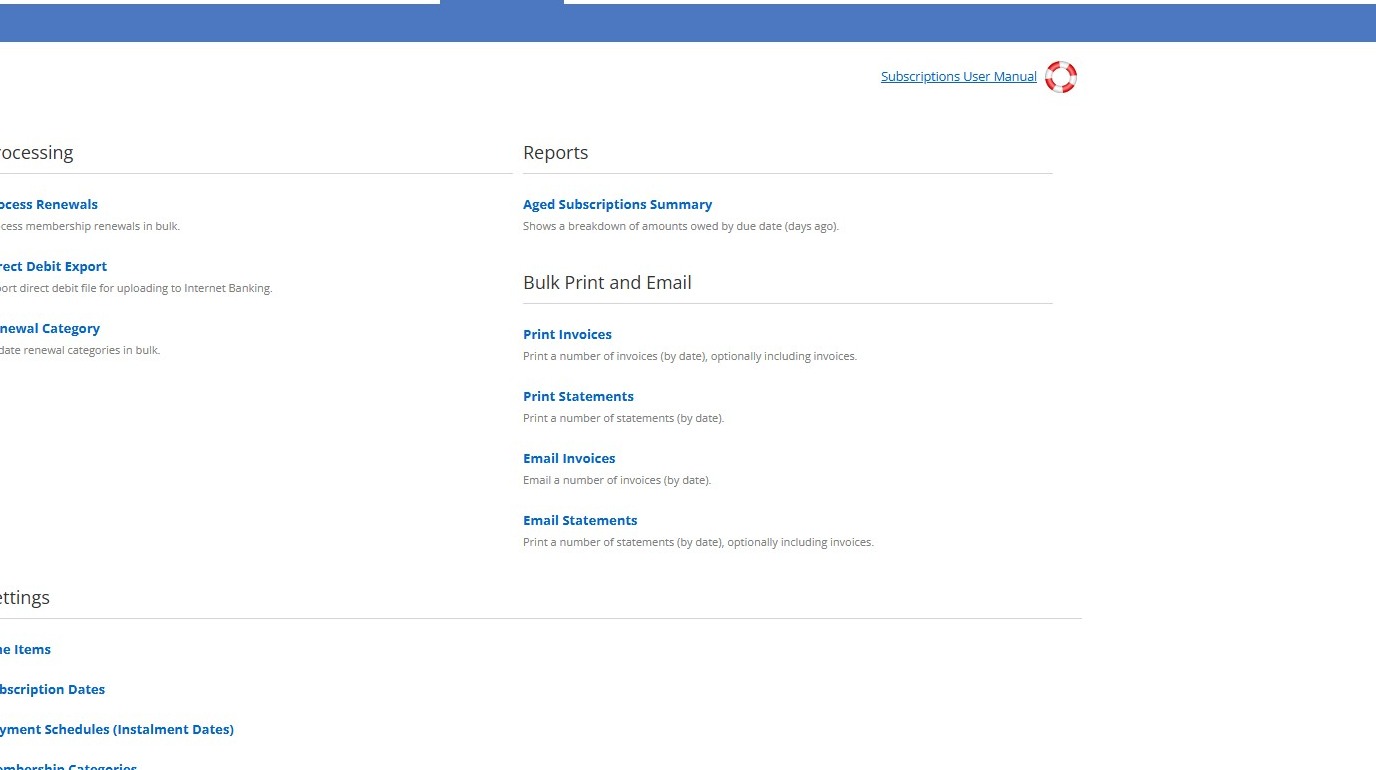
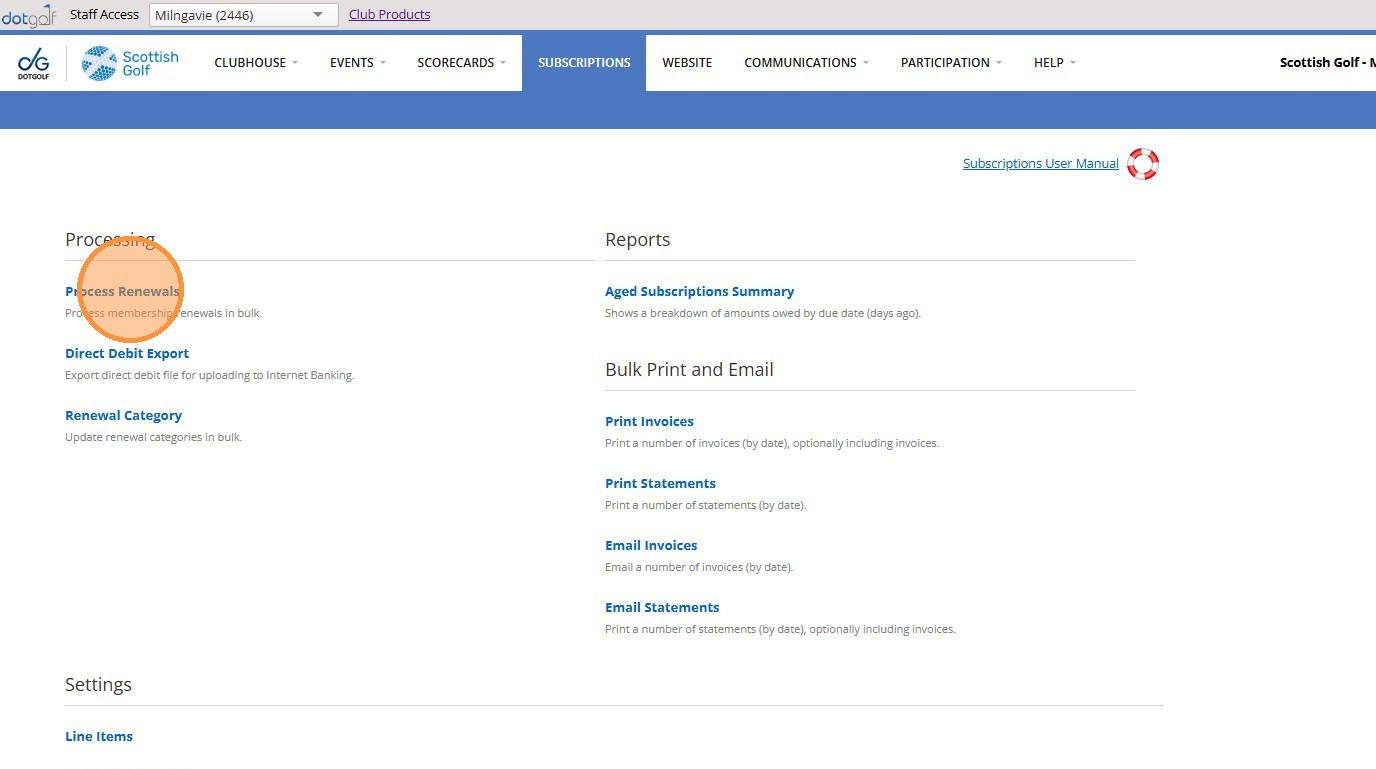
2. Click "Process Renewals"
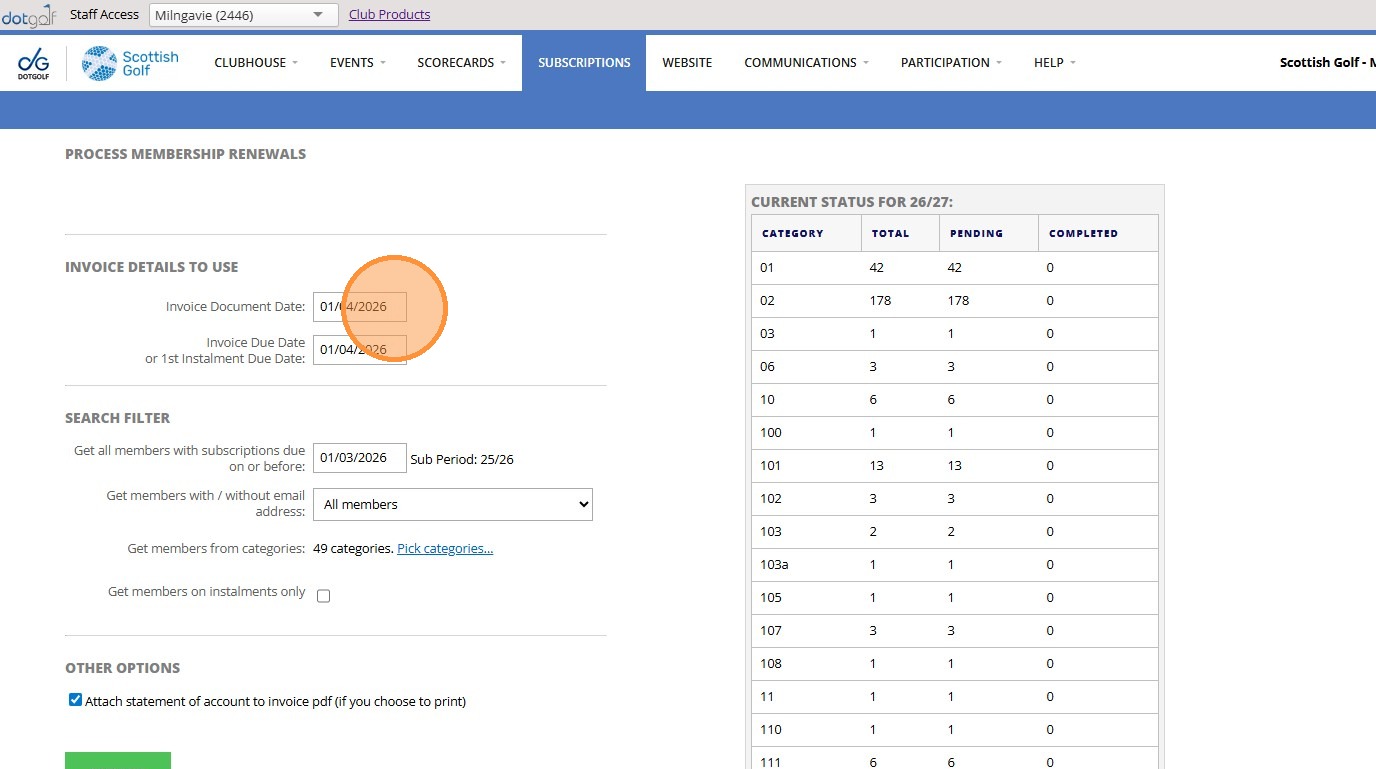
3. Click this text field.
4. Click here.
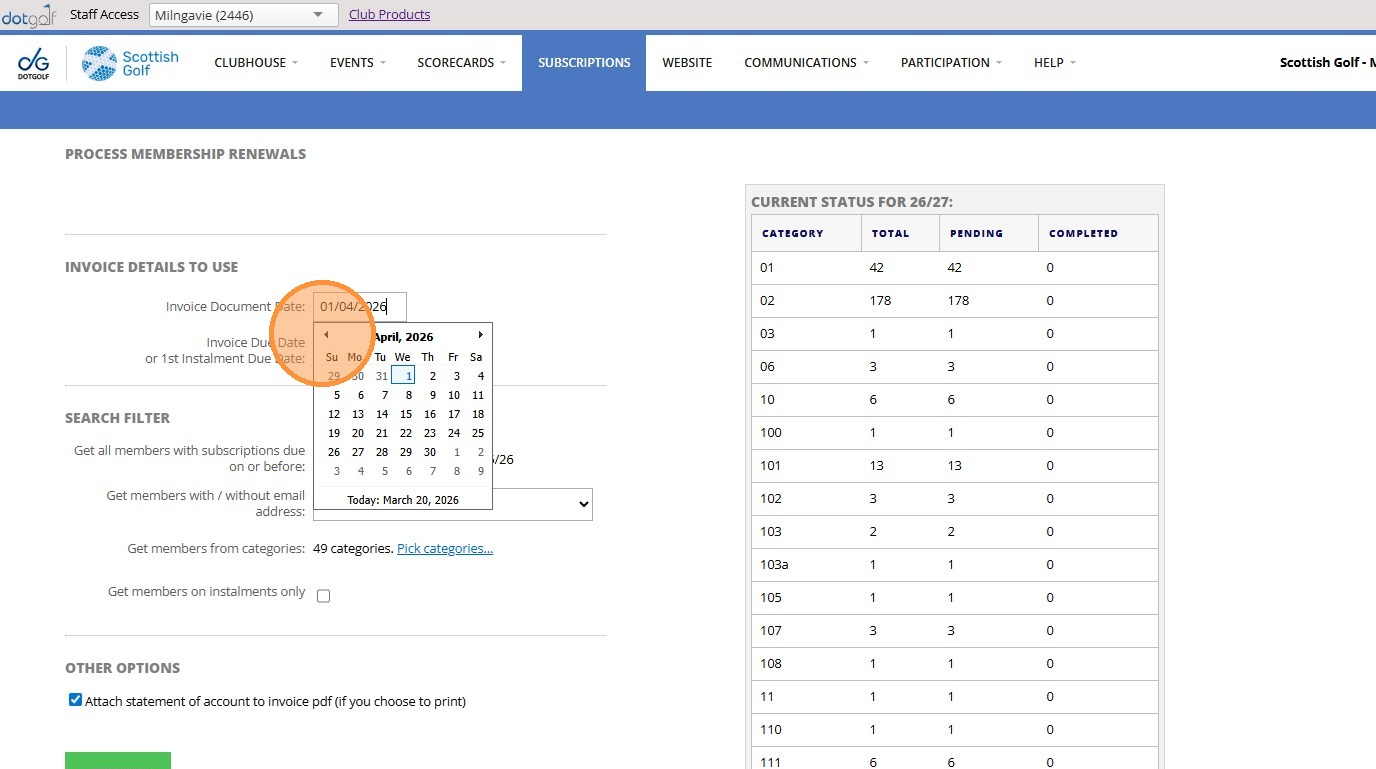
5. Click "20"
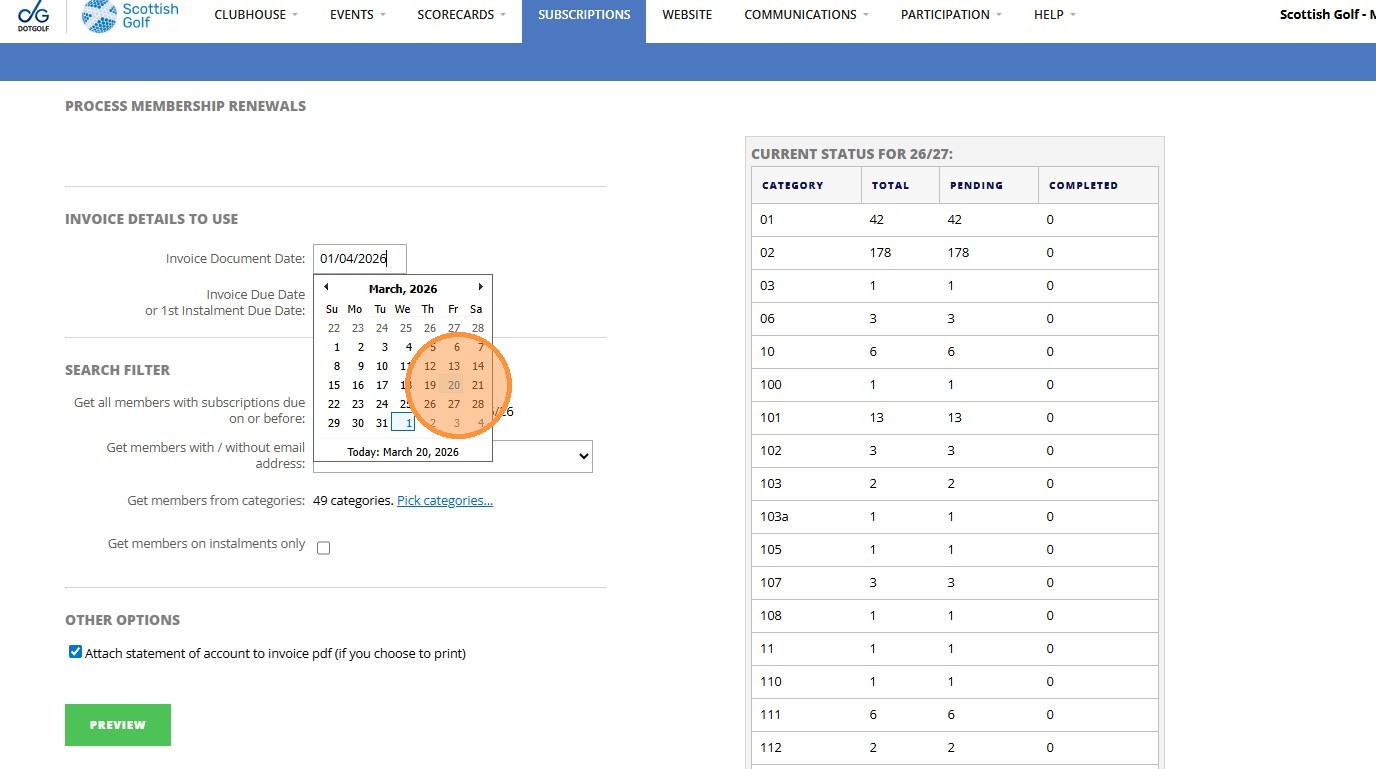
6. Click this text field.
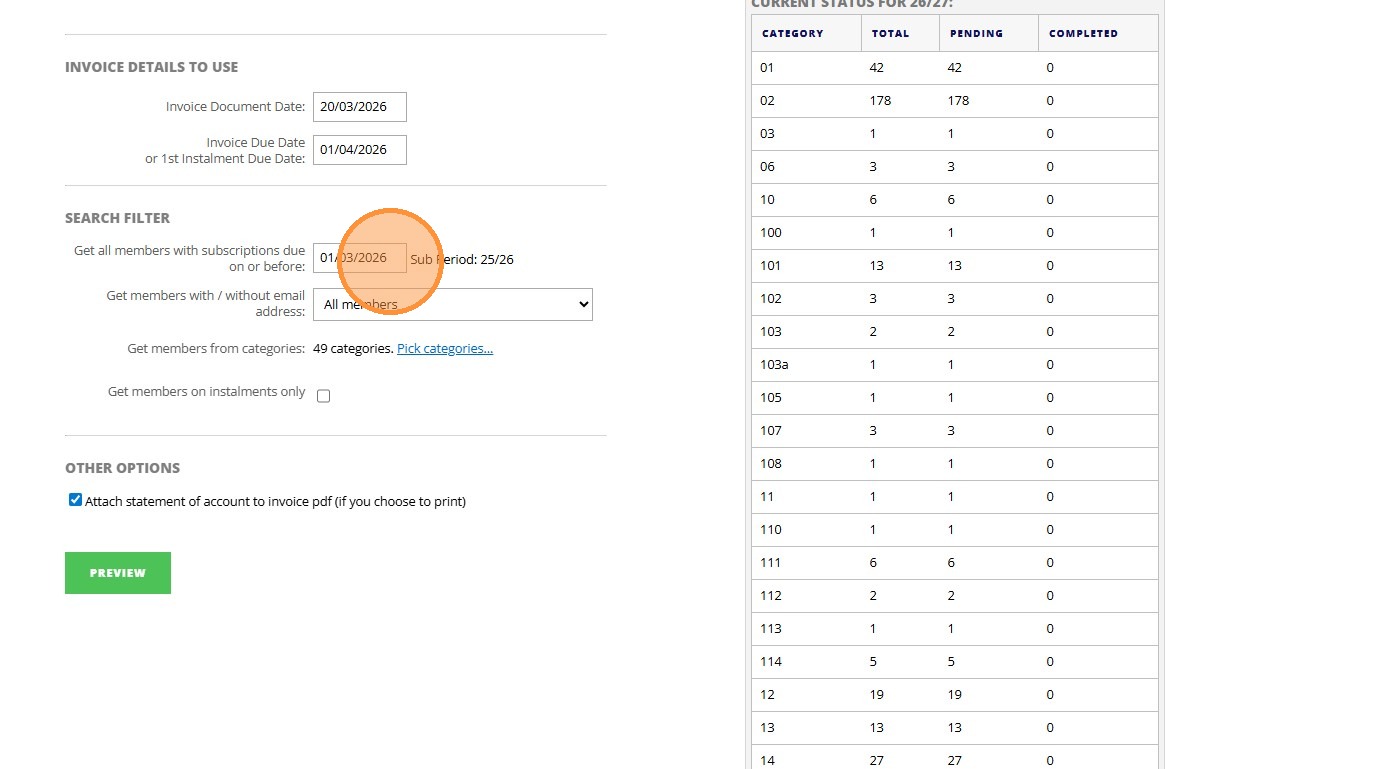
7. Click "1"
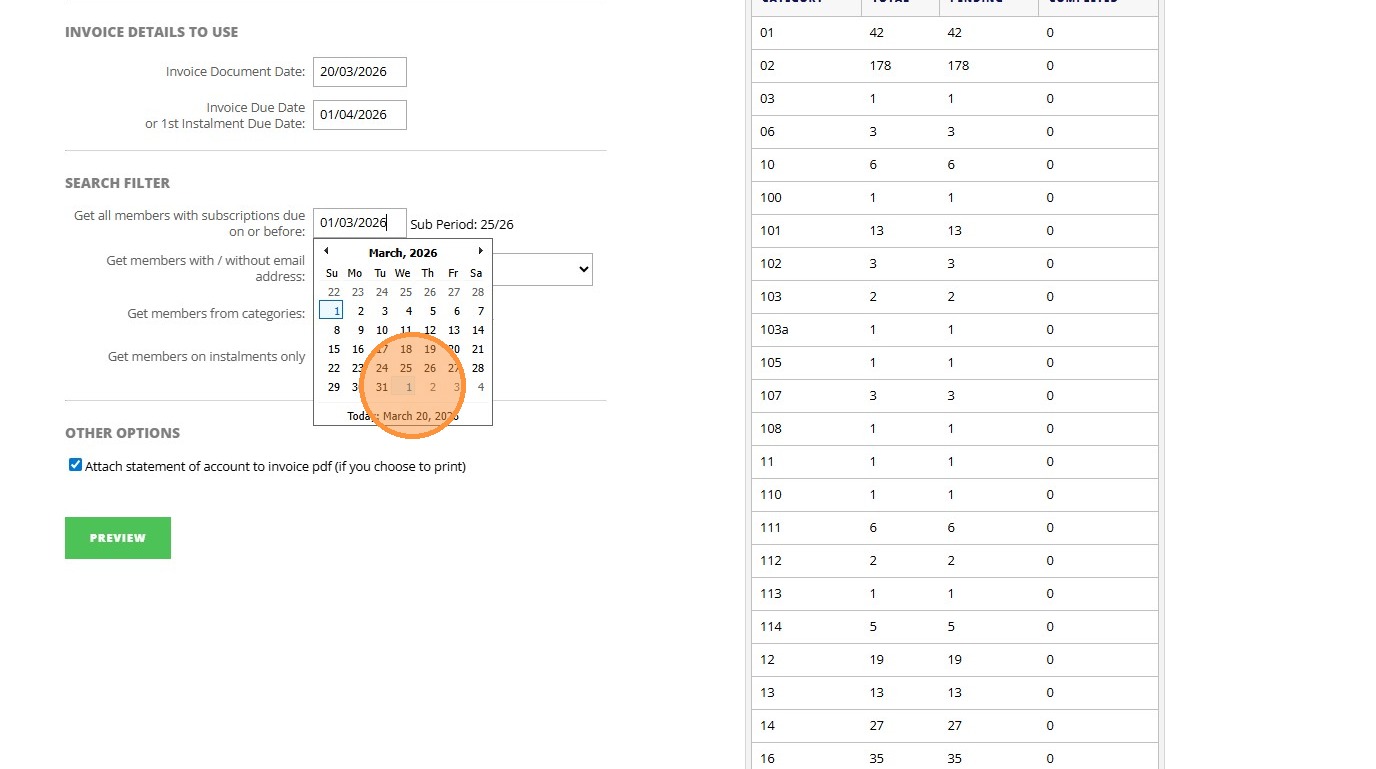
8. Click "Invoice Details To Use Invoice Document Date: Invoice Due Date or 1st Instalment Due Date: Search Filter Get all members with subscriptions due ..."
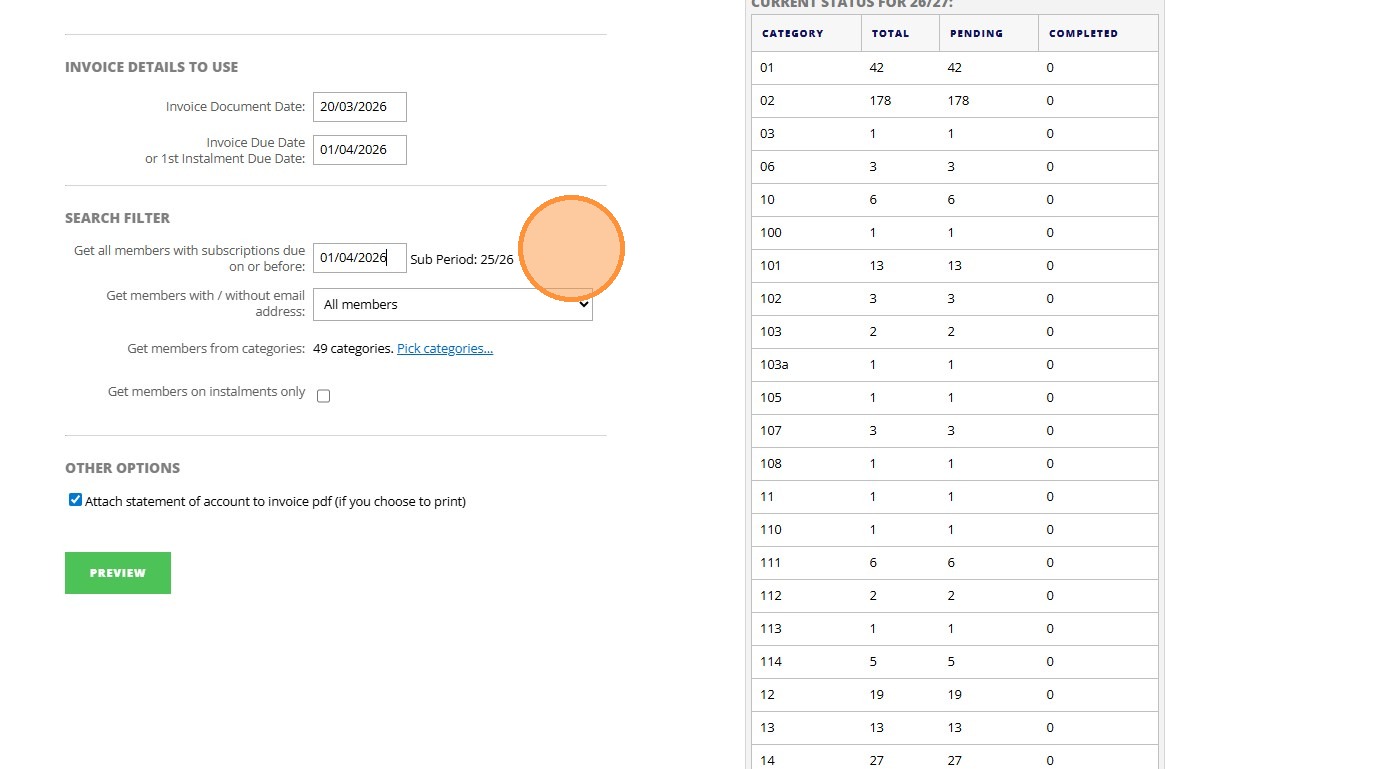
9. Click "Invoice Details To Use Invoice Document Date: Invoice Due Date or 1st Instalment Due Date: Search Filter Get all members with subscriptions due ..."
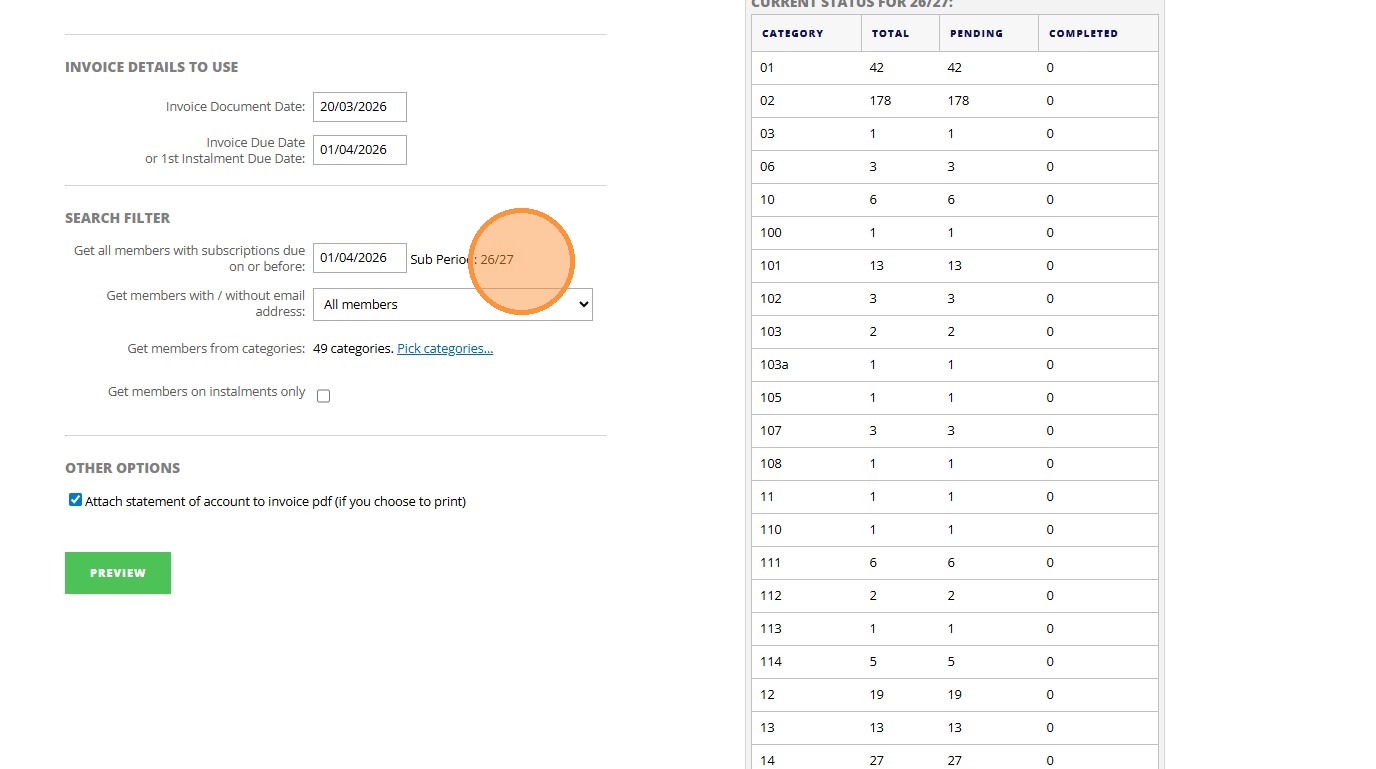
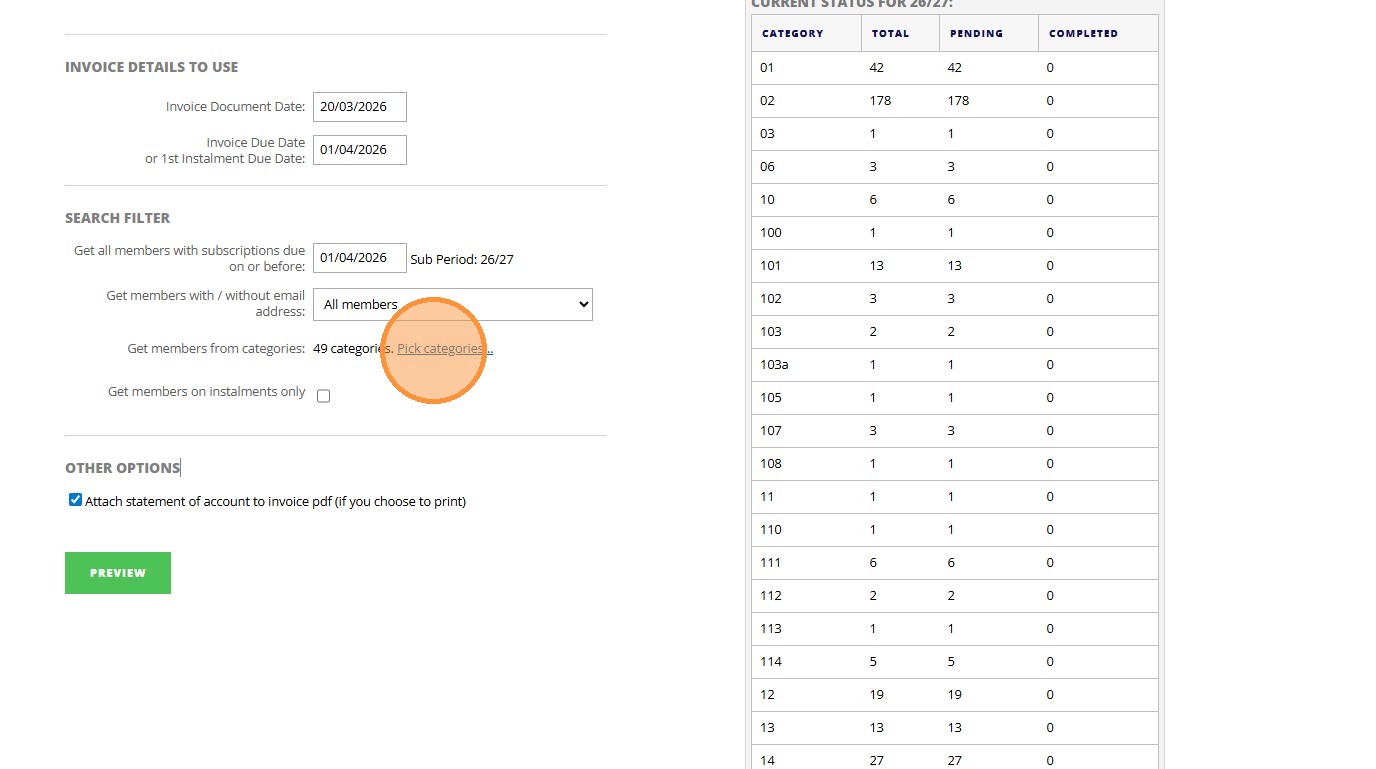
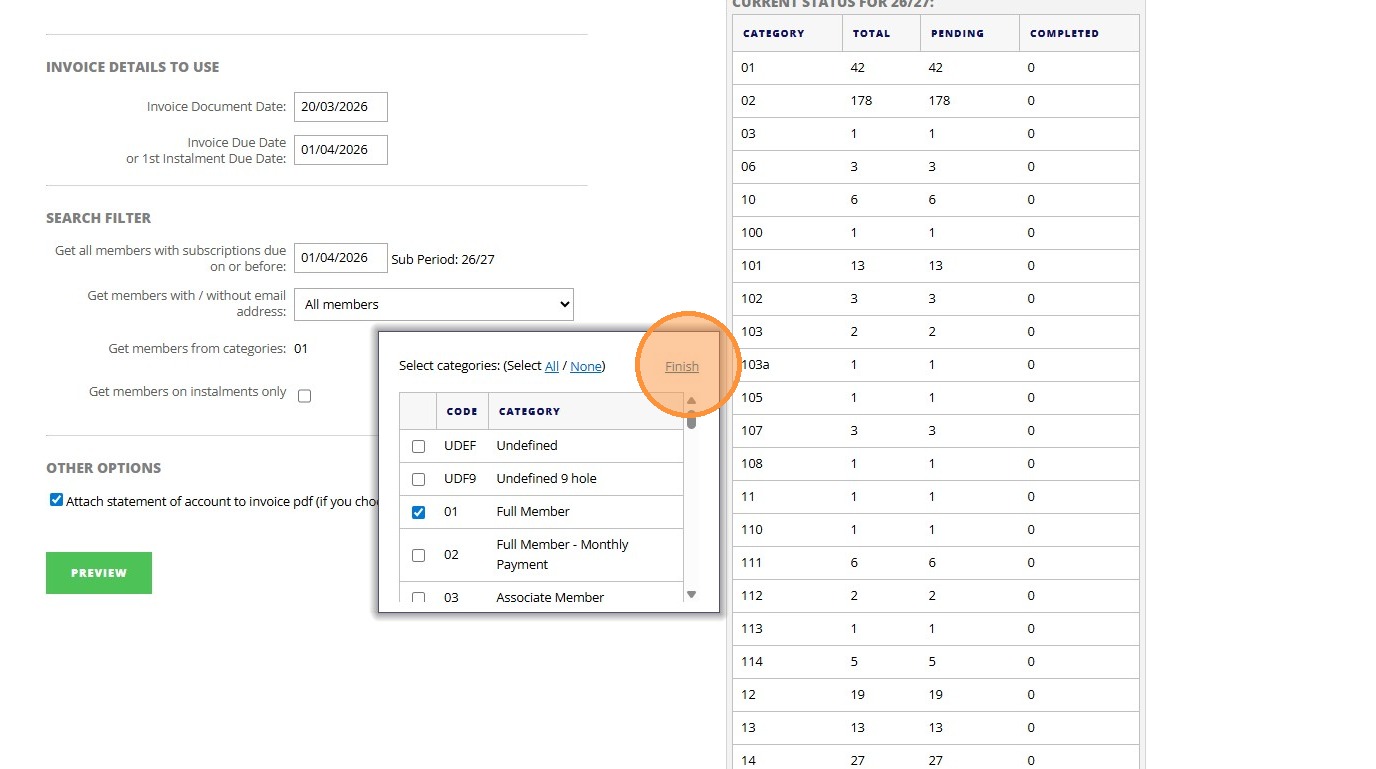
10. Click "Pick categories..."
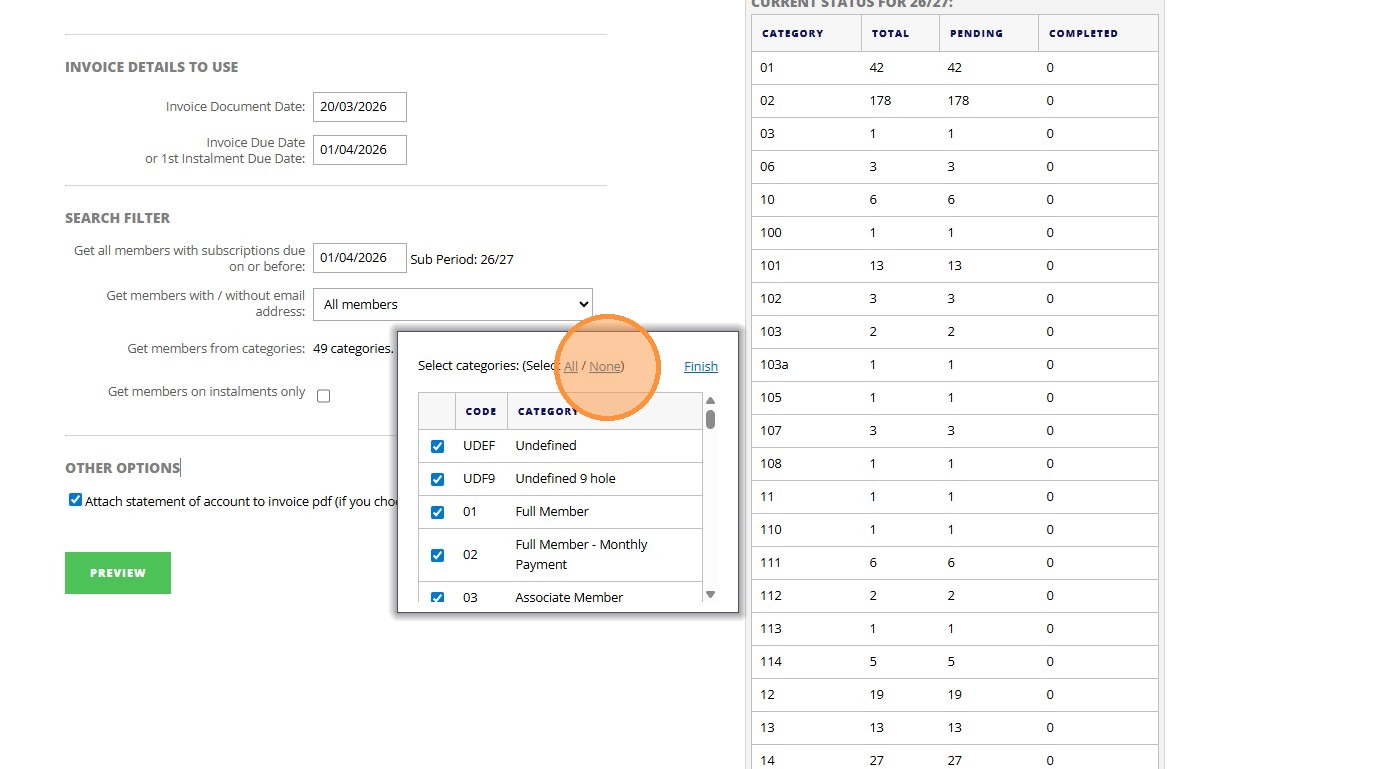
11. Click "None"
12. Click this checkbox.
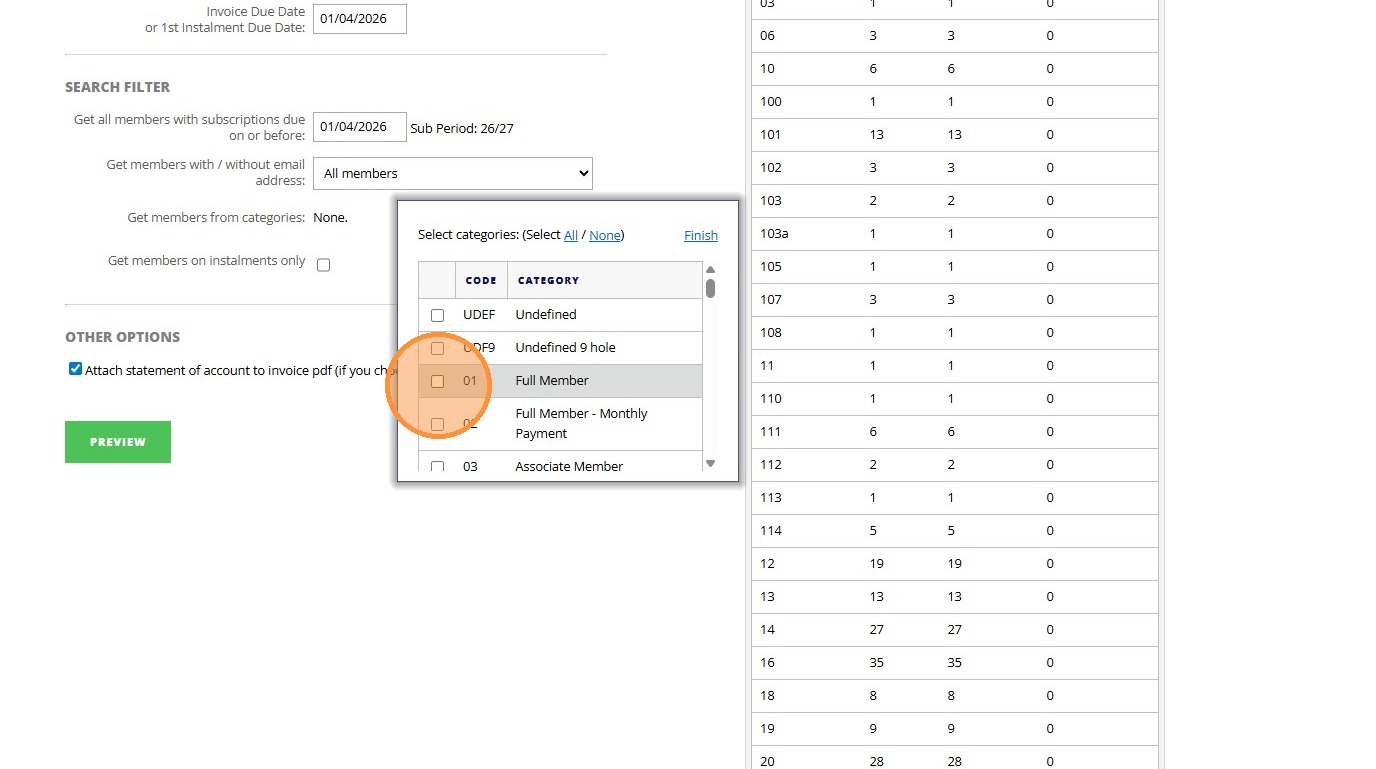
13. Click "Finish"
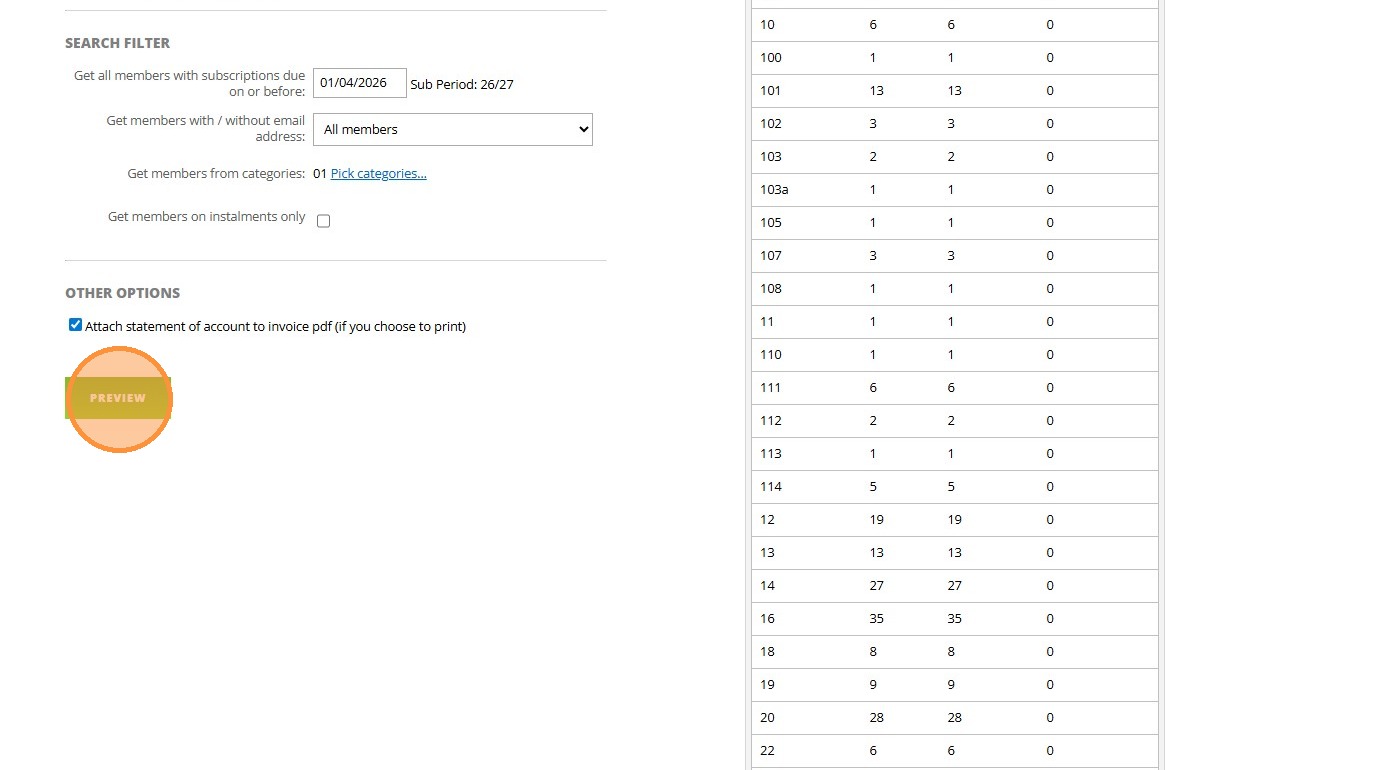
14. Click "Submit"
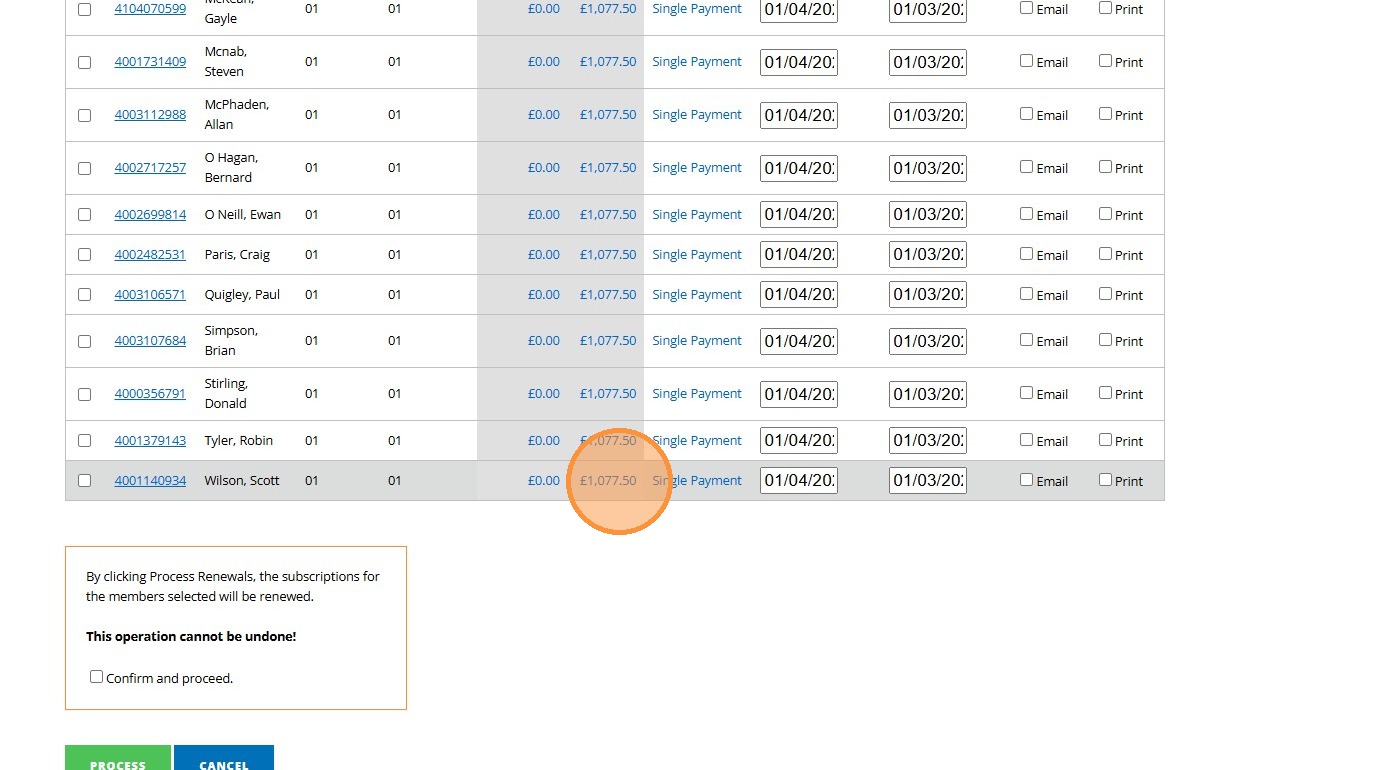
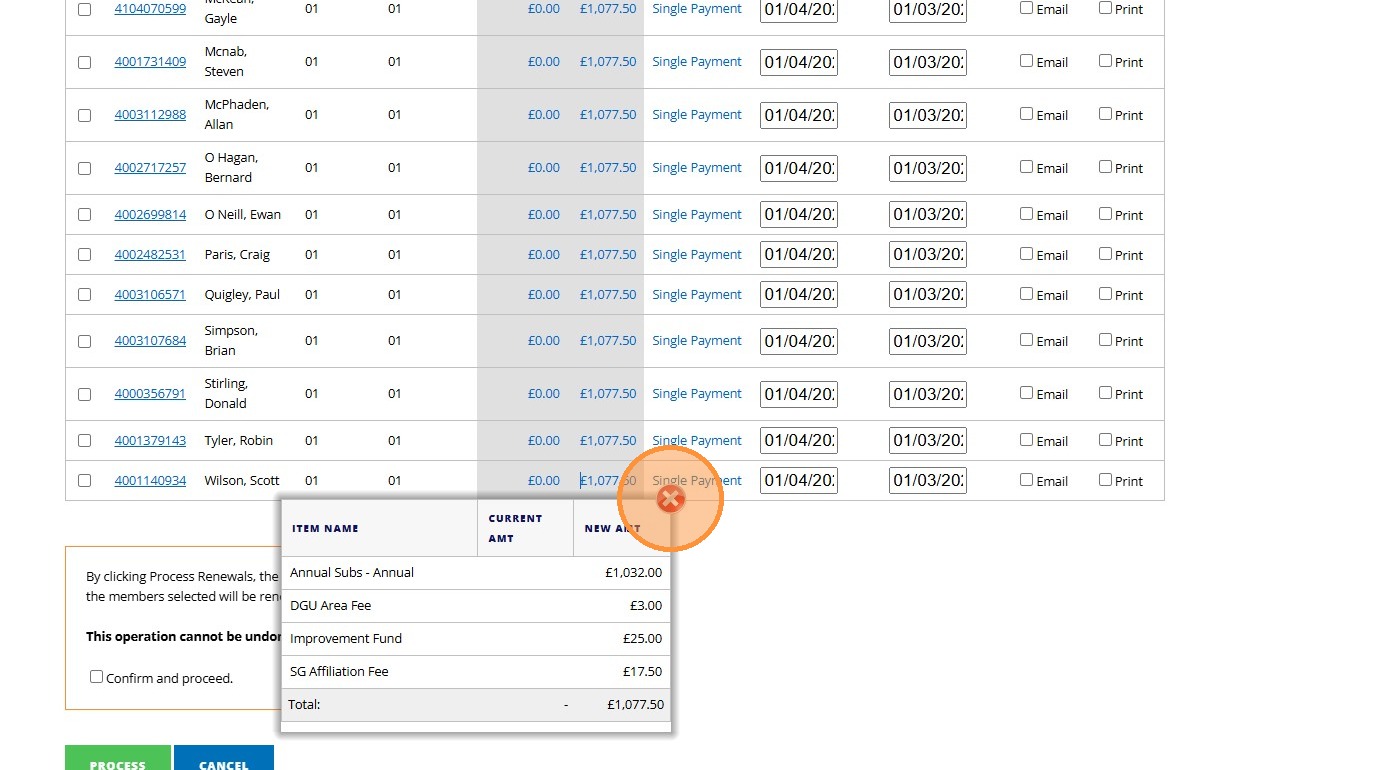
15. Click "£1,077.50"
16. Click here.
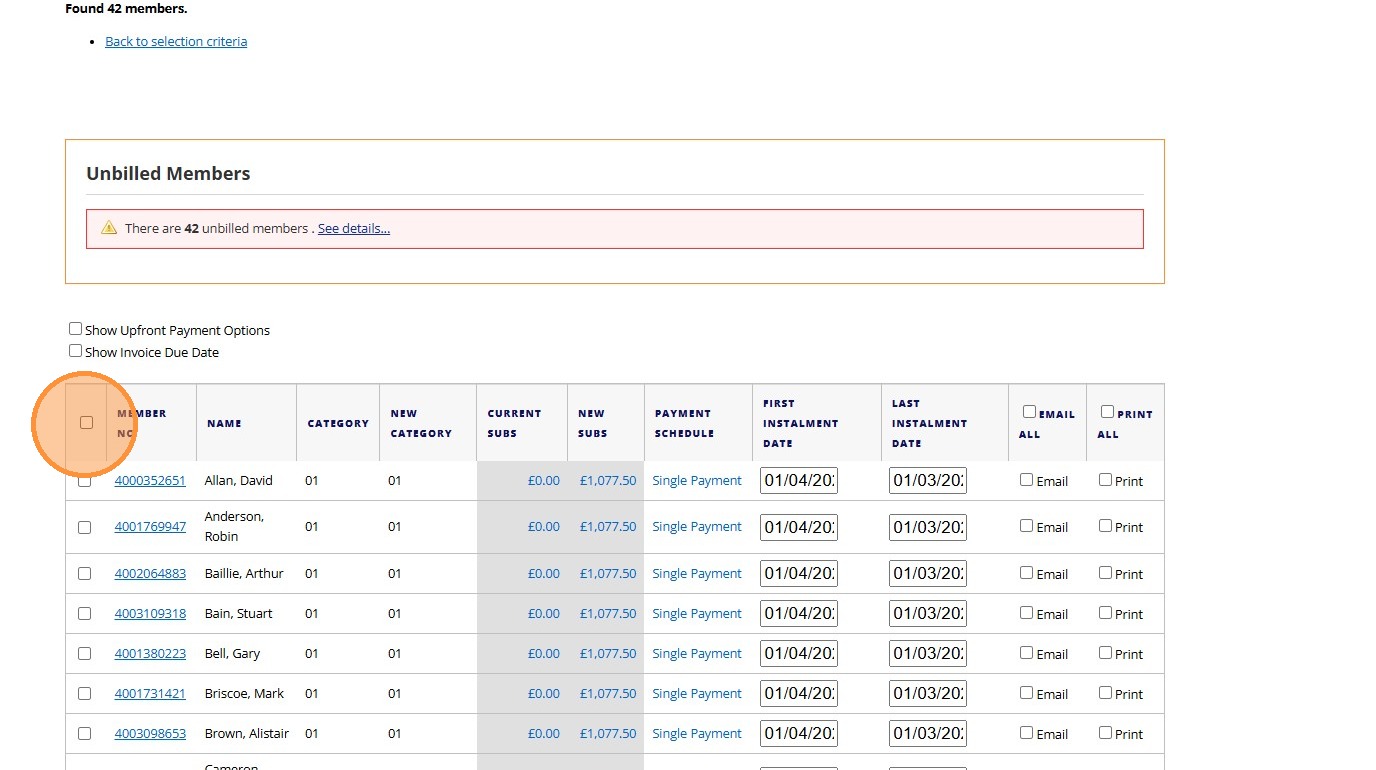
17. Click this checkbox.
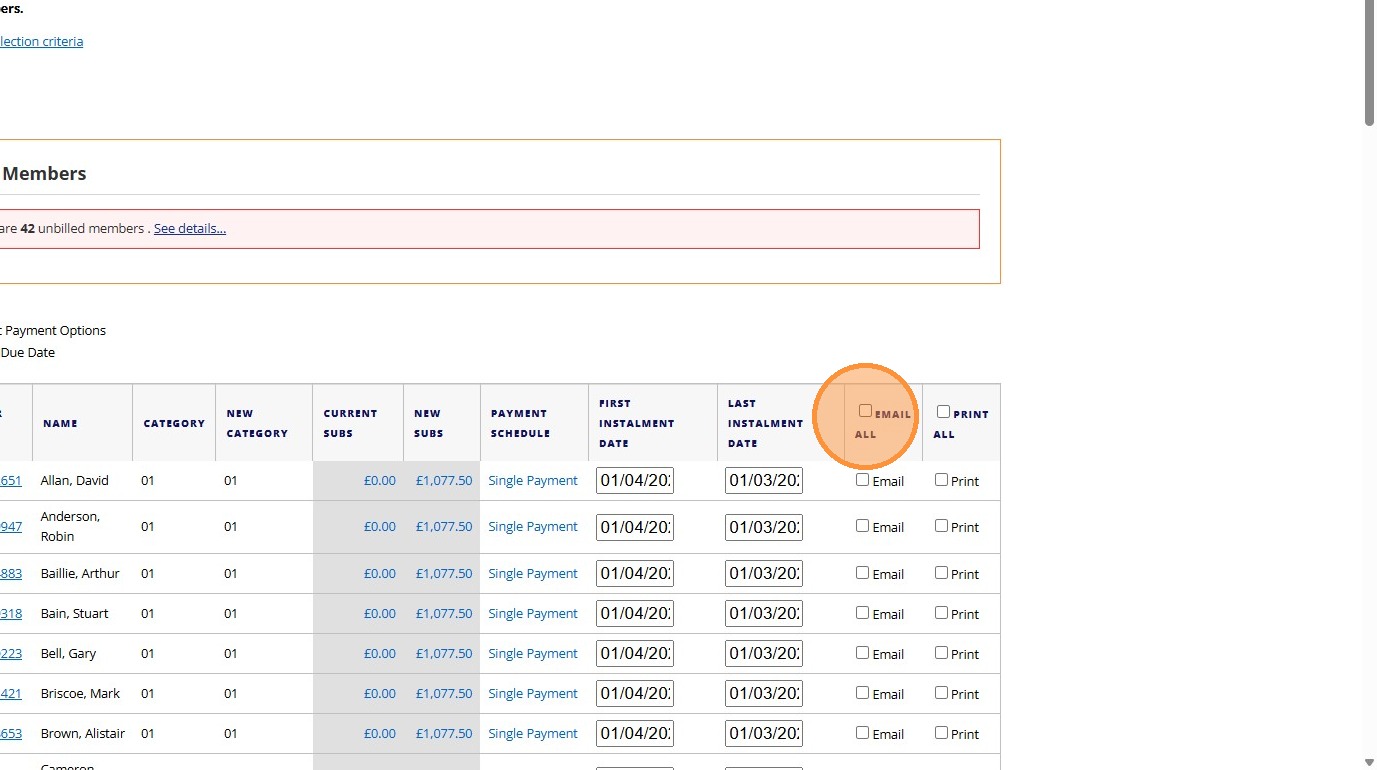
18. Click the "Email All" field. - If this not selected then members will not receive an email notifying them that their subscriptions are now due!
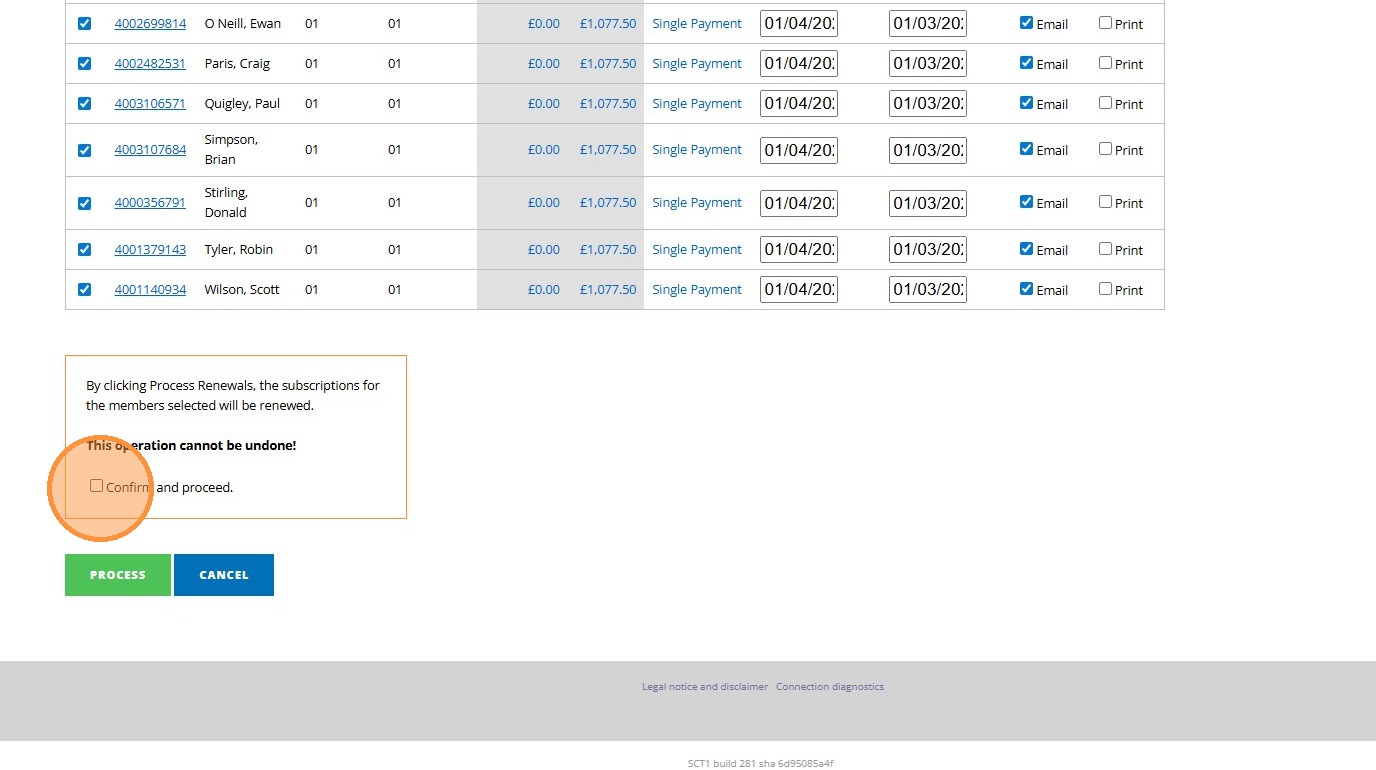
19. Click the "Confirm and proceed." field.
Related Articles
Processing Subscriptions Renewals (Refresher Guide)
1. This guide is a refresher for processing your Subscription renewals. We are assuming you have previously sent out invoices from the platform and are looking to refresh your knowledge before sending out this years batch of invoices. Please remember ...How to Create Membership Categories [Video]
Here is a video on how to create new membership categories within your DotGolf platform:How to Customise Invoices
1\. Navigate to https://live.clubhouse.scottishgolf.org/Settings/SubsInvoices.aspx?levelCode=MEMBERSHIP_INVOICE 2\. Click "Invoicing & Accounting System Settings" 3\. Complete the fields your require to show on your invoices. 4\. Click this field to ...Configuring your Membership categories
You’ll need to configure your membership categories to ensure players have the correct playing rights when it comes to competitions and casual bookings. Firstly you will need to enter your current membership year within Clubhouse > Settings > ...Adding Line Items to Membership Categories
1. Click "SETTINGS" 2. Click "Categories" 3. Click this dropdown to select a membership category. 4. Click this dropdown within the Subscription section to apply Line Items. 5. Type "750" 6. You'll note that the fee pulled through is the one set in ...