How to Create a Tee Booking Sheet for an Open Competition
How to Create a Tee Booking Sheet for an Open Competition
This guide will walk you through the process of creating a Tee Booking Sheet for a Club Open Competition which Overrides the Clubs Normal Tee Booking Rules
1. Click "(show)"
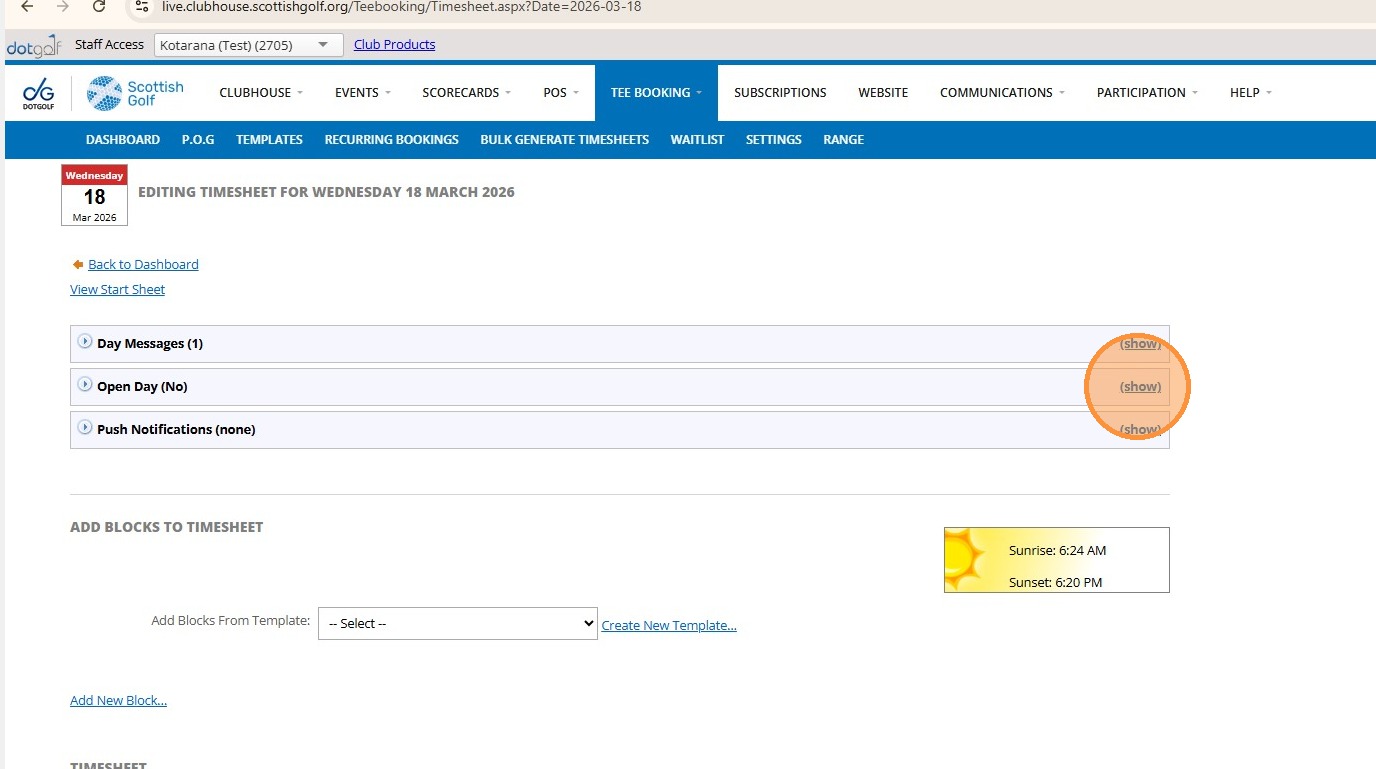
Tip: It is suggested that the club create a bespoke Tee Booking template for its Open competitions to ensure that both the Open Competition and general Play bookings before / after the competition tee times are managed correctly. Guidance on the creation of Tee Booking templates can be found in the Help Resource of VMS clubhouse
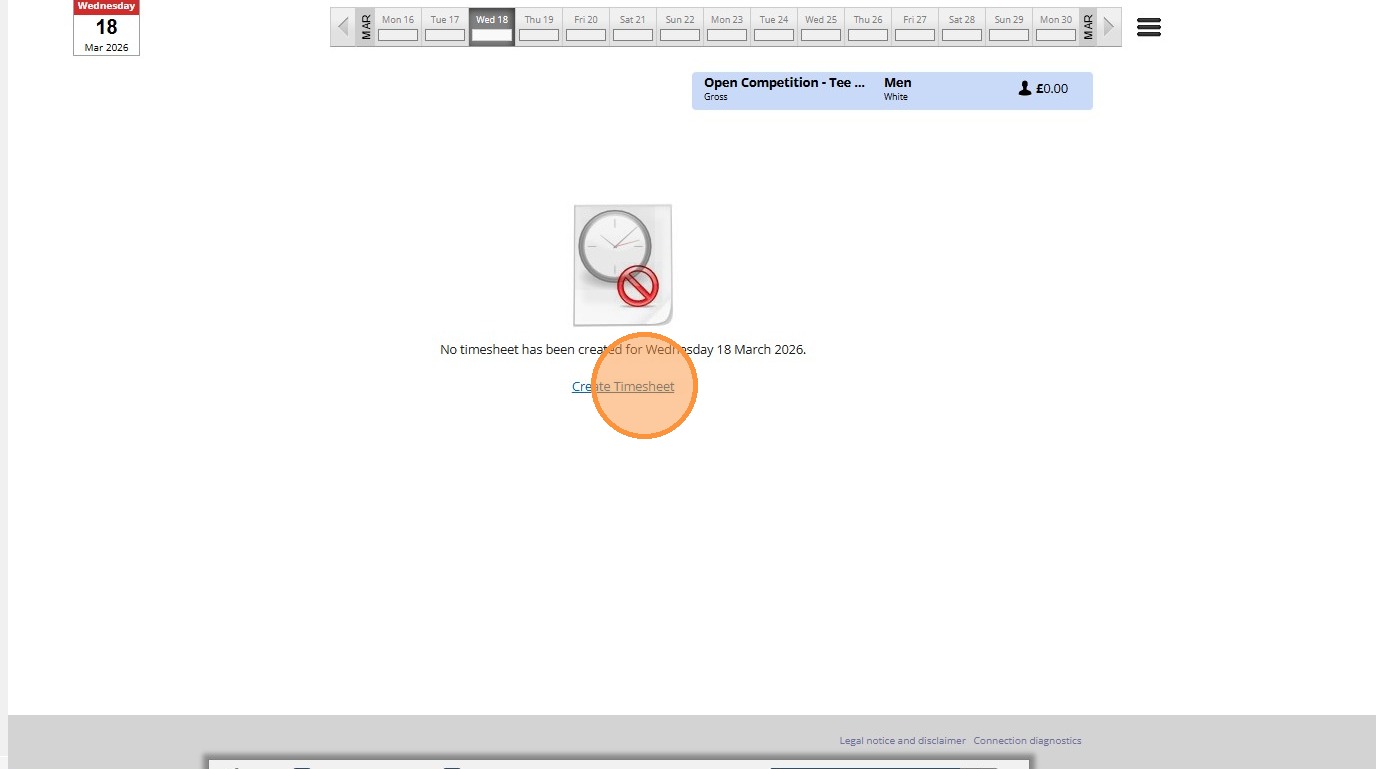
2. One you have created your Open Competition in VMS Clubhouse you need to create corresponding tee booking sheet -Click "Create Timesheet"
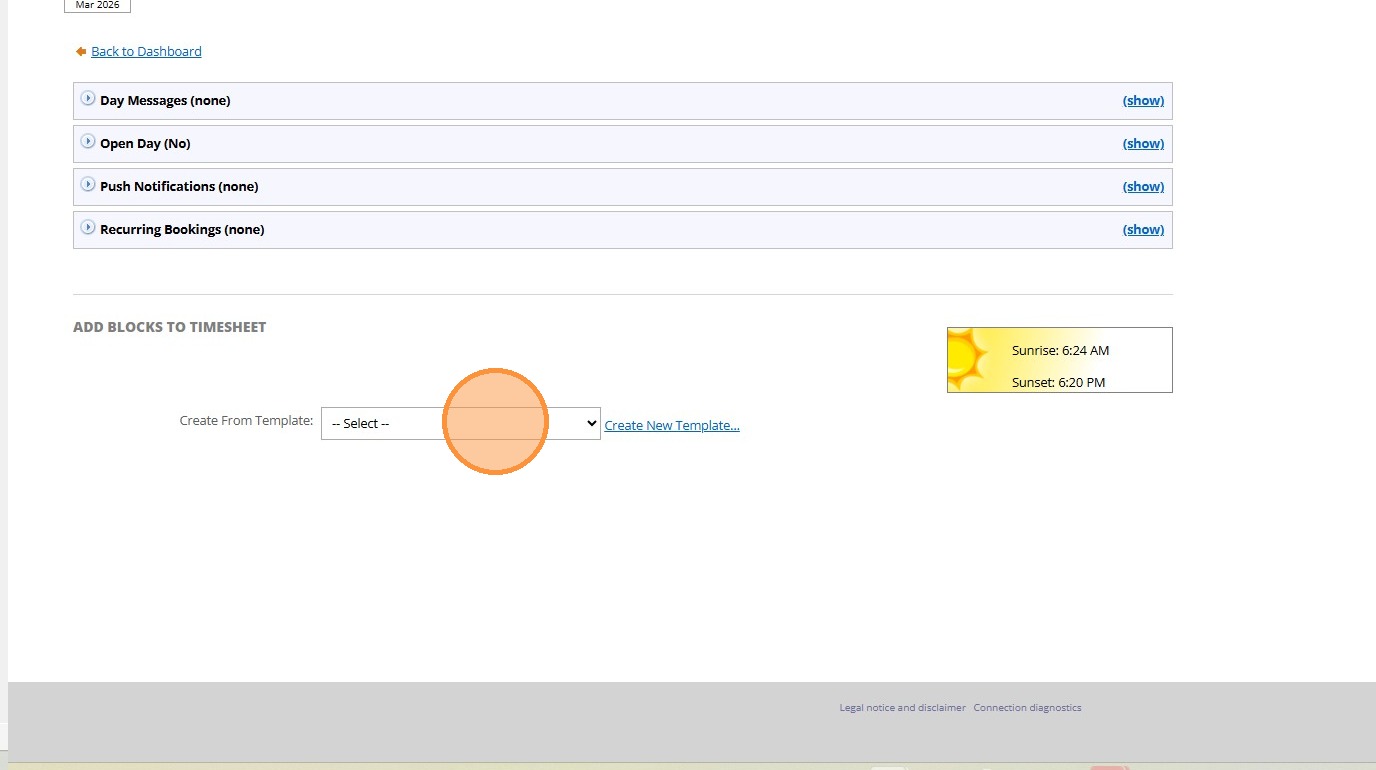
3. Click here to select a prepopulated tee booking template
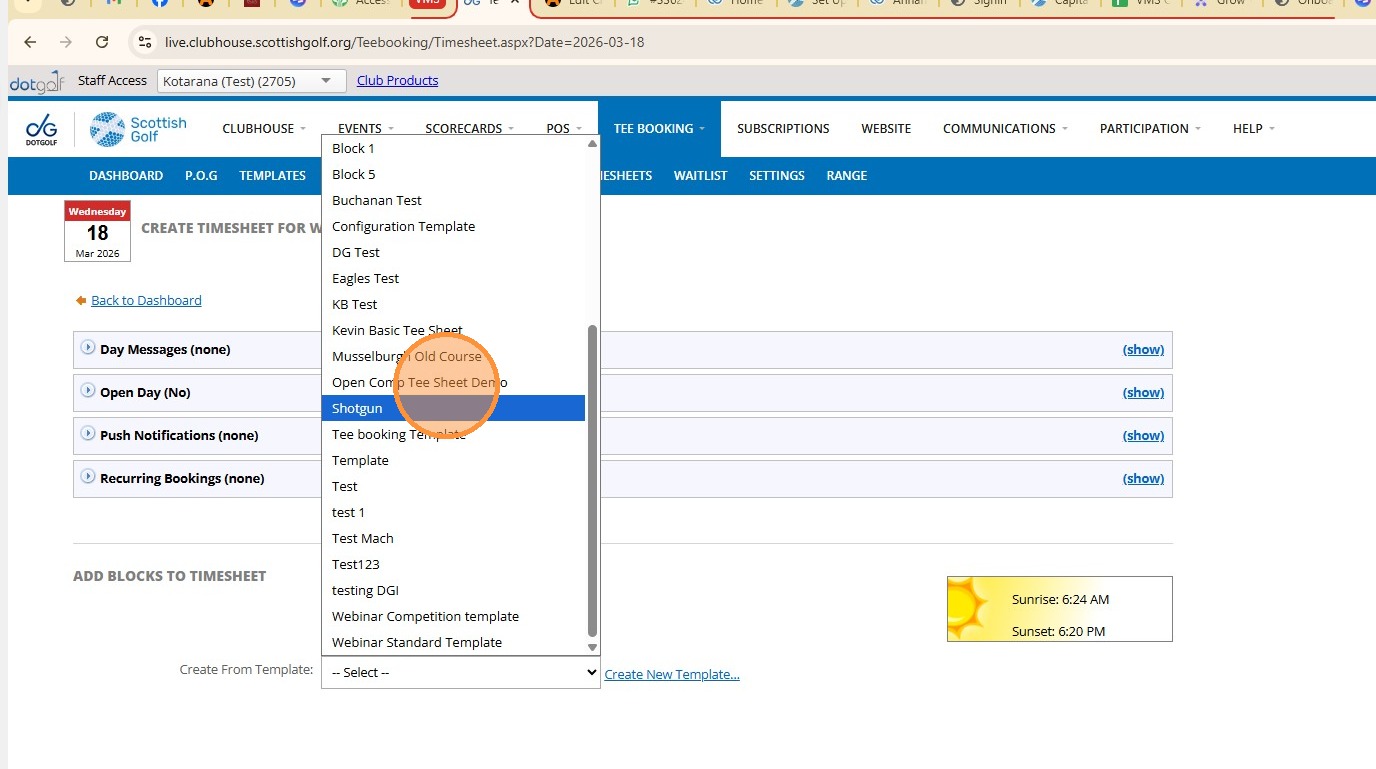
4. Select the relevant template
5. Click here to add a title to the Event - Please note that the characters re limited
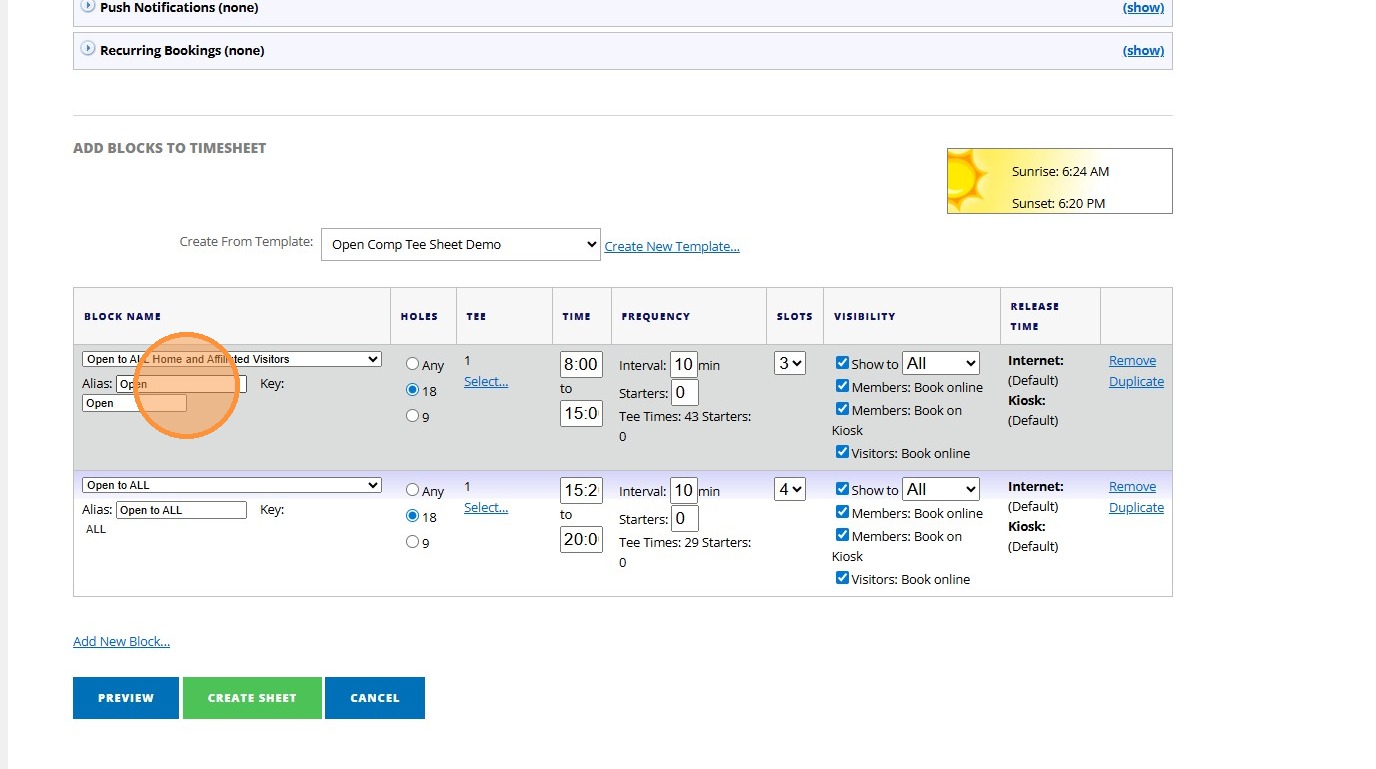
6. Click here
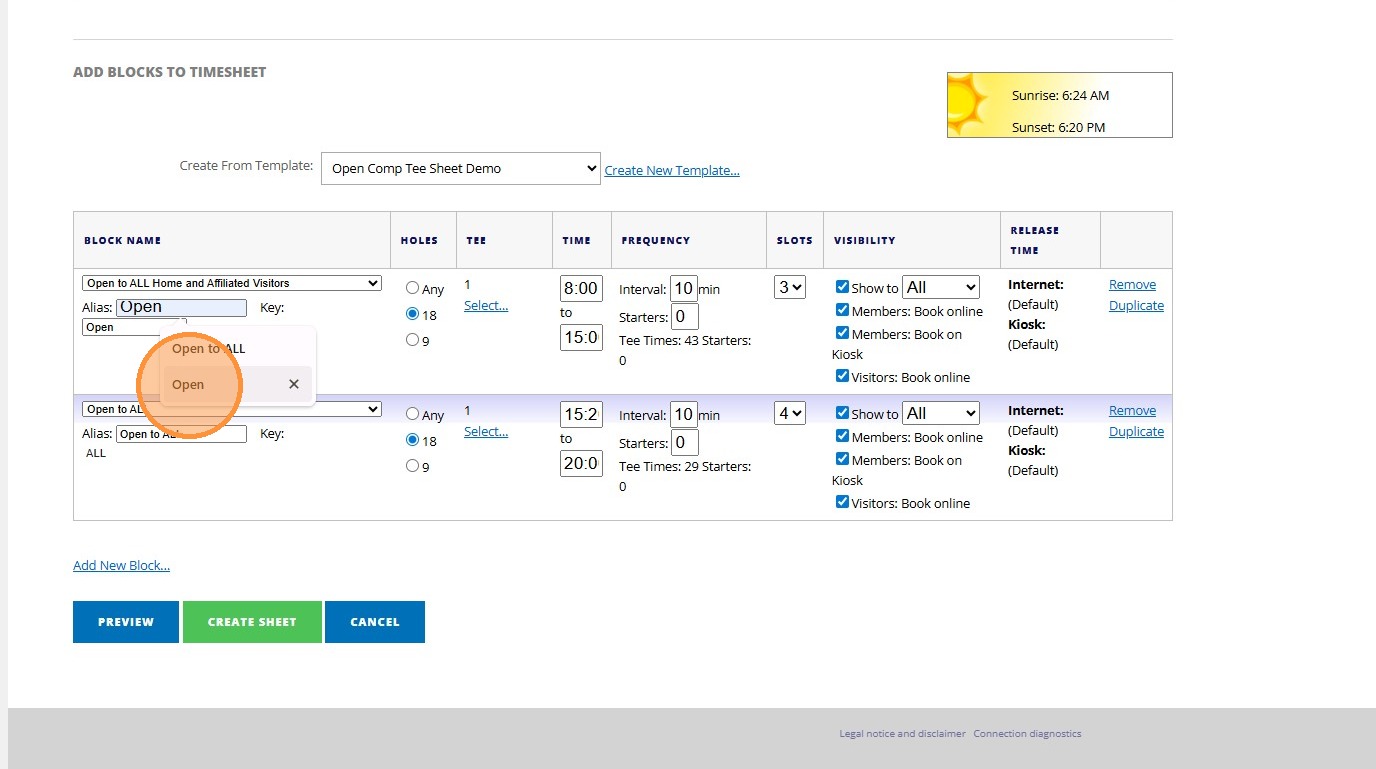
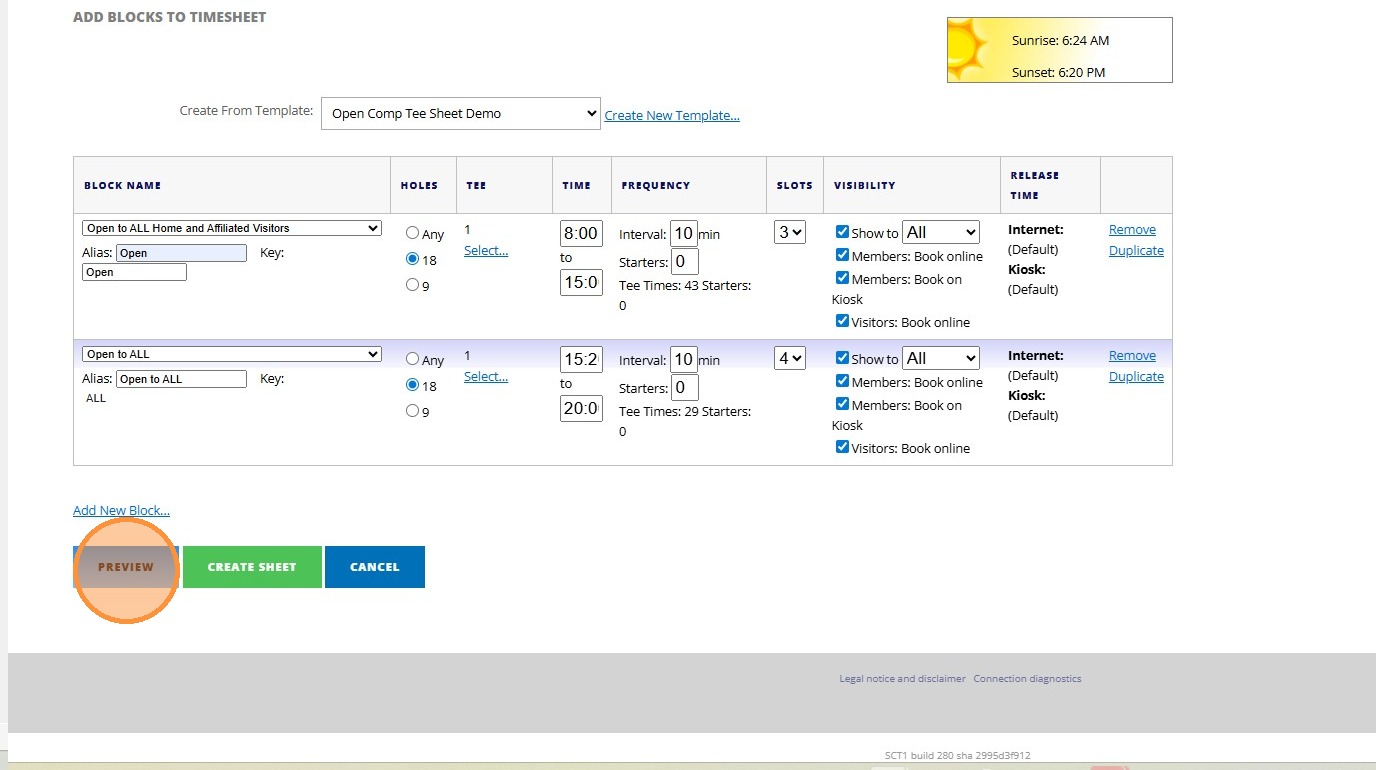
7. Click "Preview"
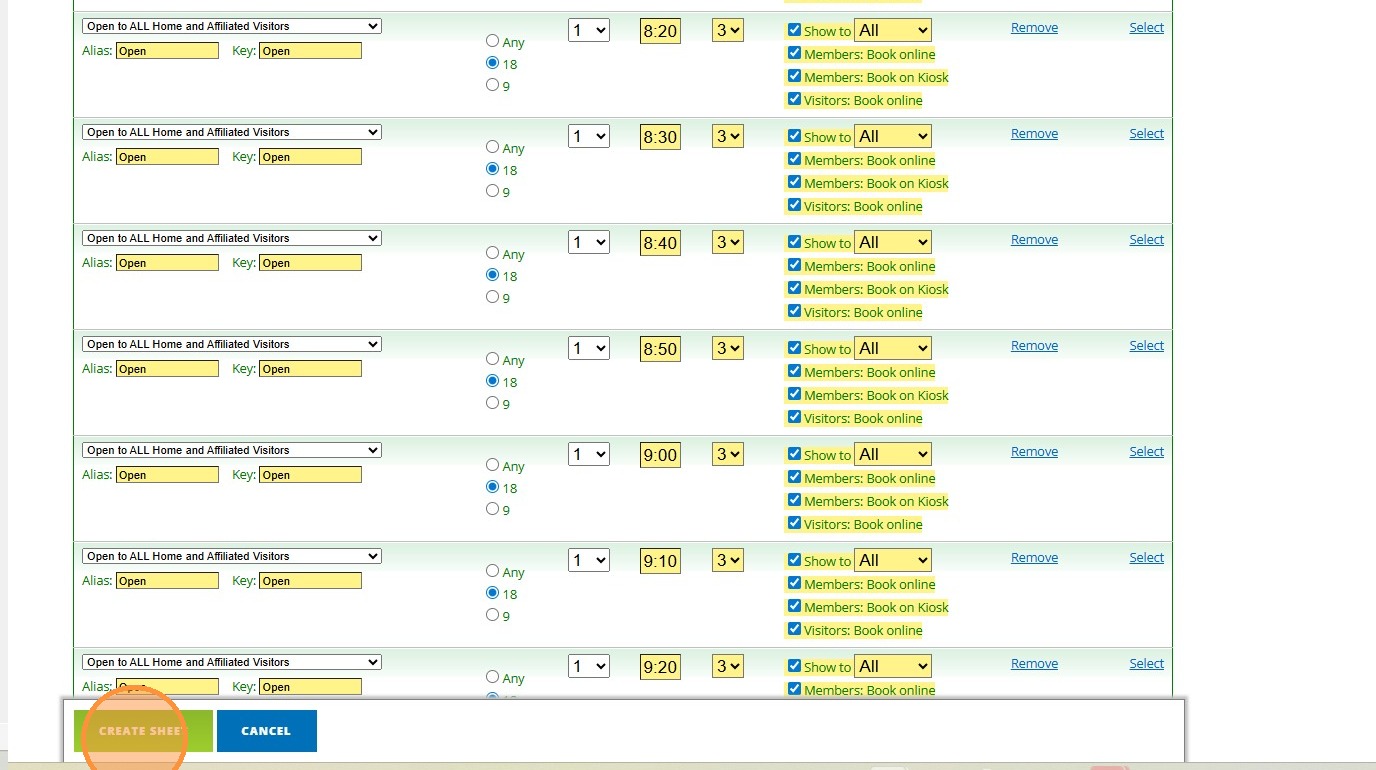
8. Click "Create Sheet"
9. Click "View Start Sheet"
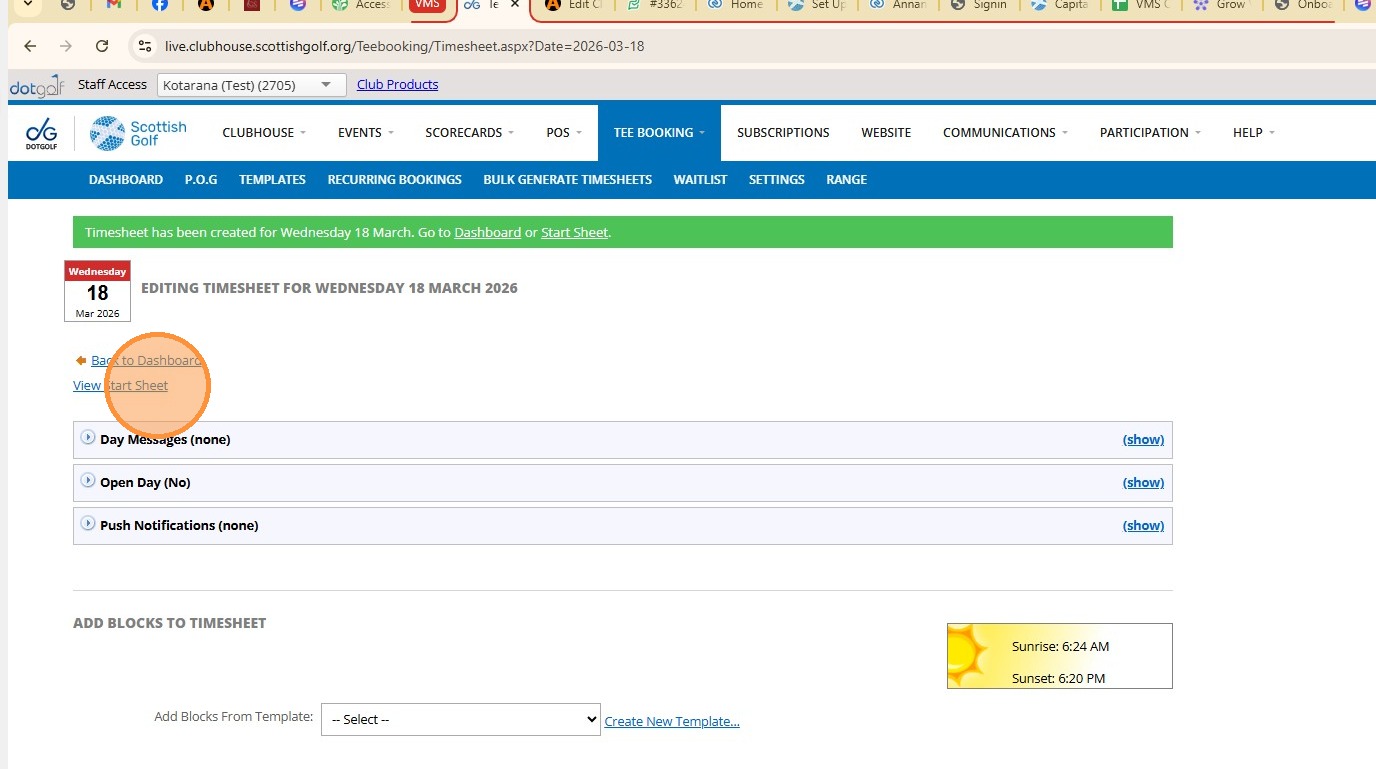
10. Click "Here" to set the Tee Sheet as an Open - This will allow bookings to be taken via the event Registration outwith the normal tee access settings
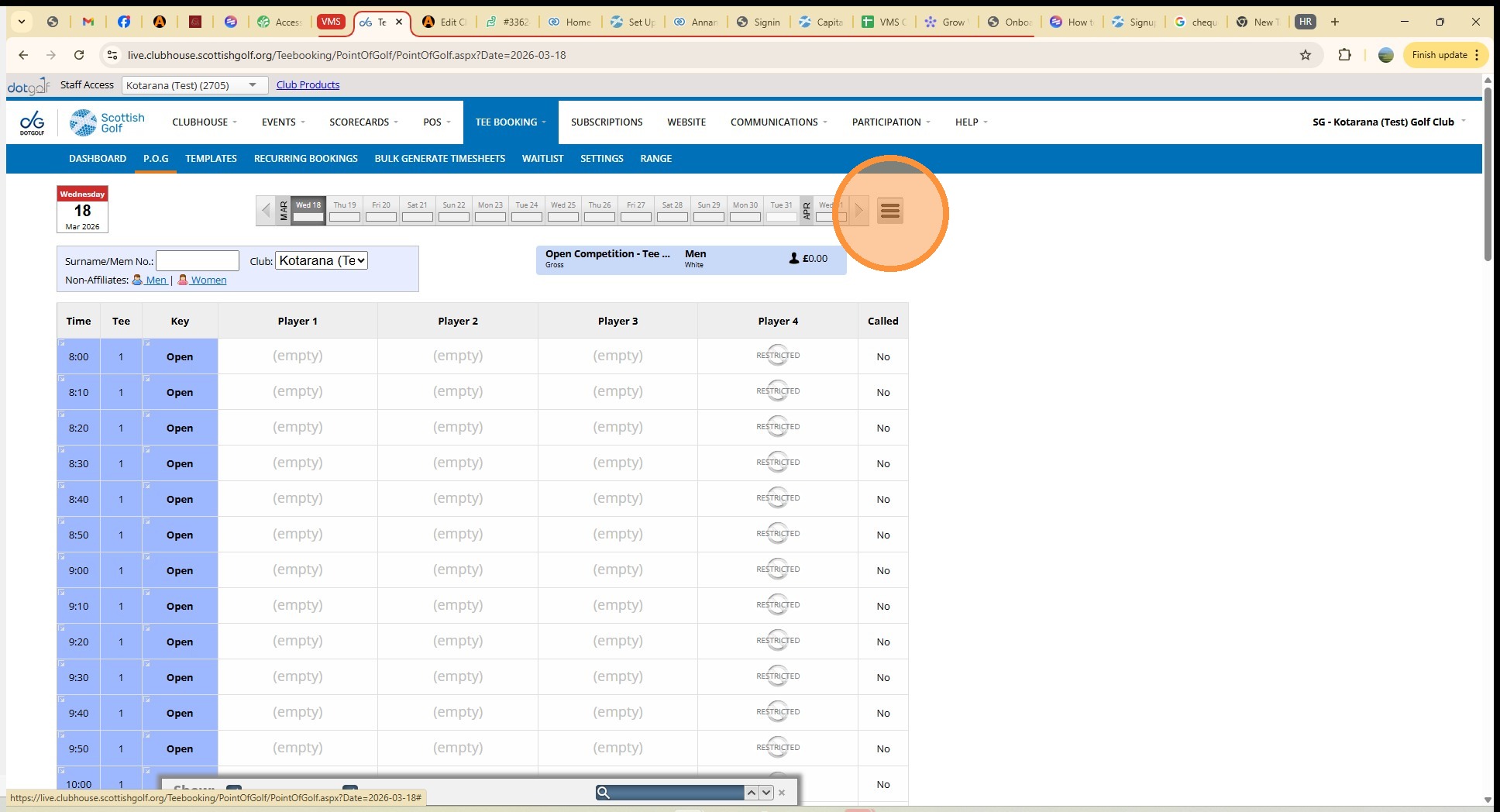
11. Click "Edit Timesheet"
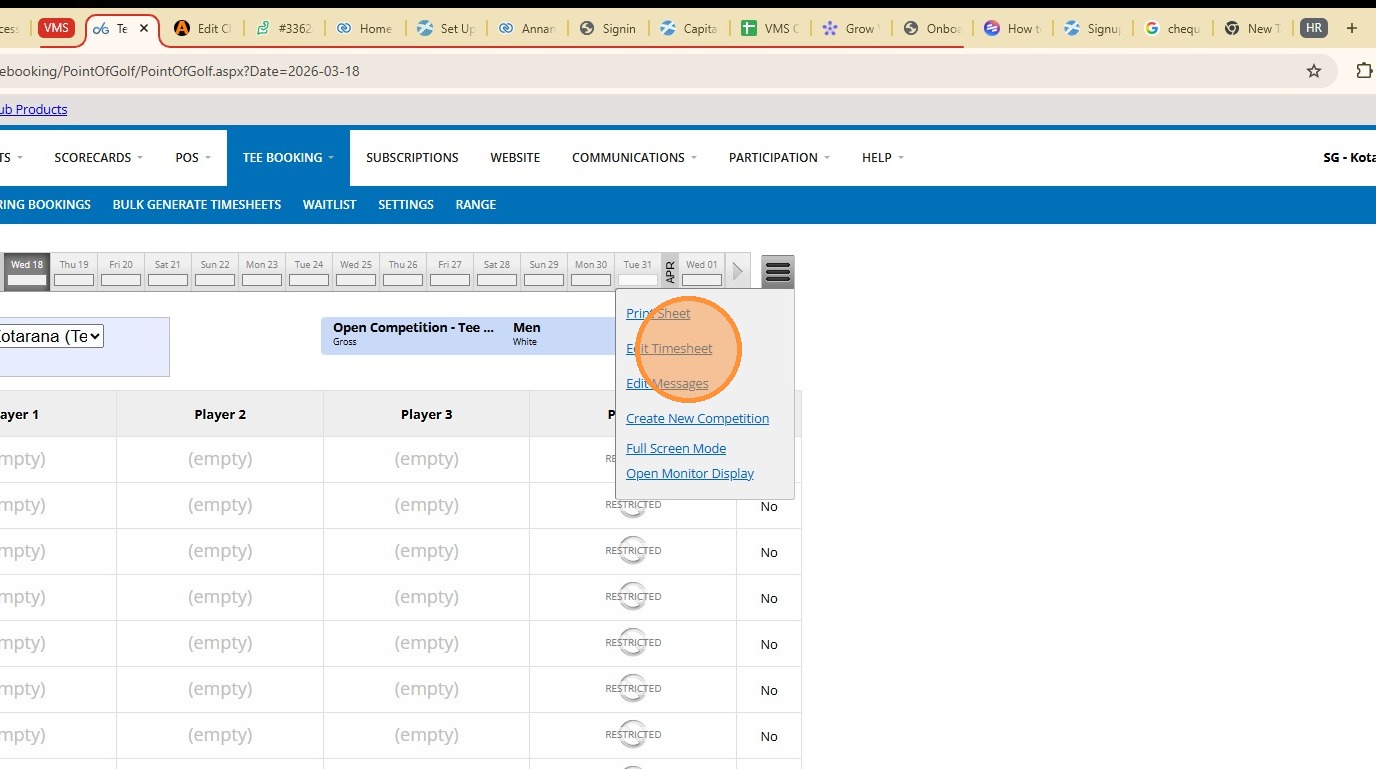
Tip: You can now Add a Tee Booking Message for Players or simply set the tee sheet as an Open
12. Click "(show)"
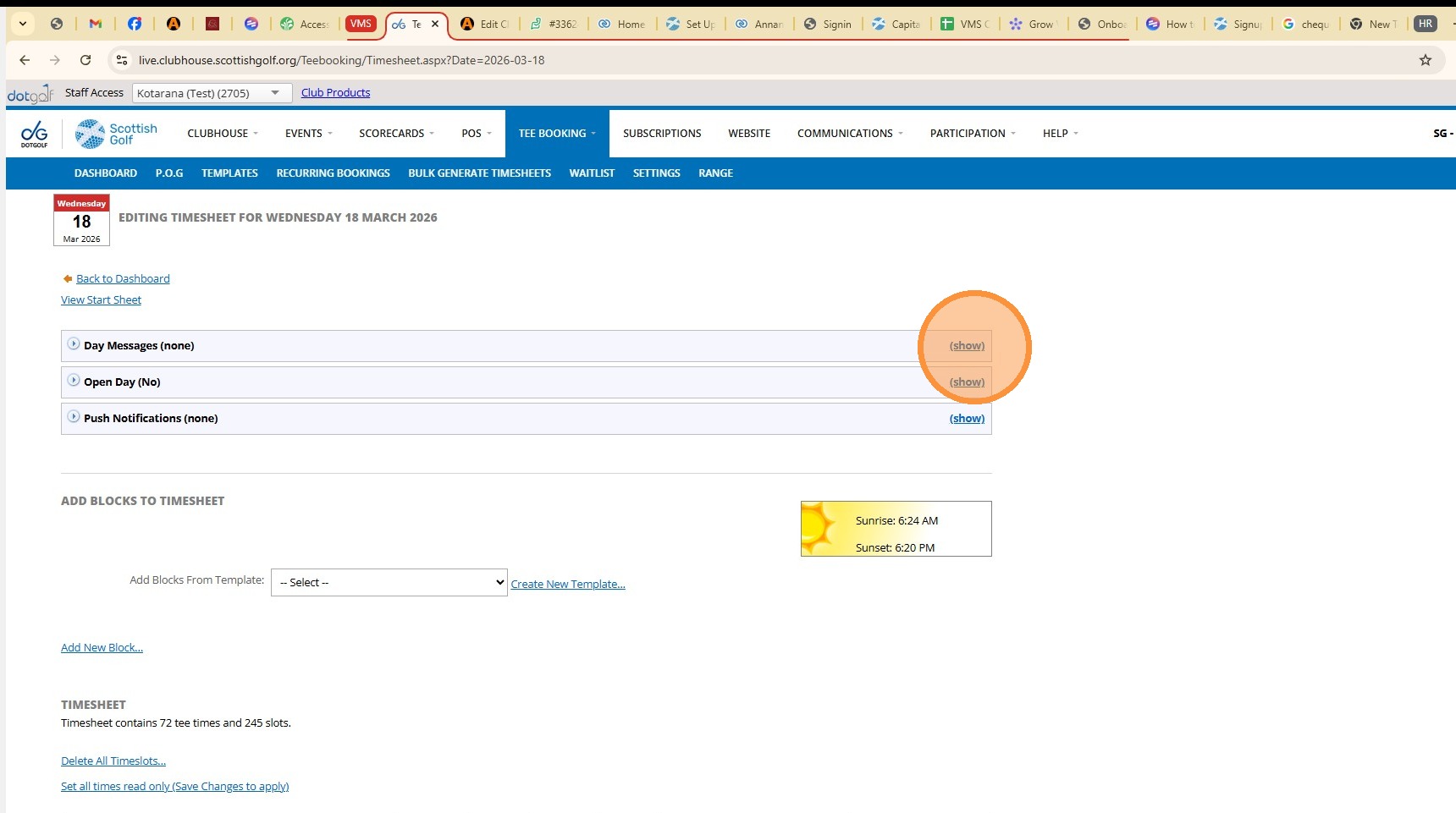
13. Click here to a message
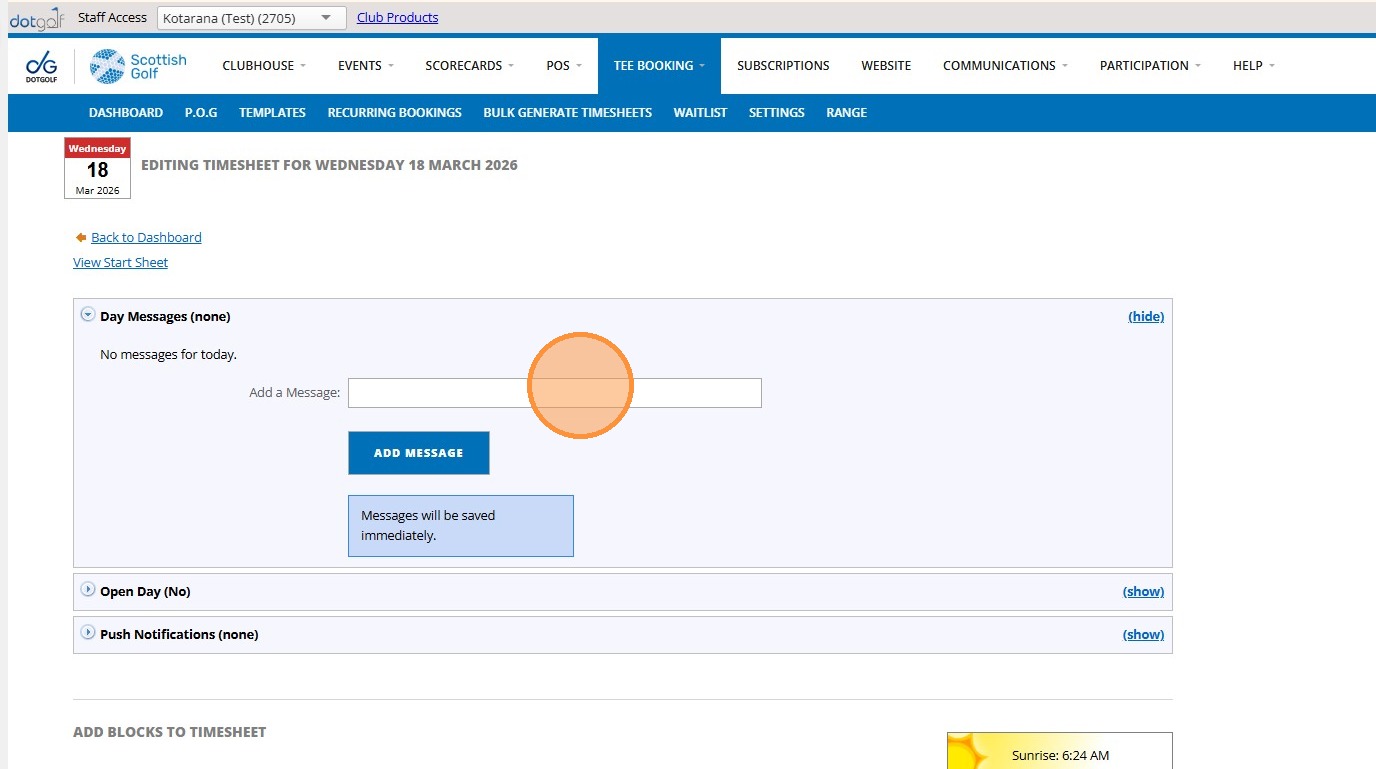
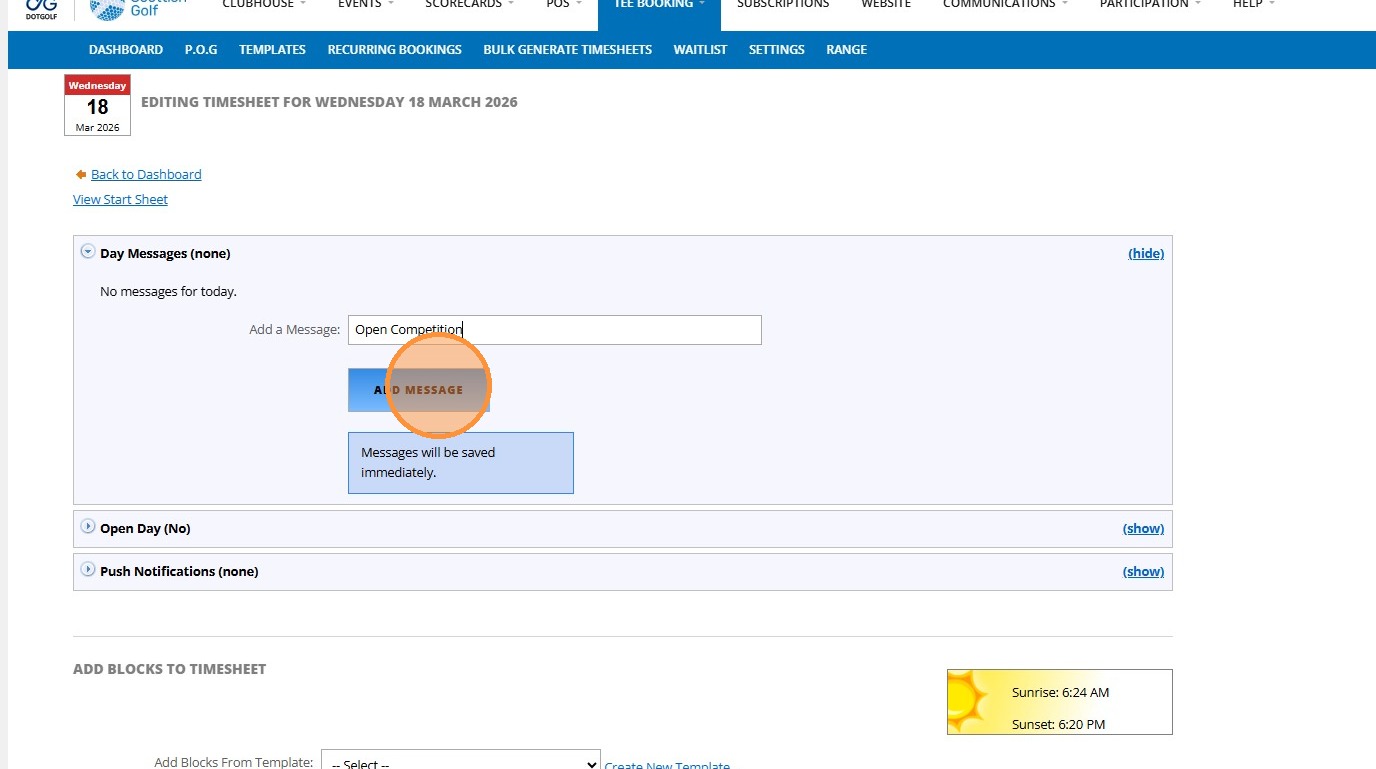
14. Click "Add Message"
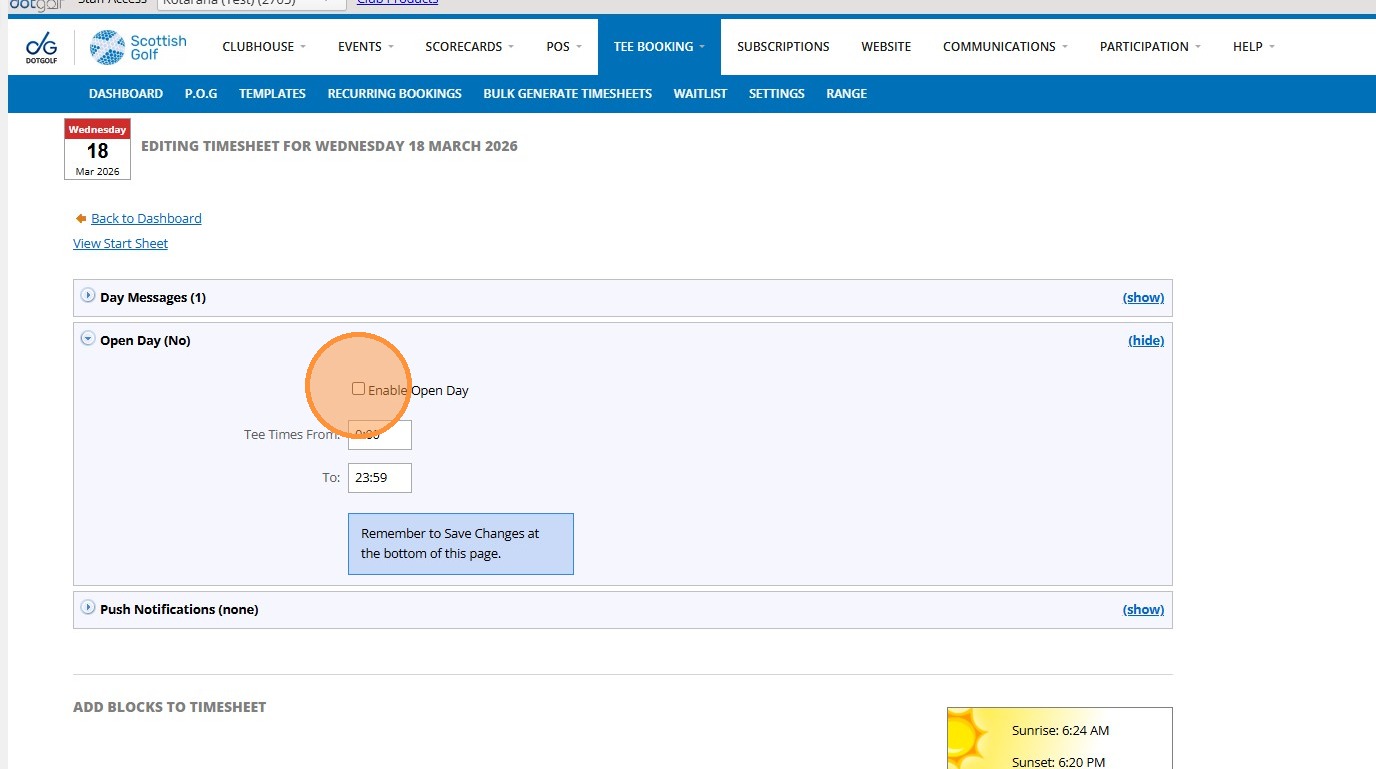
15. Click "Enable Open Day"
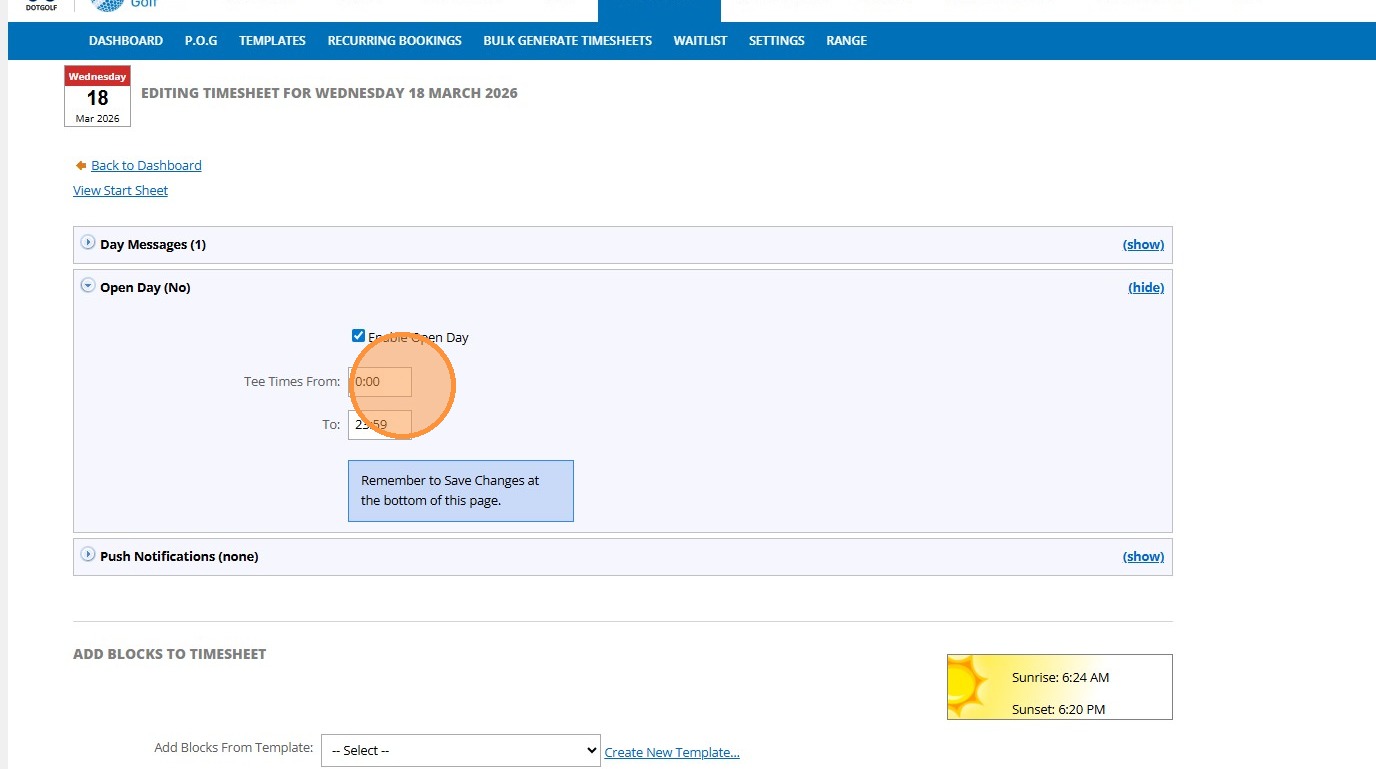
16. Click here to add the tee times to replicate the competition times in your set up. These time should match the tee booking sheet otherwise you may not see all bookabel times
17. Click "Save Changes"
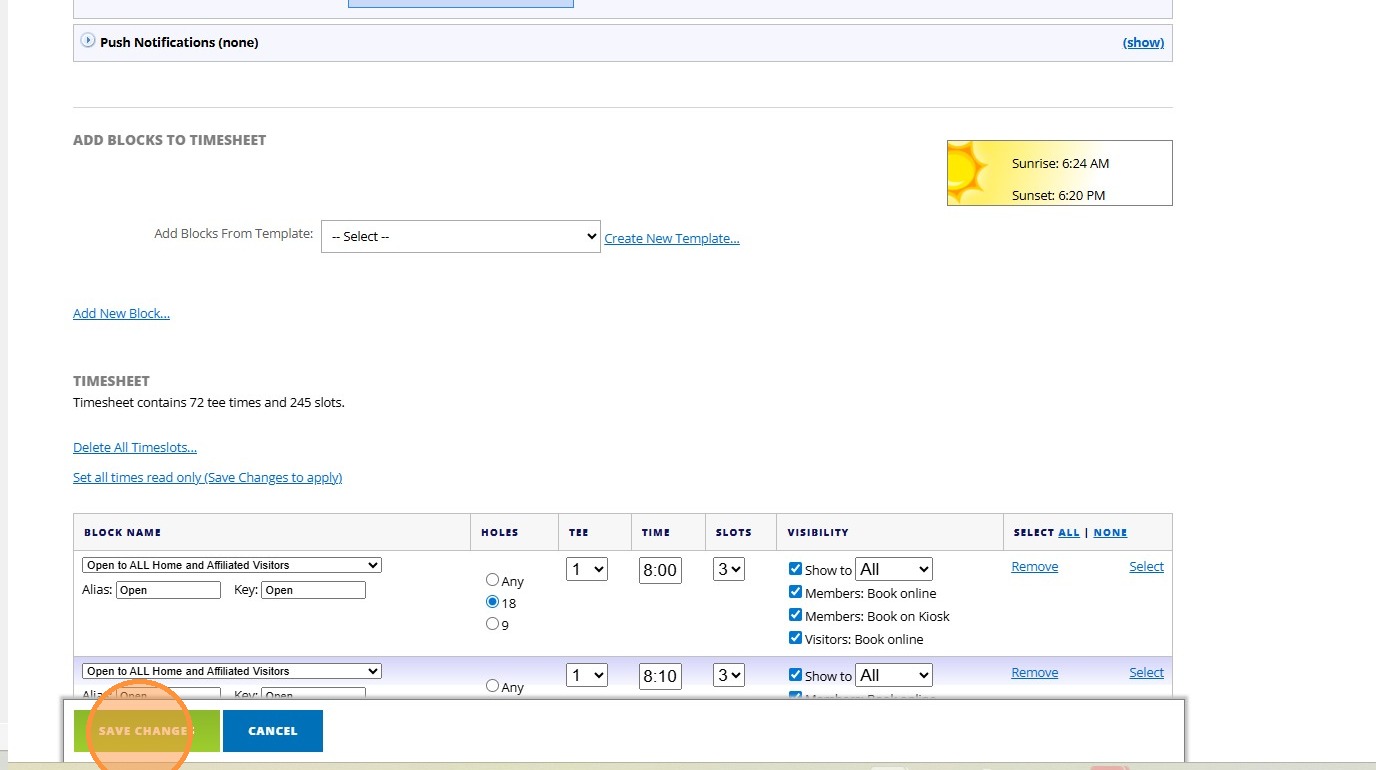
18. Now Click "TEE BOOKING" and select the day of the Competition
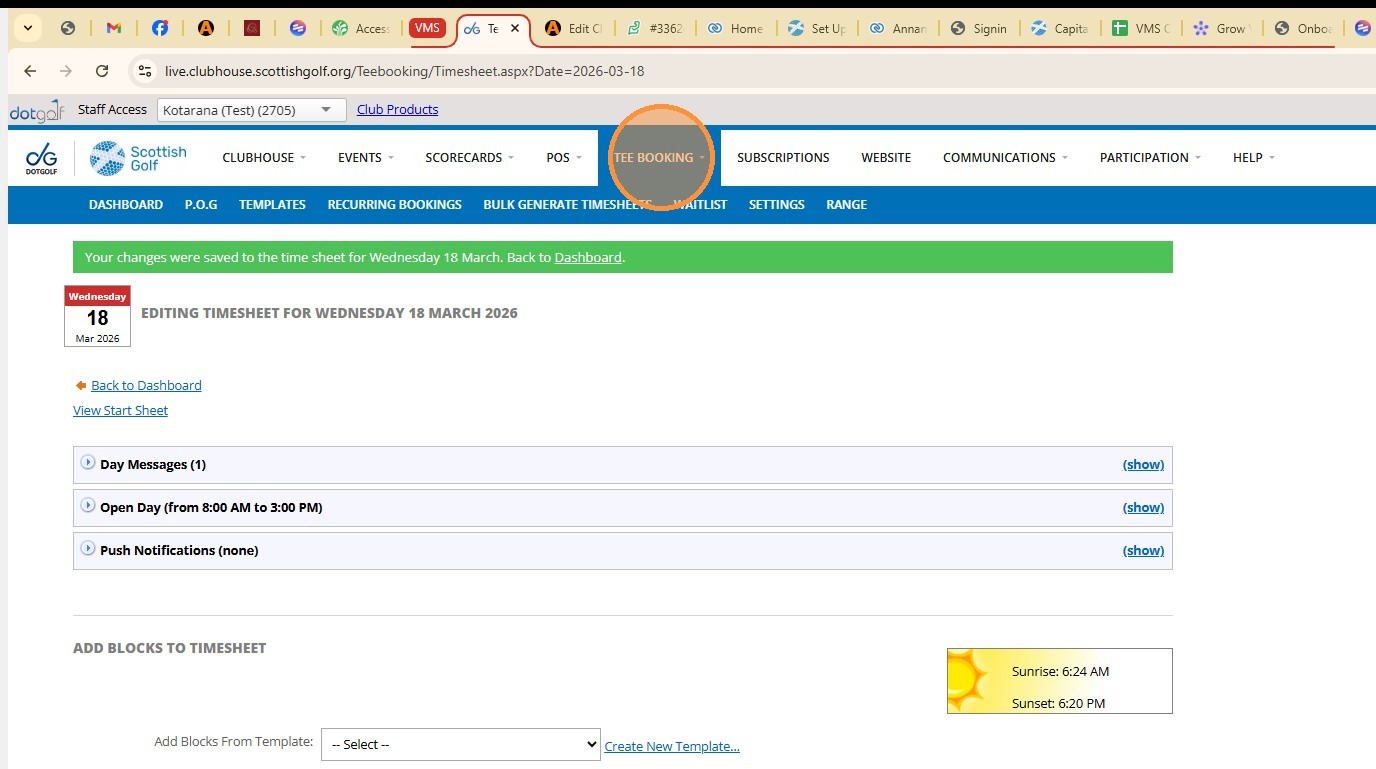
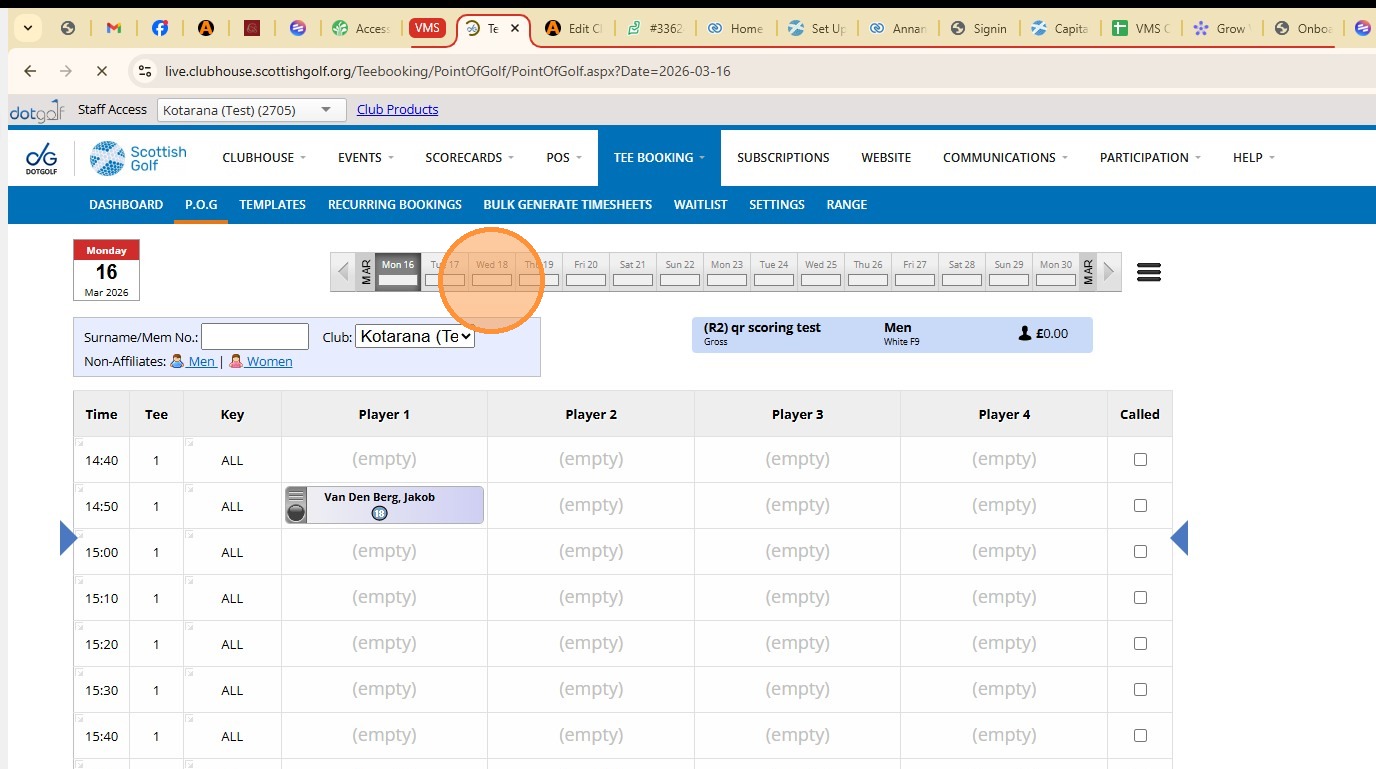
19. Click the relevant date
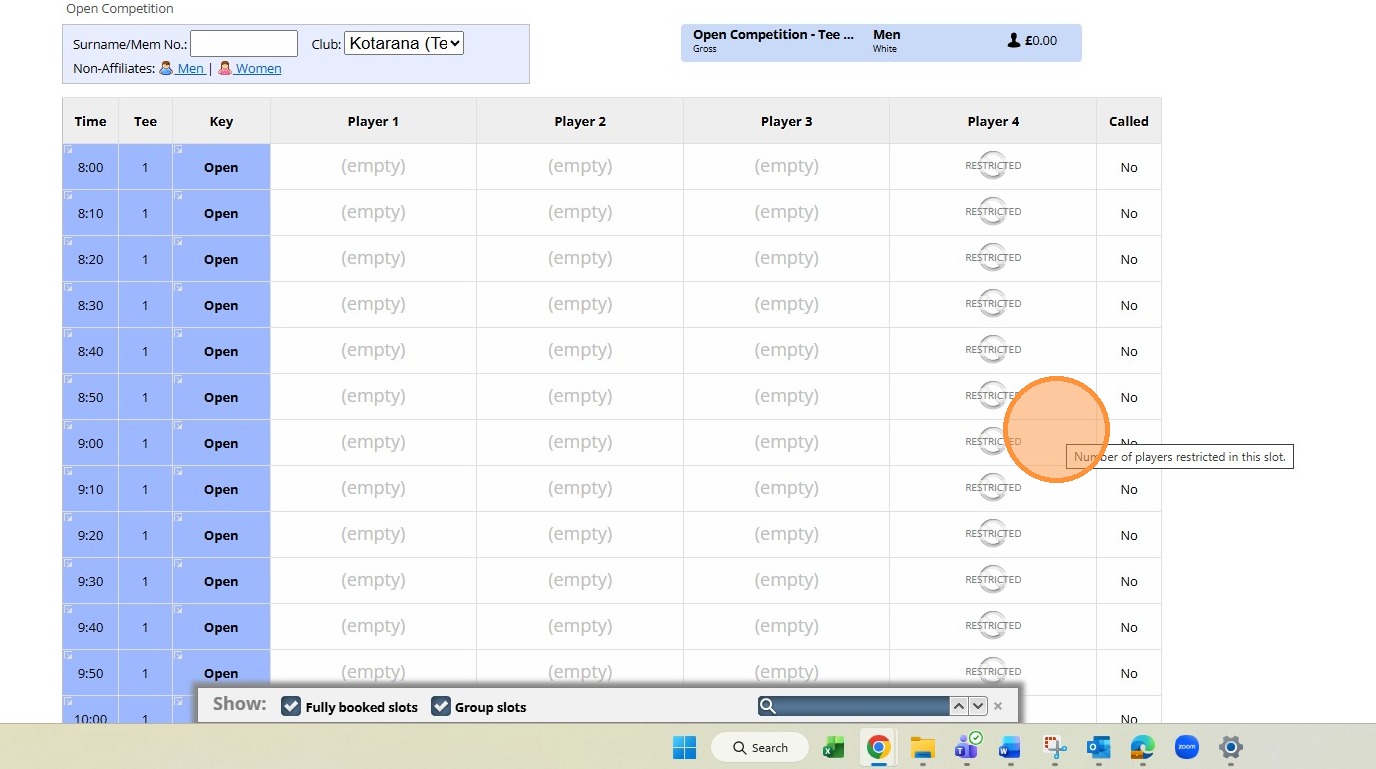
20. The Tee Booking Sheet is now updated and has the Open label and 3 spaces as per the set up
Related Articles
Create a Basic Tee Booking Template
1. Click "TEMPLATES" with your Tee Booking tab 2. Click on New Template 3. Type in your Template name and click the highlighted drop down to select your Tee booking restrictions. 4. Select which Tees you'd like to create times for. Please note if you ...How to set your Tee sheet to open in advance
1. Click "TEE BOOKING" 2. Click "SETTINGS" 3. To change the amount of days in advance your tee sheet is released please change the figure within the "Release Day" field. 4. Click the "Release Time" dropdown to select if the Tee sheet is going to open ...How to Publish an Open Competitions to SG Website for Non VMS using clubs
How to Publish an Open Competitions to SG Website for Non VMS using clubs 1. Navigate to https://live.clubhouse.scottishgolf.org/ 2. Click "EVENTS" 3. Select the date of the Open Competition 4. On the specific date, select "New" 5. Enter the name of ...How to Create a Shotgun Start Template
1. Go to the day you wish to apply the template with your Tee Booking > P.o.G 2. Click "Create Timesheet" 3. Click "Create New Template..." 4. Give your template a name that will indicate it's set up for each time you wish to apply it. Here we've ...Setting up range or other facility booking
1. Click "SETTINGS" 2. Click "Range Booking Settings" 3. Double check your master Range settings to ensure you are generate the correct number of bays/facilities. 4. Note I've changed this to only create 2 bays instead of the pre-set 5. "Save ...