Generate and Return Scorecard in Back Office For Non-Counting Competition
1. In Player Registration Navigate to Generate Scorecard
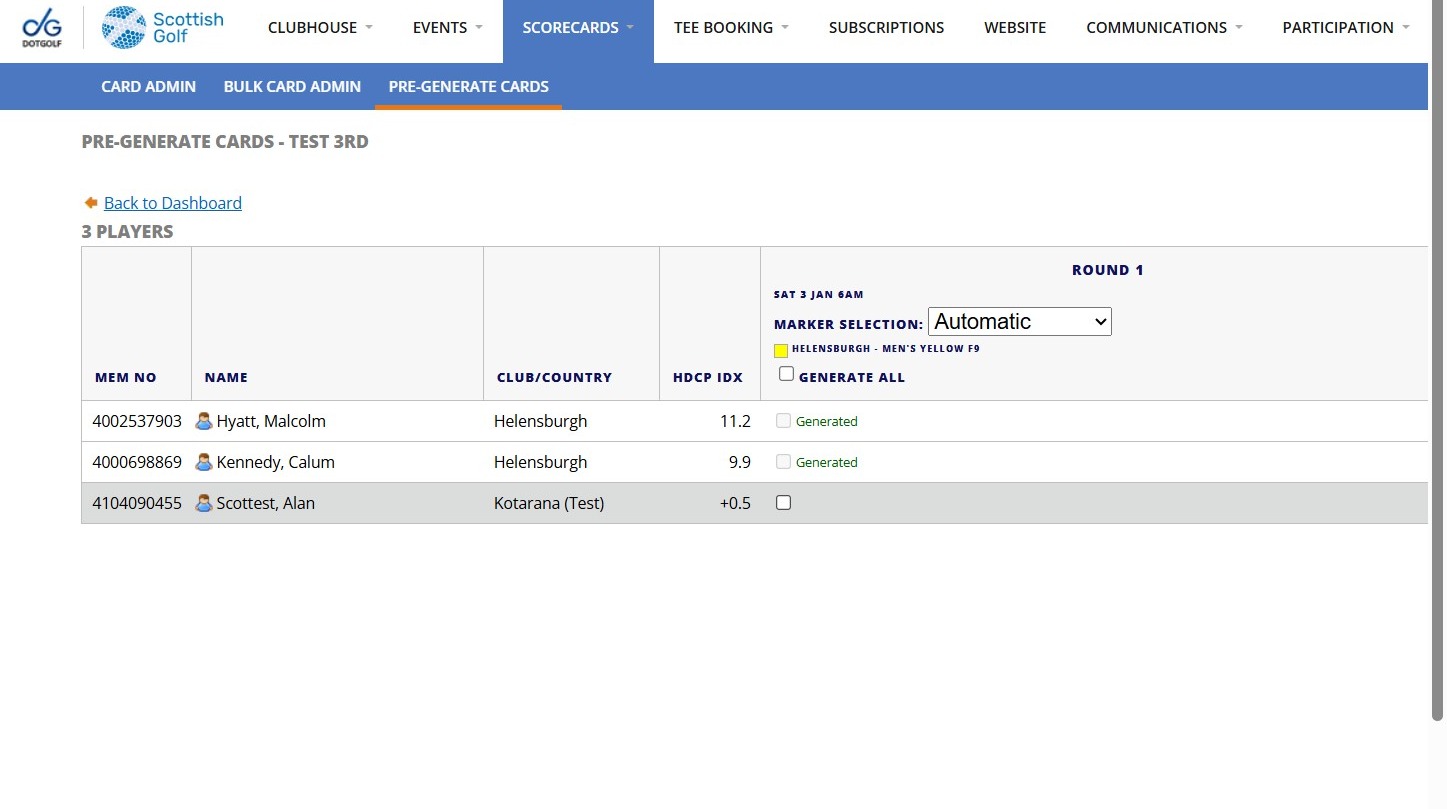
2. Click this checkbox to generate the players scorecard for the competition.
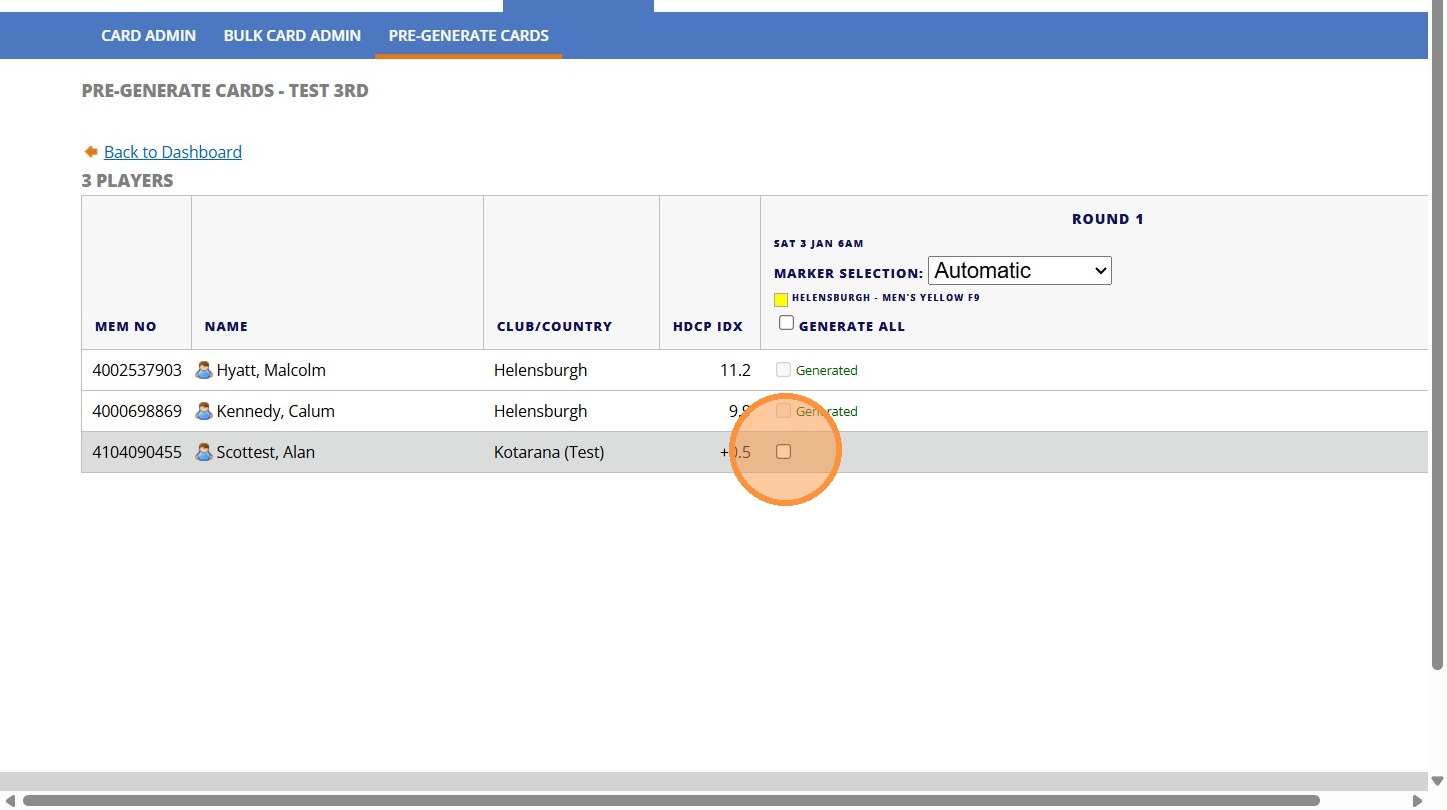
3. Click "Generate Cards"
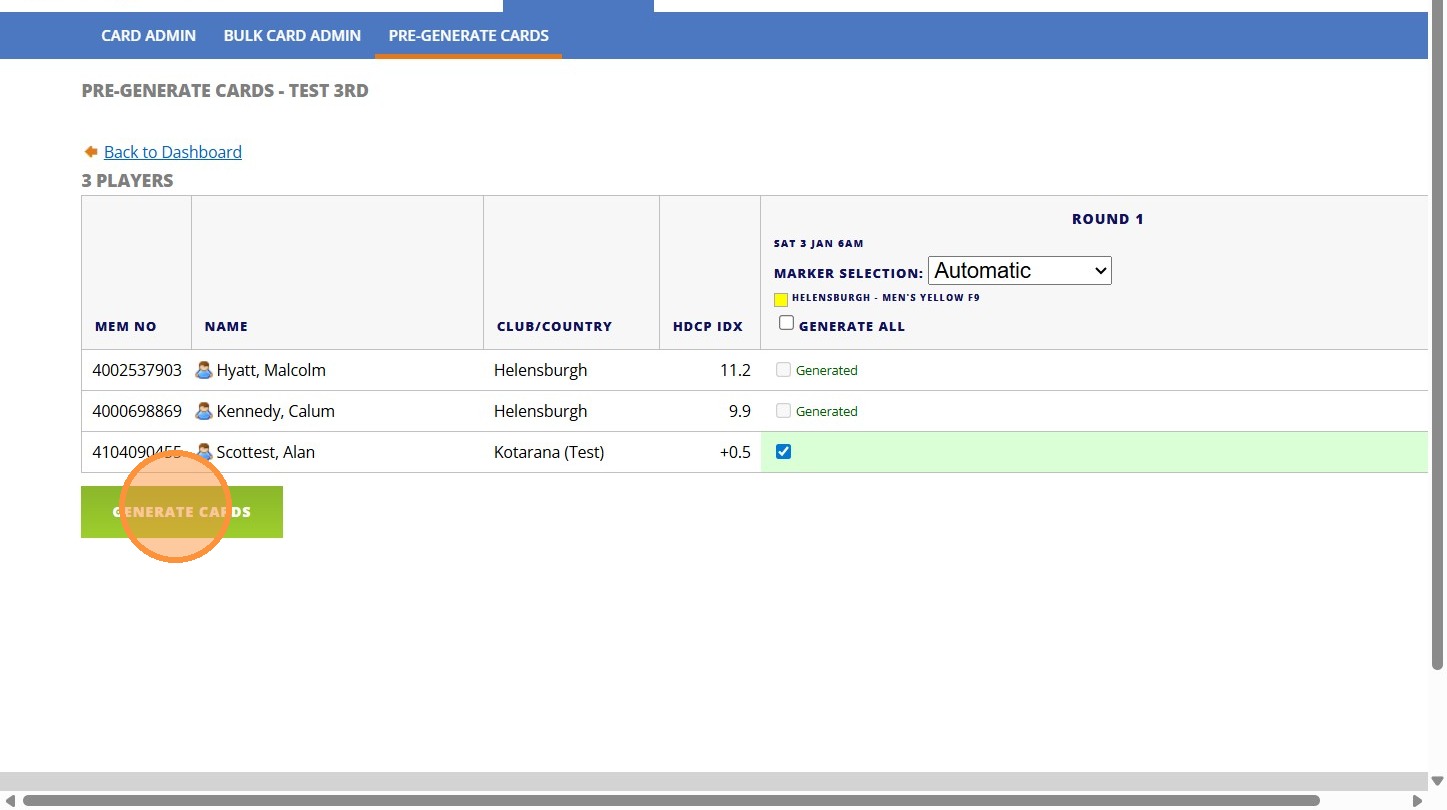
4. Click this button.
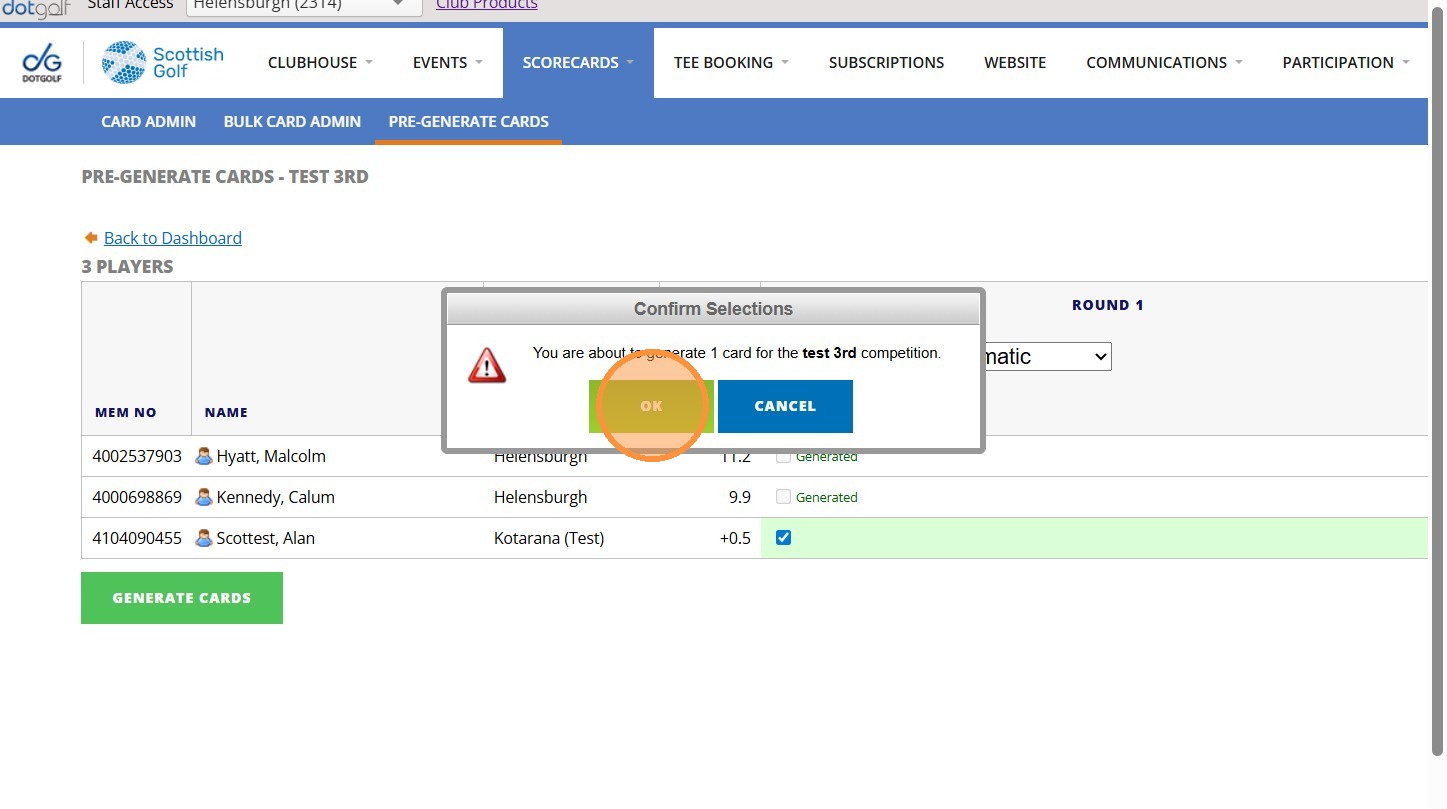
5. Click "Generate Cards"
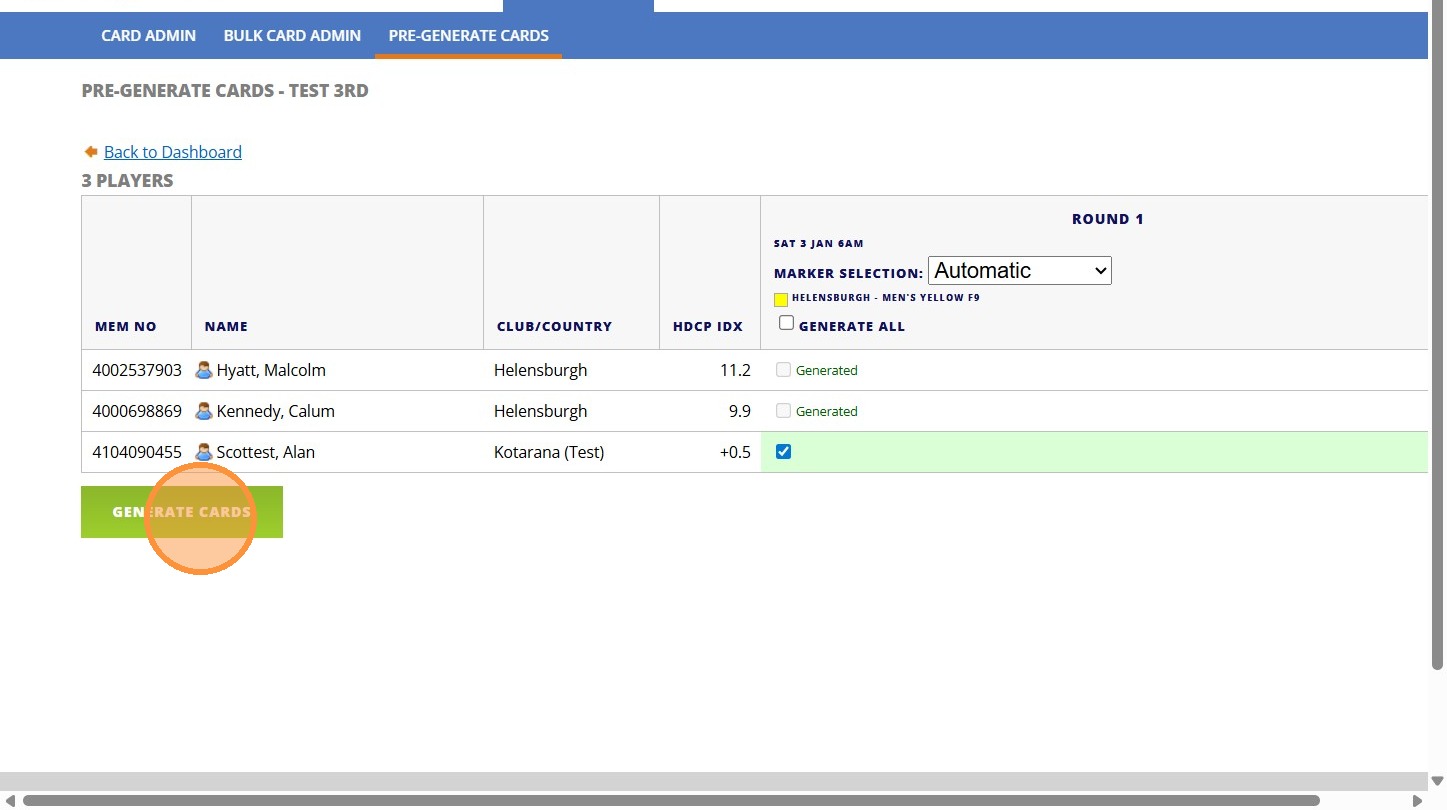
6. Click this button field.
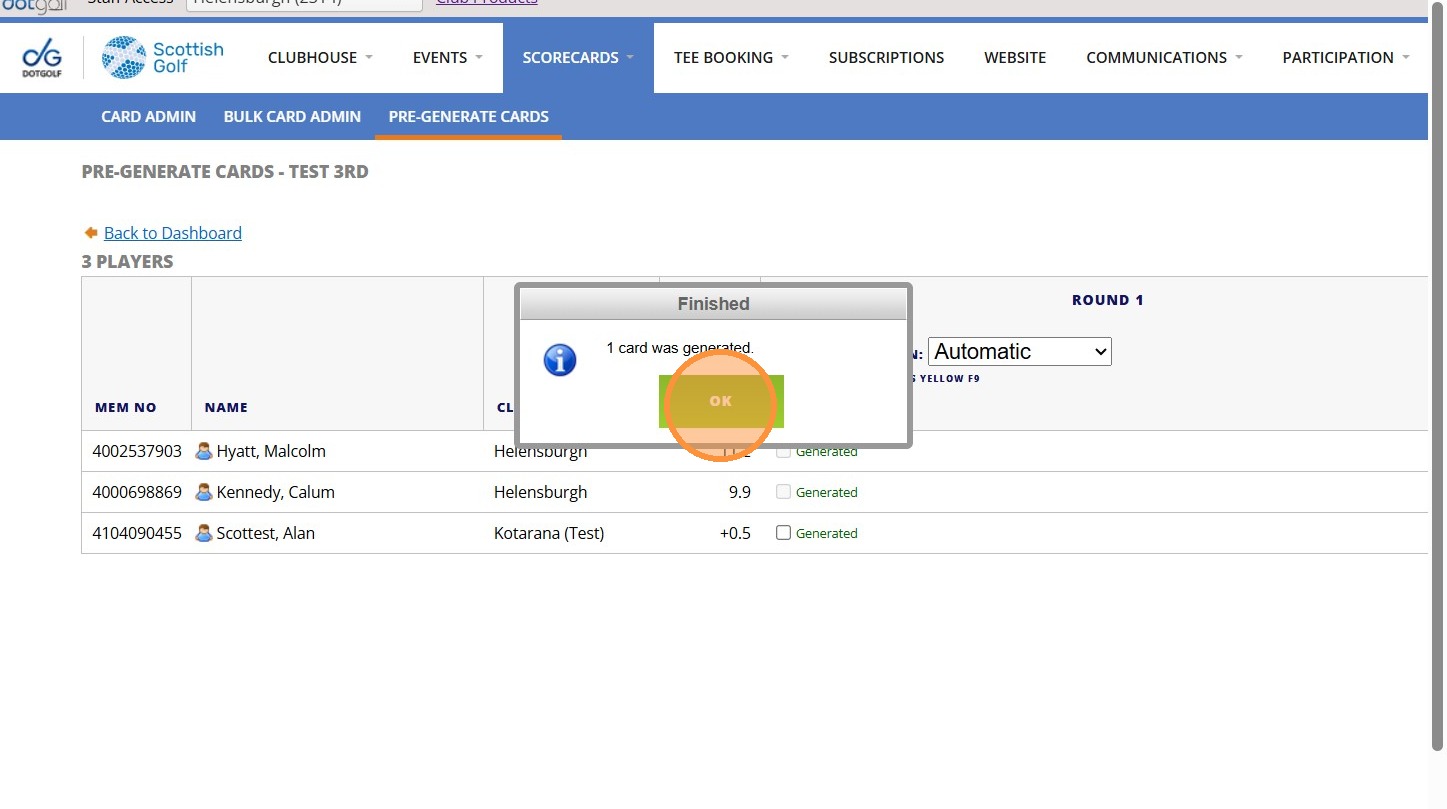
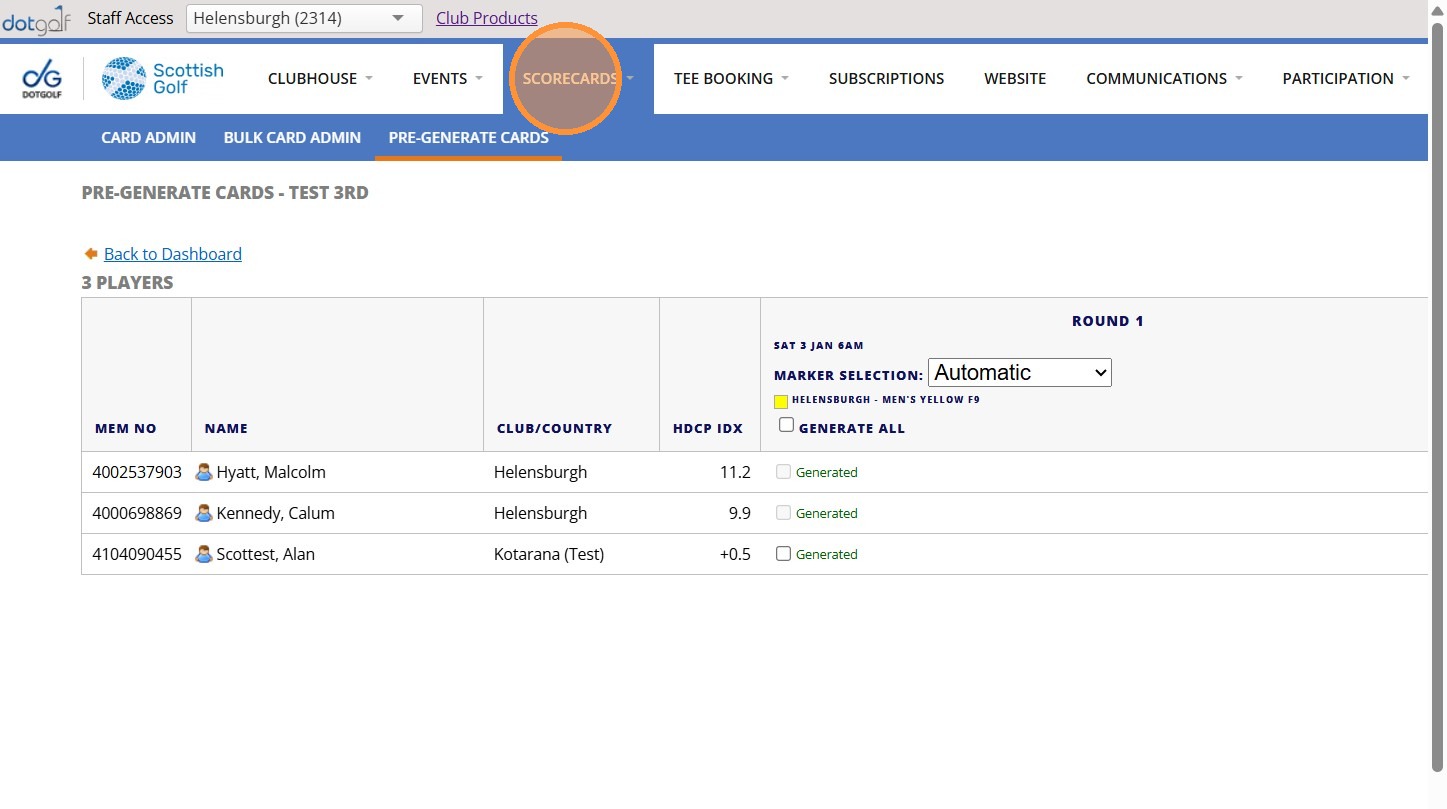
7. Now Click "Scorecards"
8. Change the date to the day of the competition
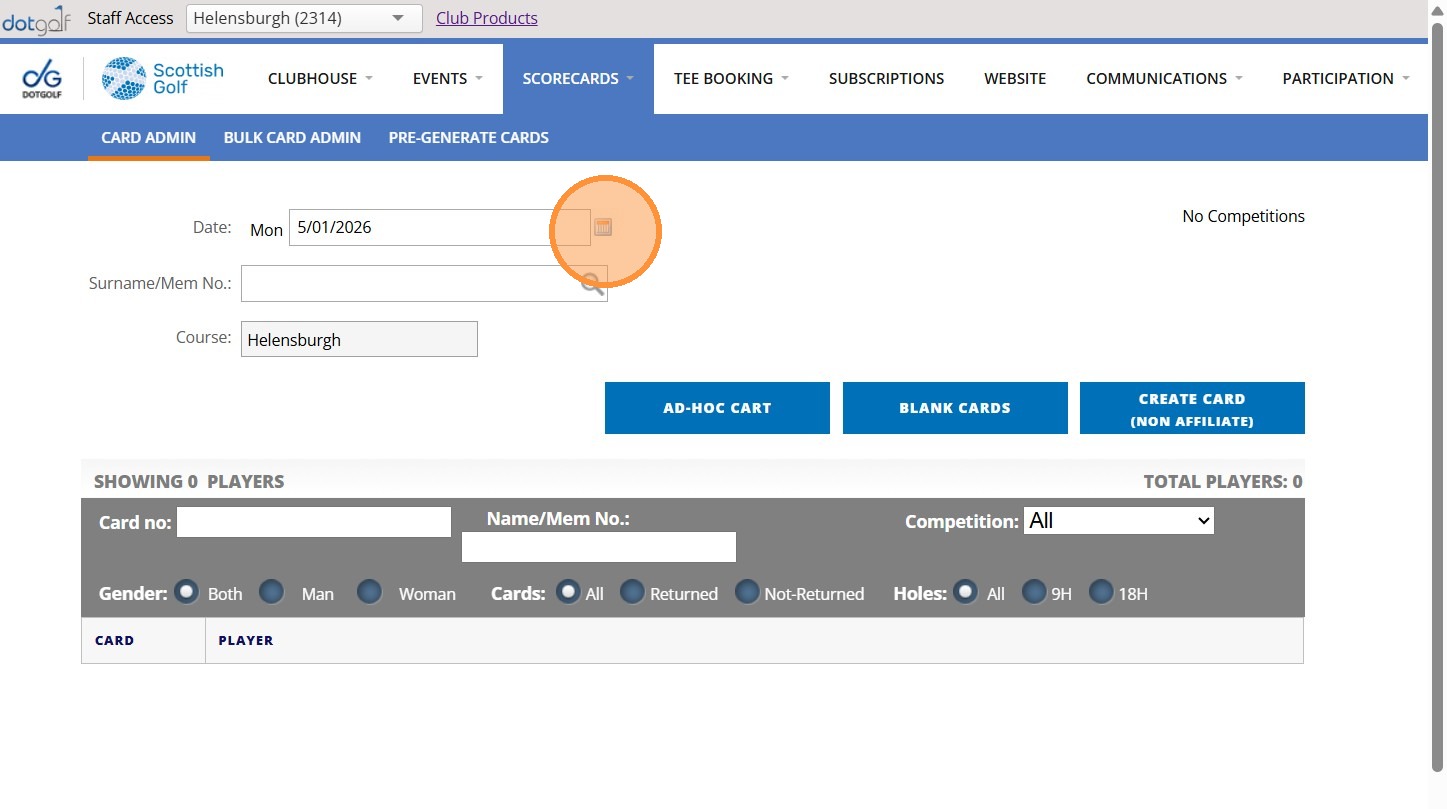
9. Select the competition date
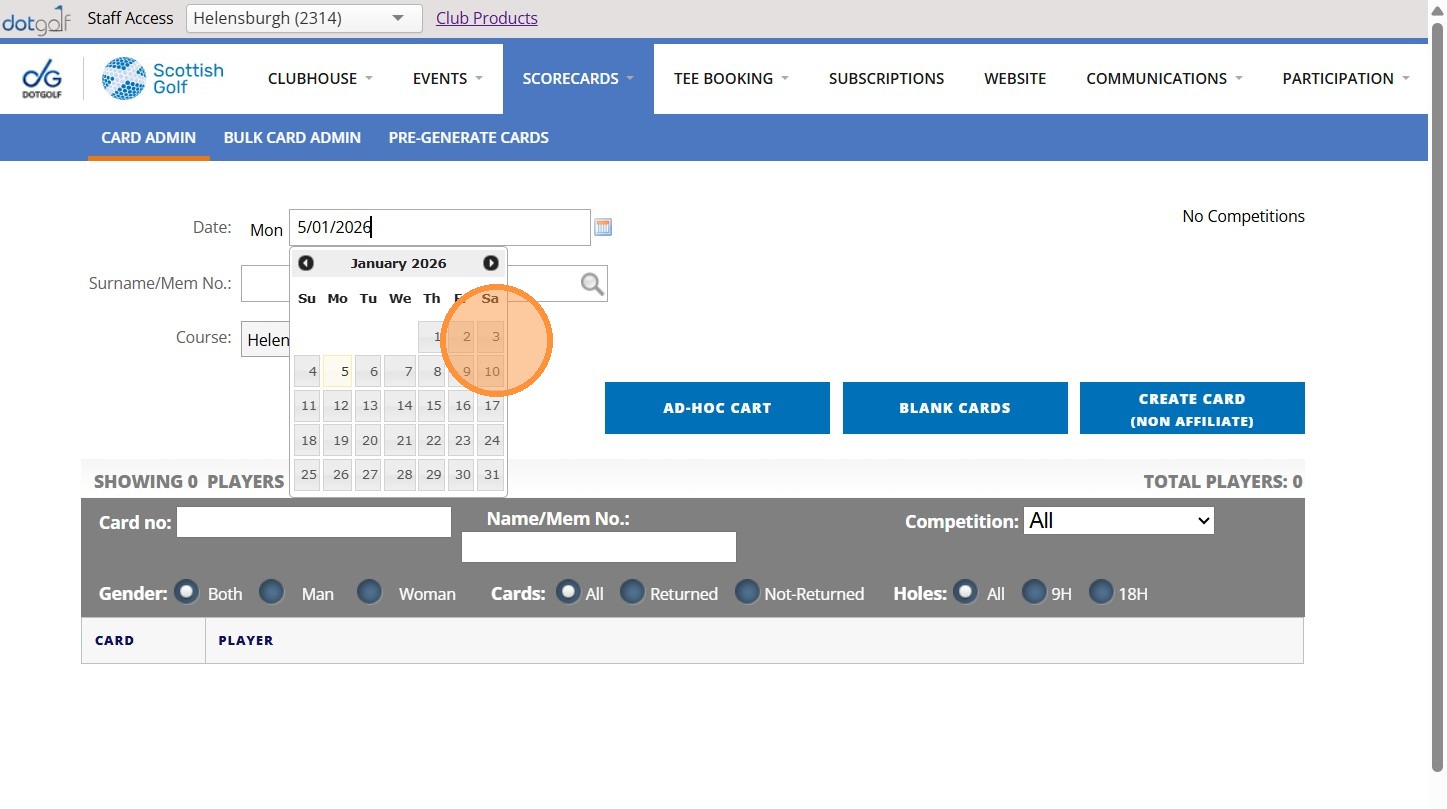
10. This will display all scorecards generated for that day - The card number in Black is the card that was generated for the purpose of this test. Note the number and then select "Clubhouse"
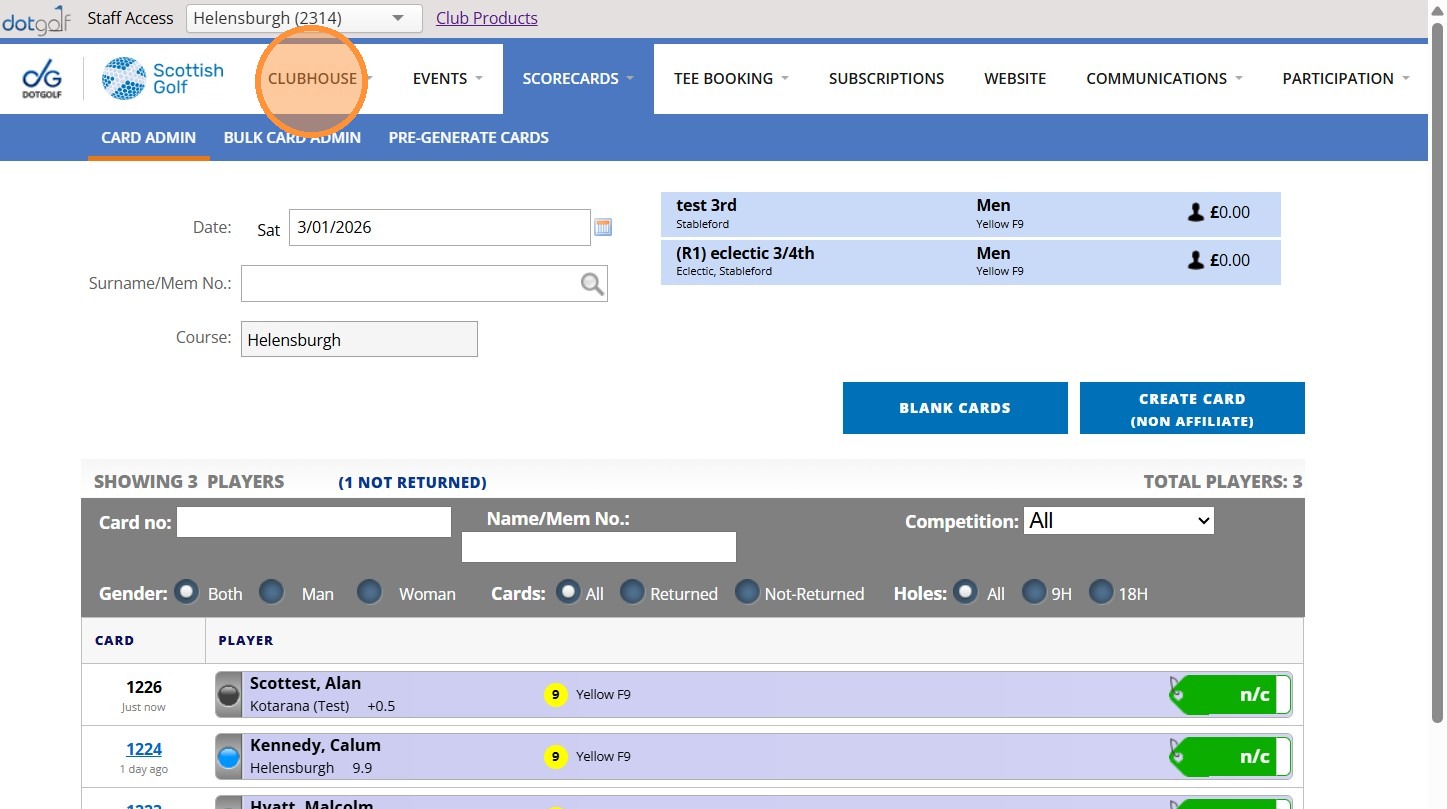
11. Click "Scores"
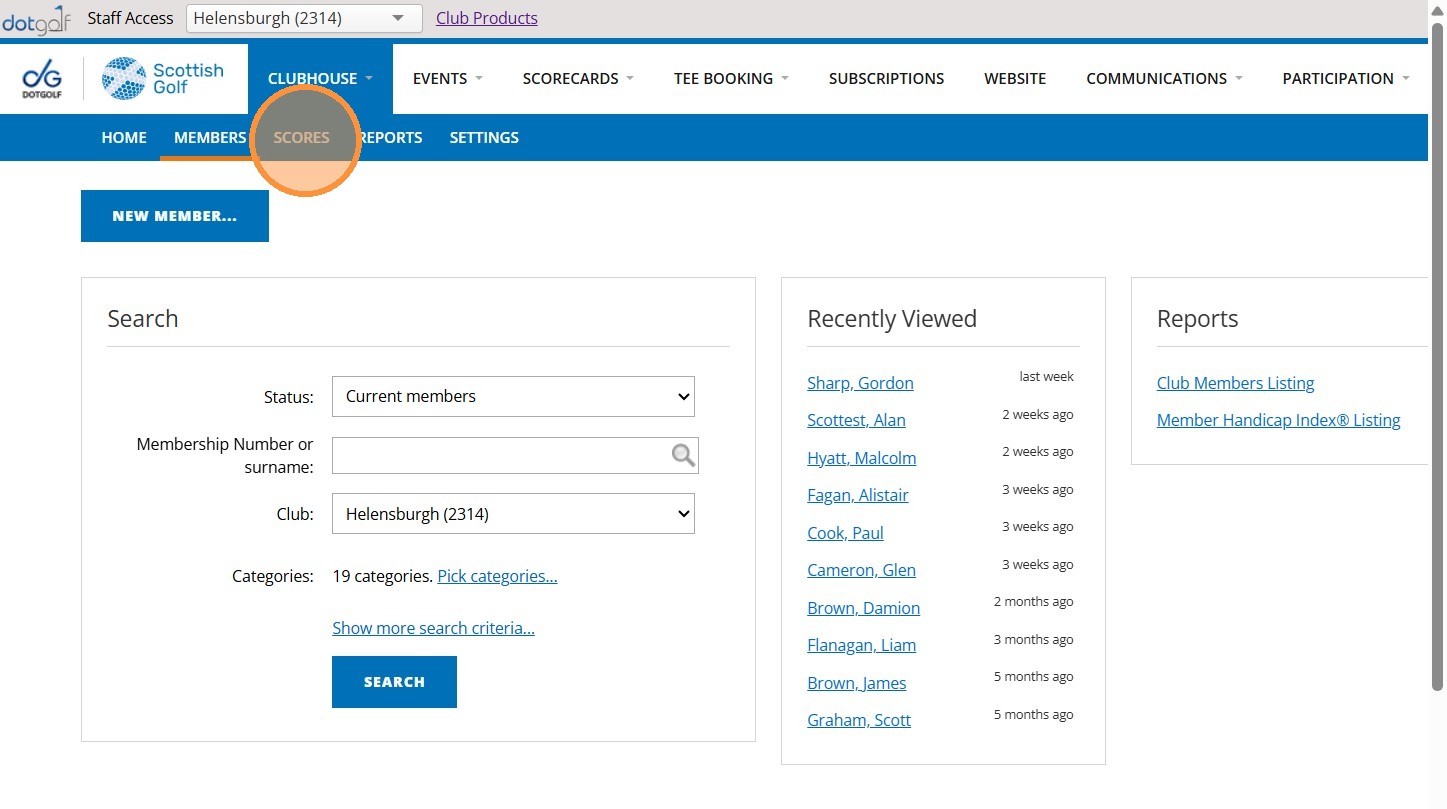
12. Click this dropdown and select "Card No".
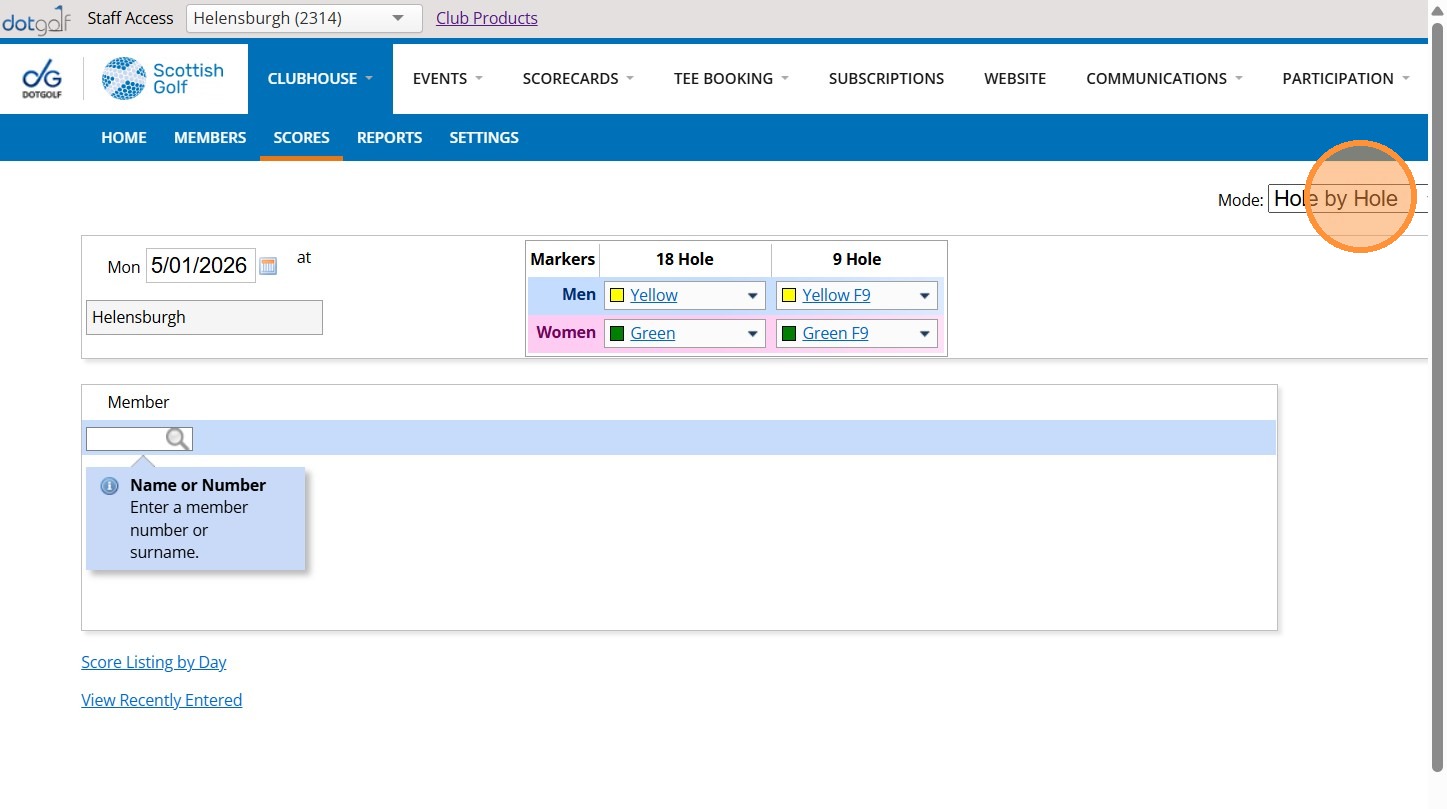
13. Enter the scorecard Number in the box - The scorecard will appear. Enter the hole scores and Click "Save"
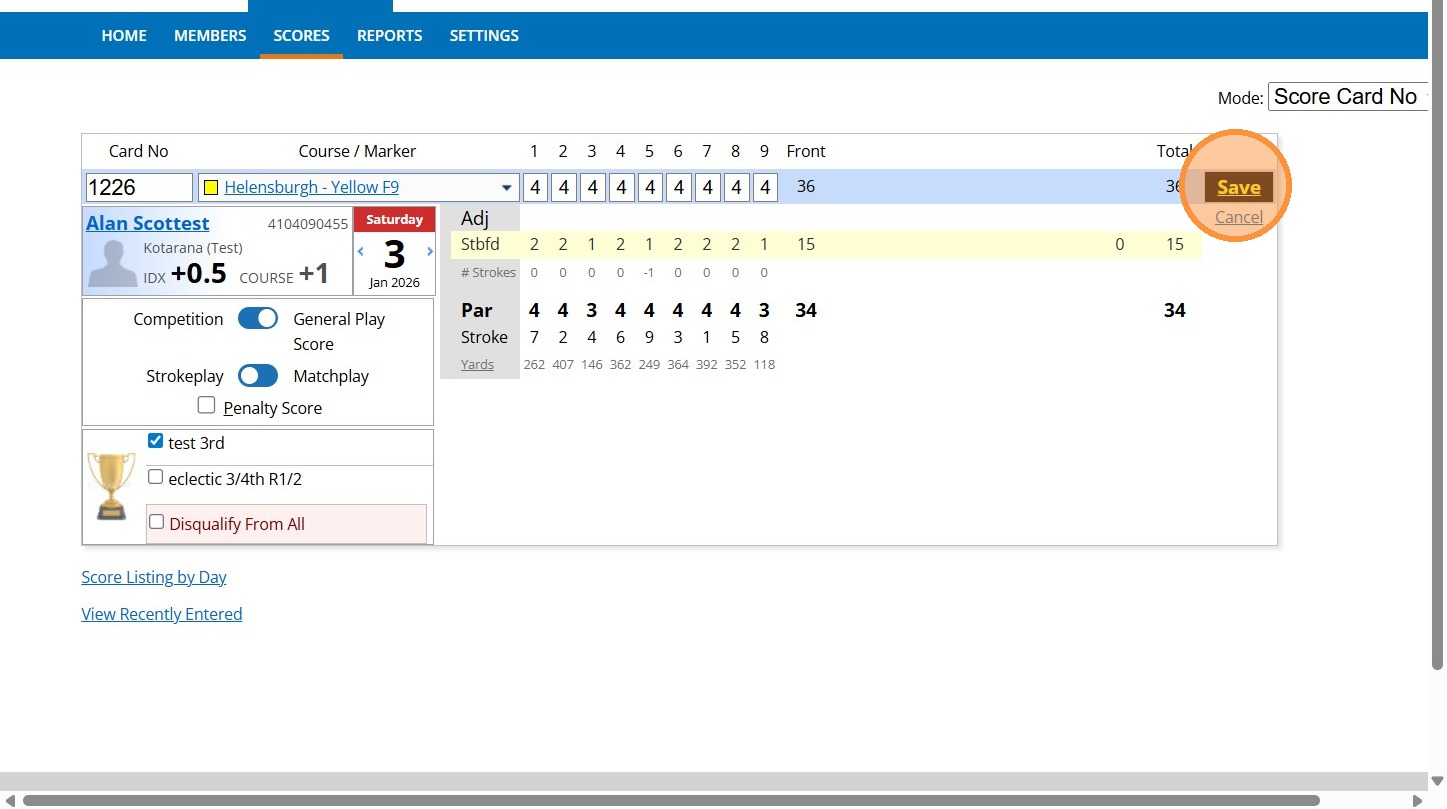
14. The score has now been saved under "Recently Entered"
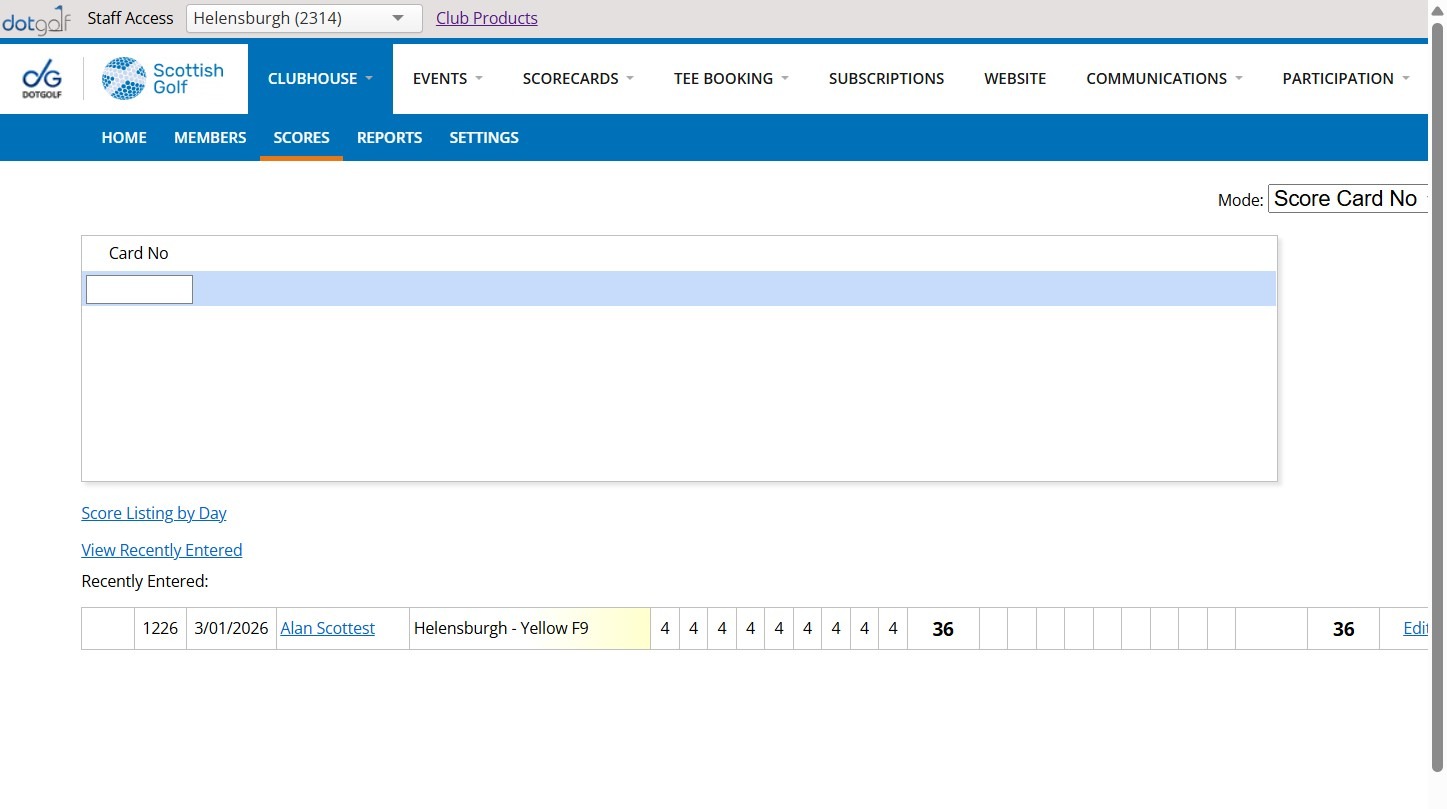
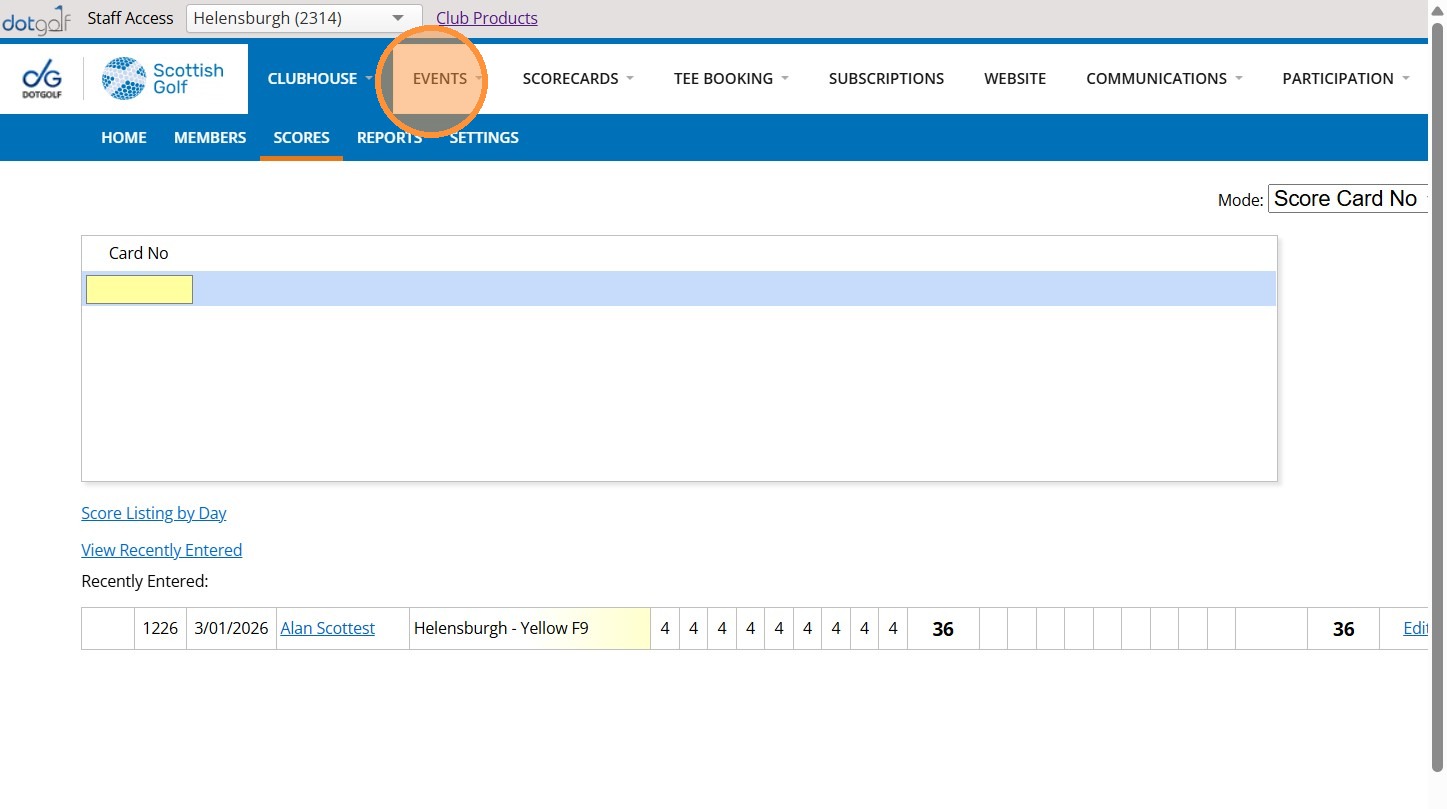
15. Click "Events"
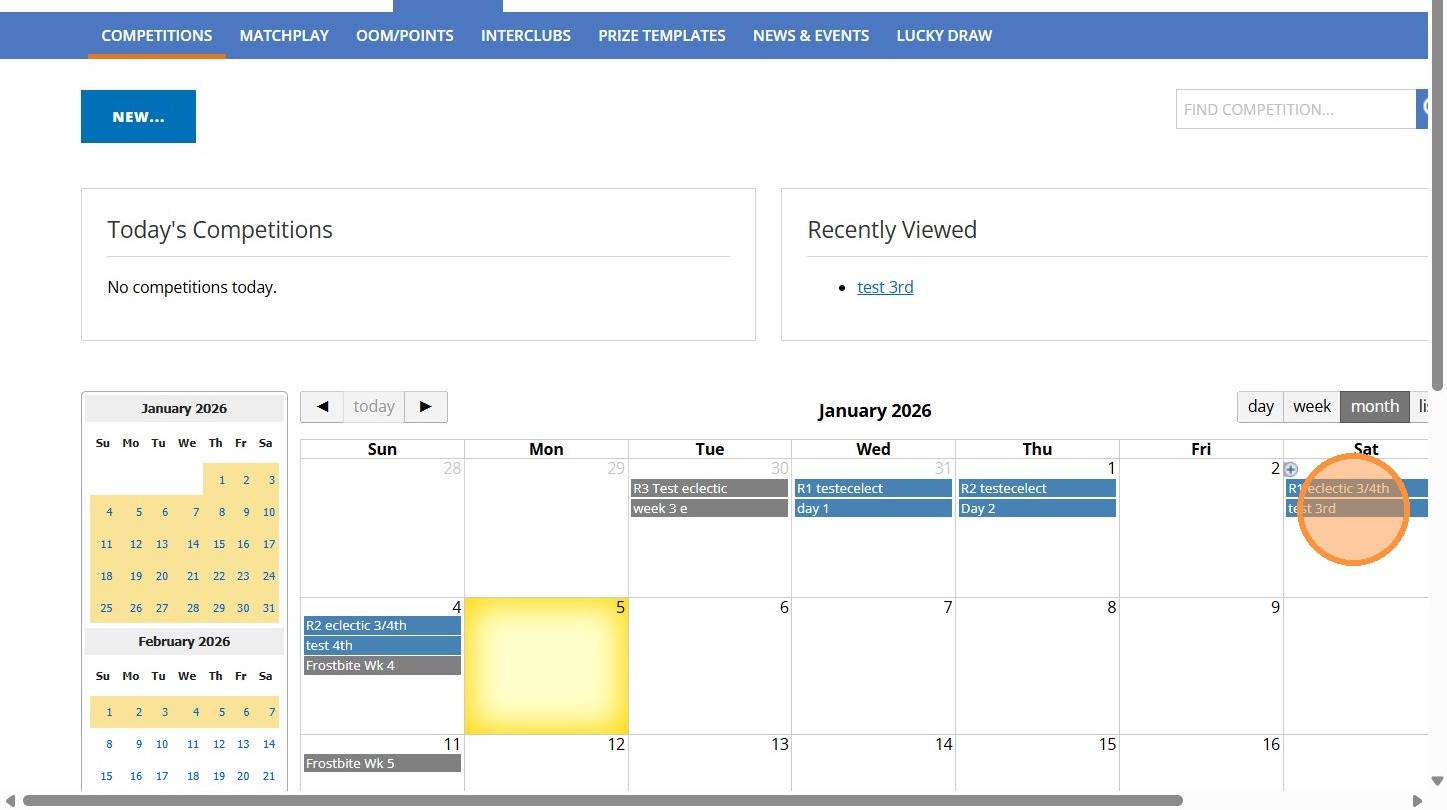
16. Click "test 3rd"
17. Click "Results Report"
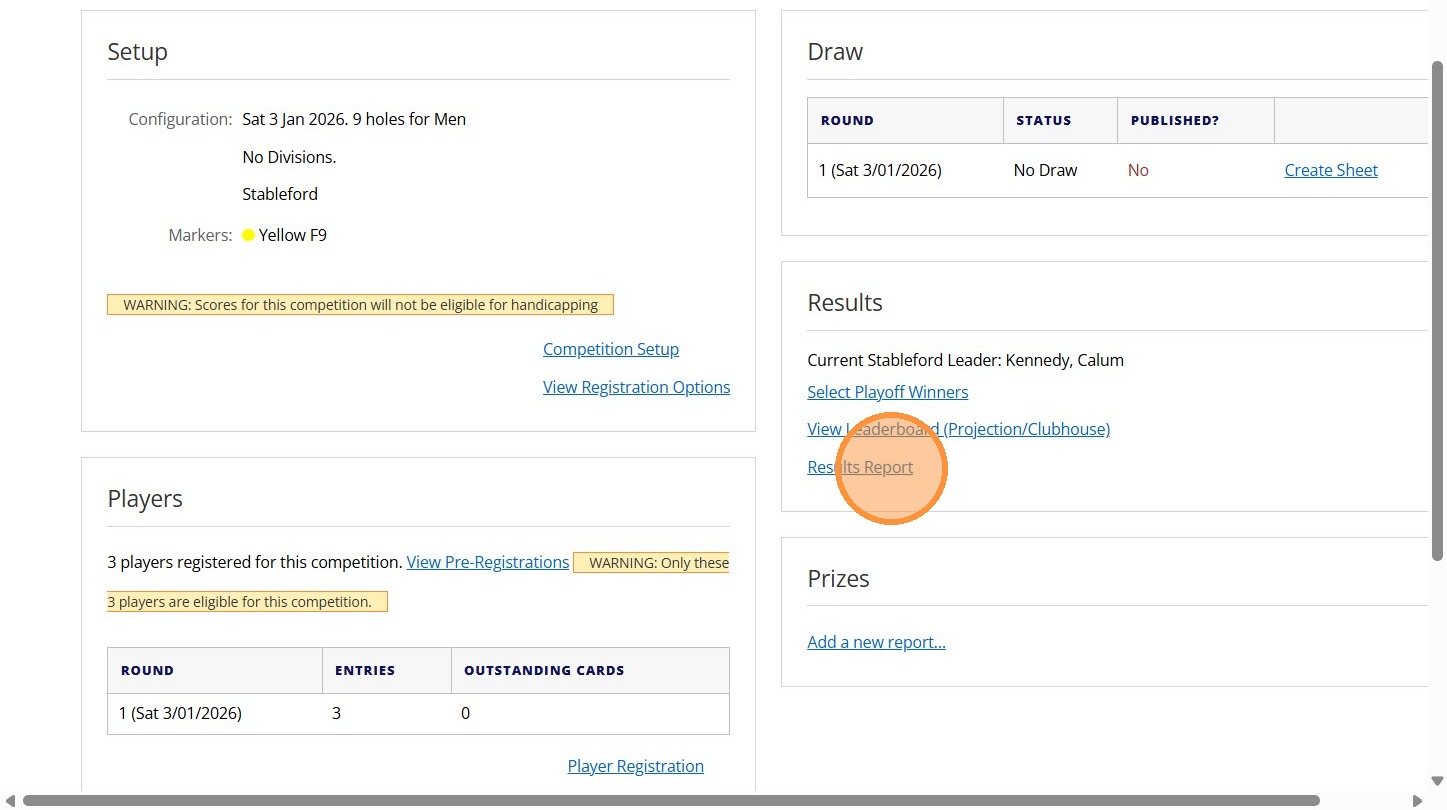
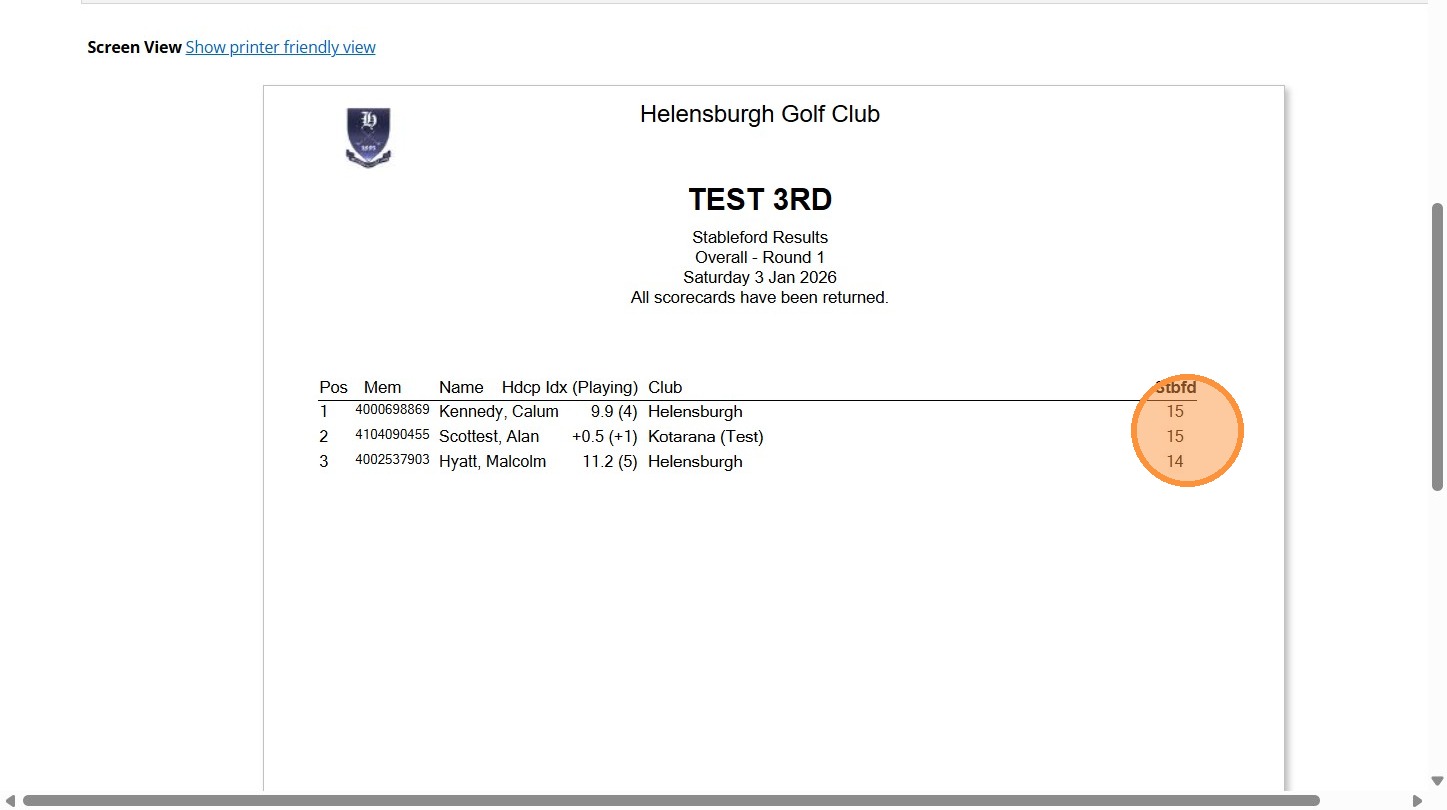
18. The scorecard has now been added to the results
Related Articles
Add Competitors Scorecards to an Order of Merit Competition
1. Navigate to https://live.clubhouse.scottishgolf.org/scorecardadmin/bulkadmin/default.aspx 2. When you have an Order of Merit event running in the background, at the end of each counting round you can bulk admin the counting scorecards from that ...Generate scorecards and competition entries from tee sheet
Please remember that you can't pre-generate the scorecards days in advance as it will take the HC on the day of scorecard generated. The scorecards must be generated on the day of play. 1. Click "SCORECARDS" 2. Click "PRE-GENERATE CARDS" 3. Go to the ...Submitting a Competition Score in the Back Office
This guide is assuming that all scorecards have already been created. If you have not created the scorecard then you will need to do this first. 1. Click "SCORECARDS" 2. You'll then see all the scorecards for that day. 3. If you would like to check ...How to Enter a Club Competition and Complete a Scorecard using the SG APP for Non-Course Owing Clubs - Apple Version
1. On the home screen of the APP, select "EVENTS" 2. On the Events screen you can see the available Club Competitions - in this example, select "Troon St Medans SG Test" 3. To confirm your registration select the Cart in the top righthand corner - ...Linking Completed Scorecards From Counting Events to Monthly Medal Aggregate Results
The system allows submitted scorecards to be linked to aggregate results to generate the best of specific number of counting competition over a specific period. IN the following example the club wanted to establish the best 4 from 5 scores for their ...