Send an email to your programmes participant list
1. Against each programme you will have some quick access controls to edit, duplicate or delete the programme.
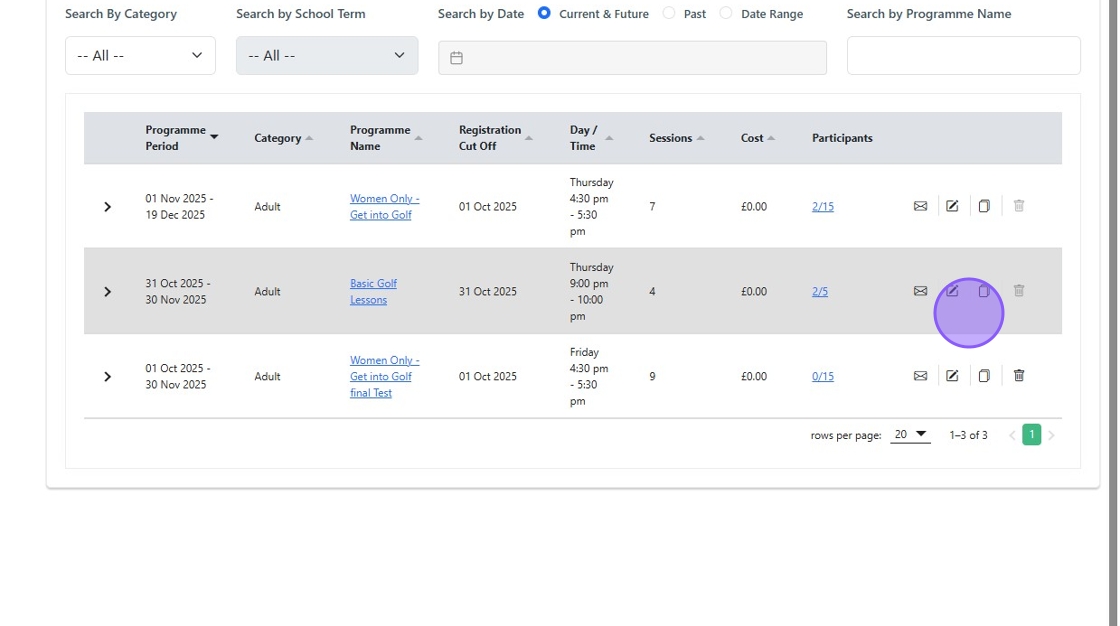
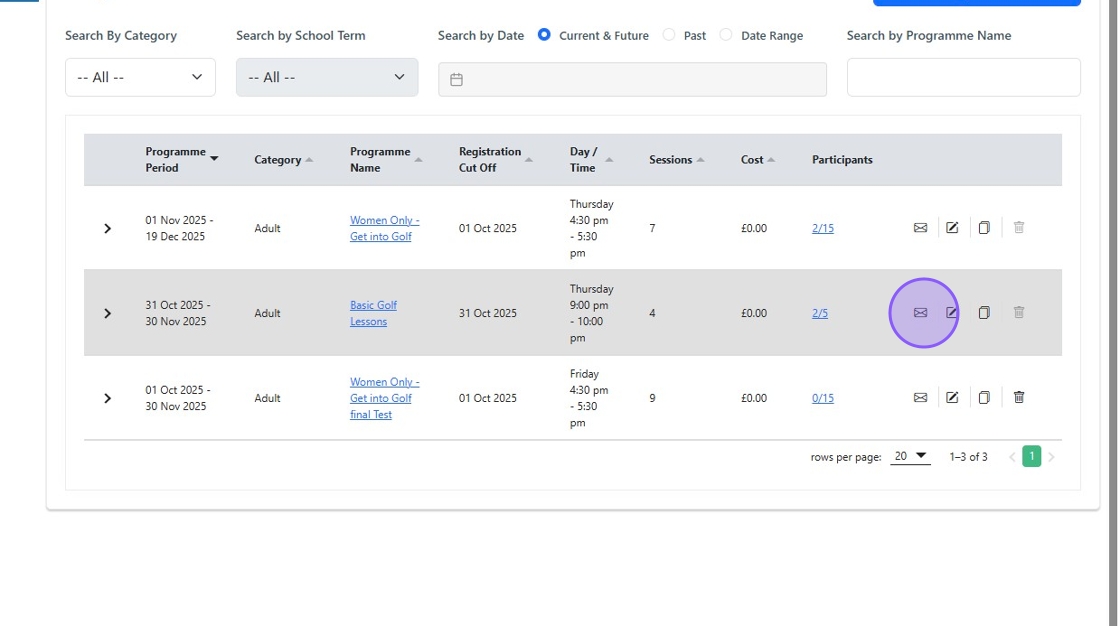
2. You will also have the ability to directly email your participant group. Click the highlighted icon.
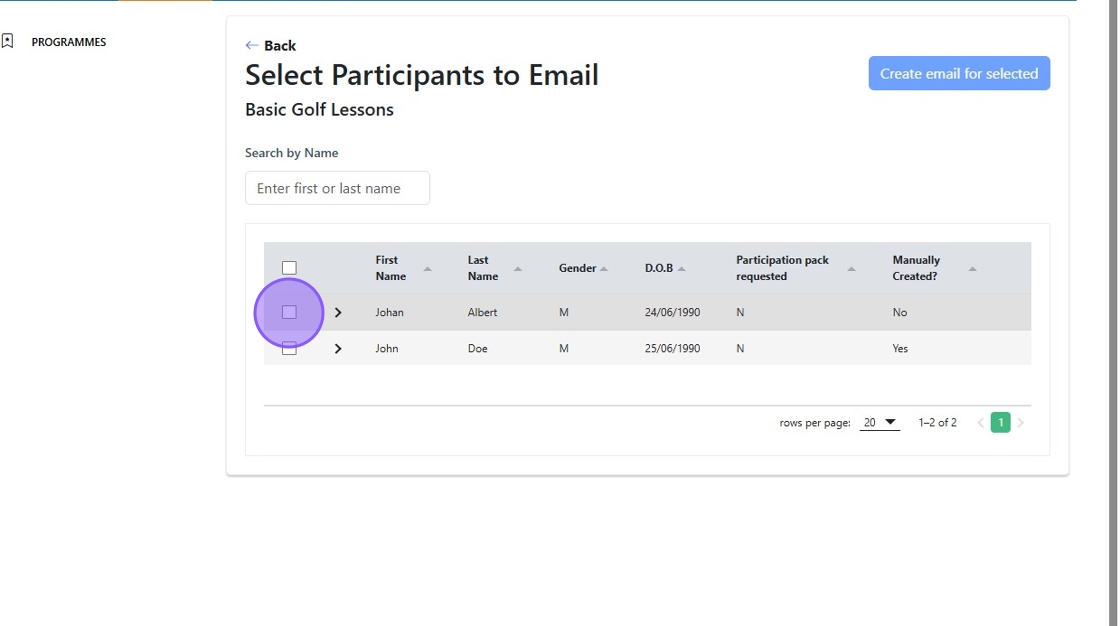
3. Click to select who you wish to include in the email.
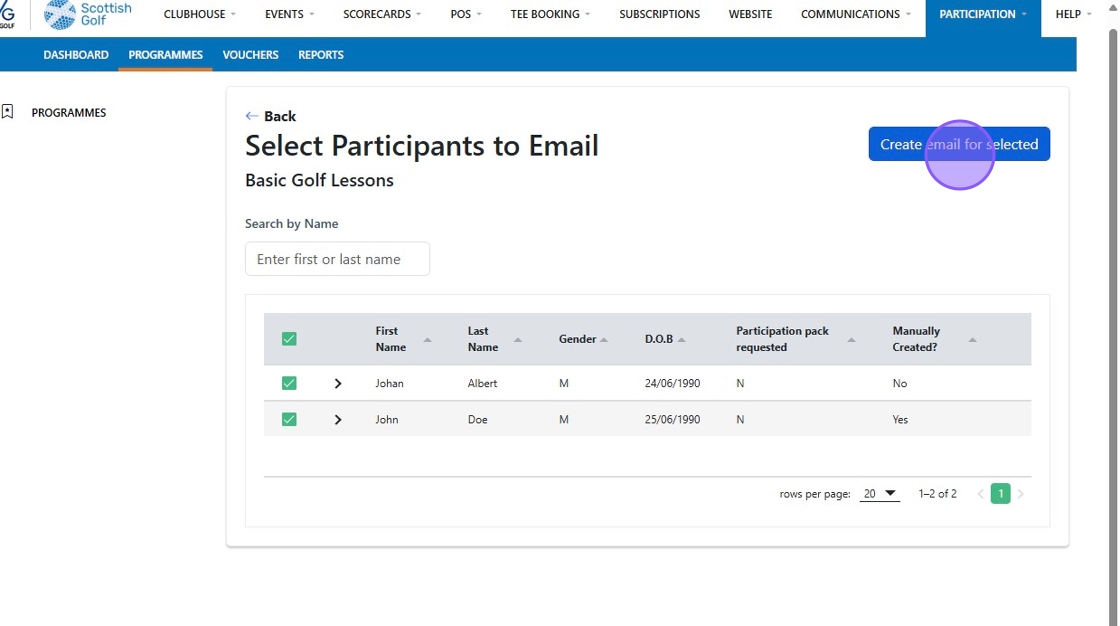
4. Click "Create email for selected"
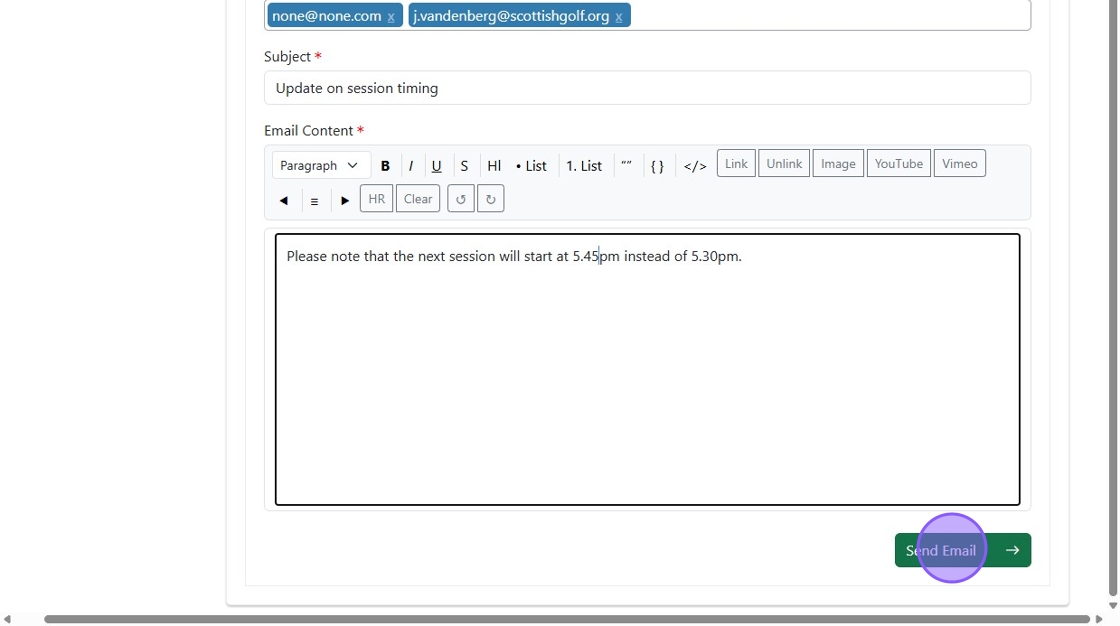
5. Compose your email and click 'Send Email'
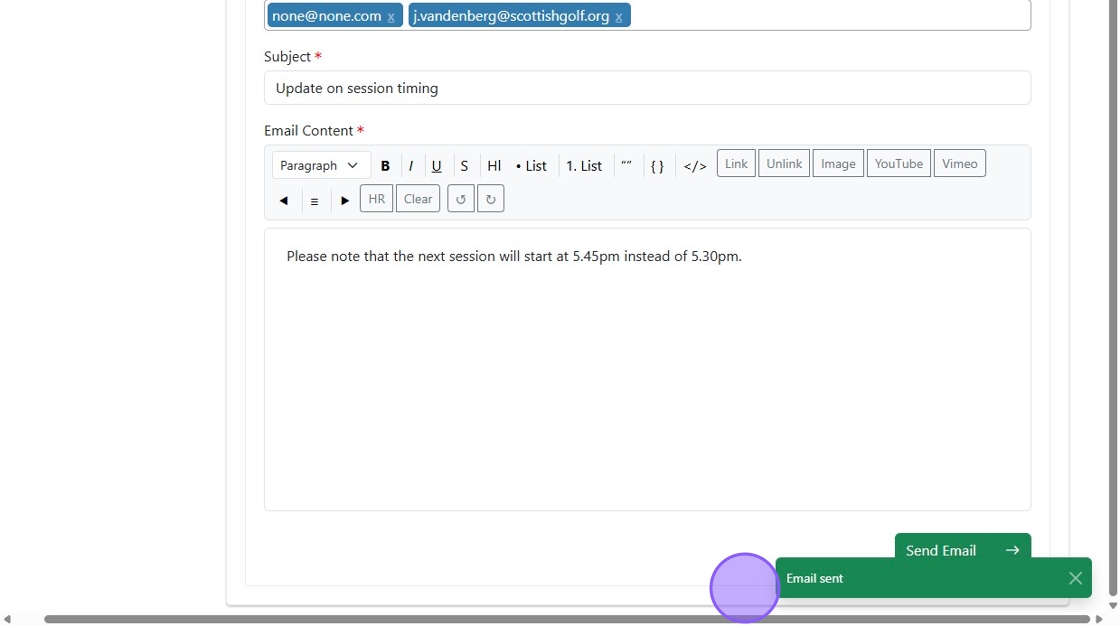
6. You will get a green confirmation once the email has been sent.
Related Articles
Creating & Sending an Email Communication
1 Select the communications tab in your VMS profile and select send Email 2 Chose a template 3 Name the Draft and then select Next 4 You are then able to build your email. By clicking and dragging on the items in the toolbar you can build the content ...Bulk Email Sending - Best Practise
Here’s some best practice for sending bulk emails to avoid mail servers blacklisting them or moving your emails to junk inboxes. The practices are split into technical and behavioural categories: Technical Best Practices Authenticate Your Domain Use ...Create and Send App Message
1. Navigate to the Communications tab 2. Click "CREATE APP MESSAGE" 3. Type in a Subject for your App Message and proceed to type your content of your message. 4. Click this dropdown to choose your recipients either from a group members, players in ...Creating a Custom Email Template
1. Click "COMMUNICATIONS" and then "Create Email" 2. Click "SELECT" on the email format you want to use. 3. Start building your email by clicking on the options within the grey toolbar and dragging them to the centre of the screen where the Envelope ...Process Membership Renewals and Send Invoices
Process Membership Renewals and Send Invoices Made by Alan Brown with Scribe Learn how to efficiently process membership renewals and generate invoices for your members. This guide will walk you through the steps to ensure accurate billing and timely ...