Create and Send a Club News Article to Members Only & Publish to Members Only Section of Club Website Made by Alan Brown with Scribe
Learn how to create a new email template, upload and insert images, and send a club newsletter to your members. This guide covers the essential steps for effective communication.
1. Click "COMMUNICATIONS"
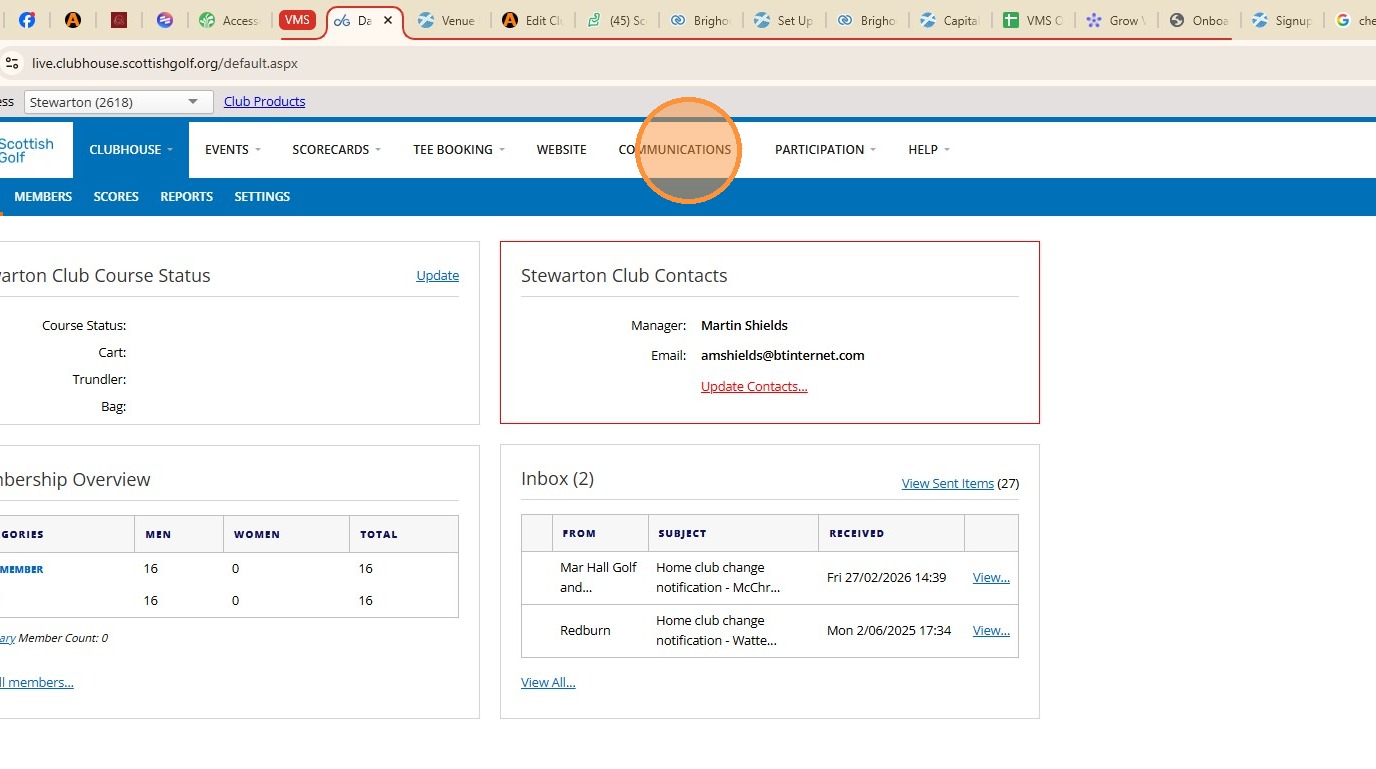
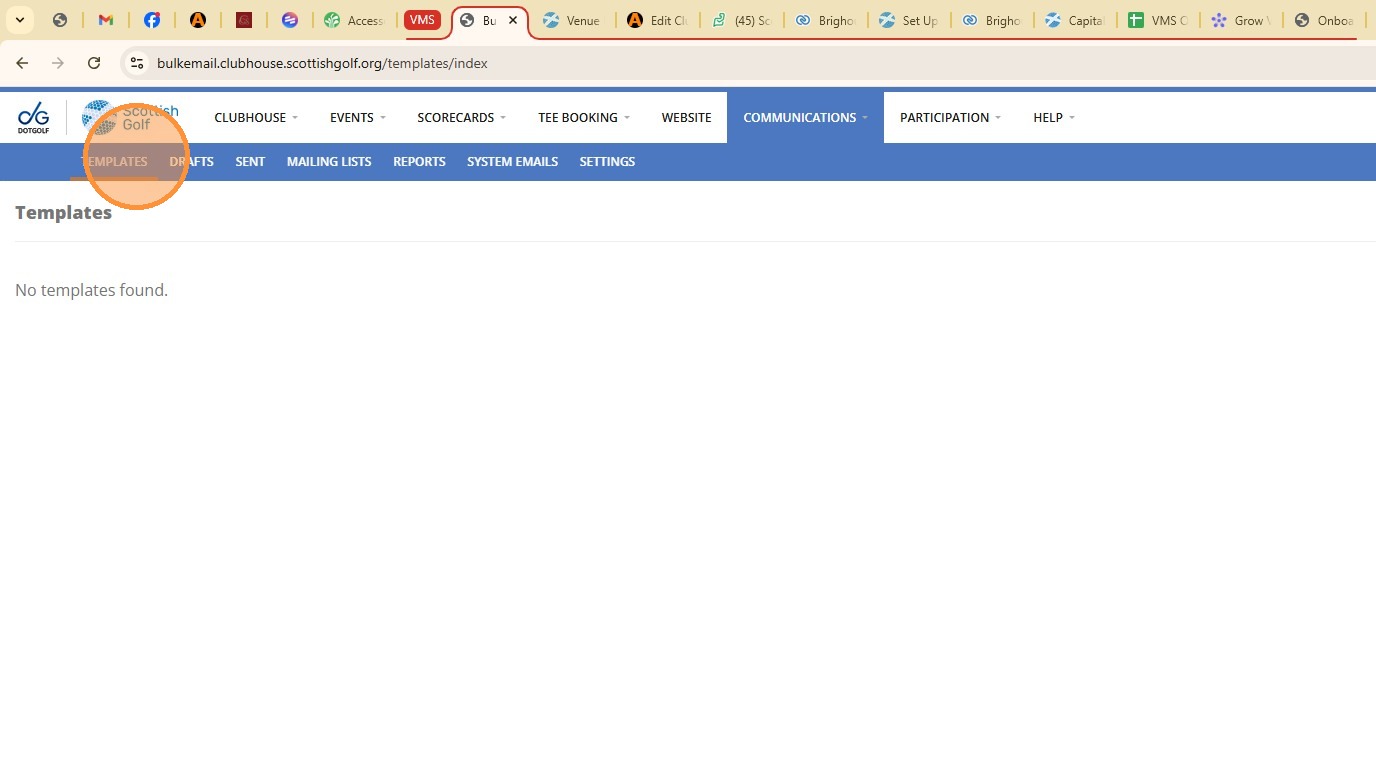
2. Click "TEMPLATES"
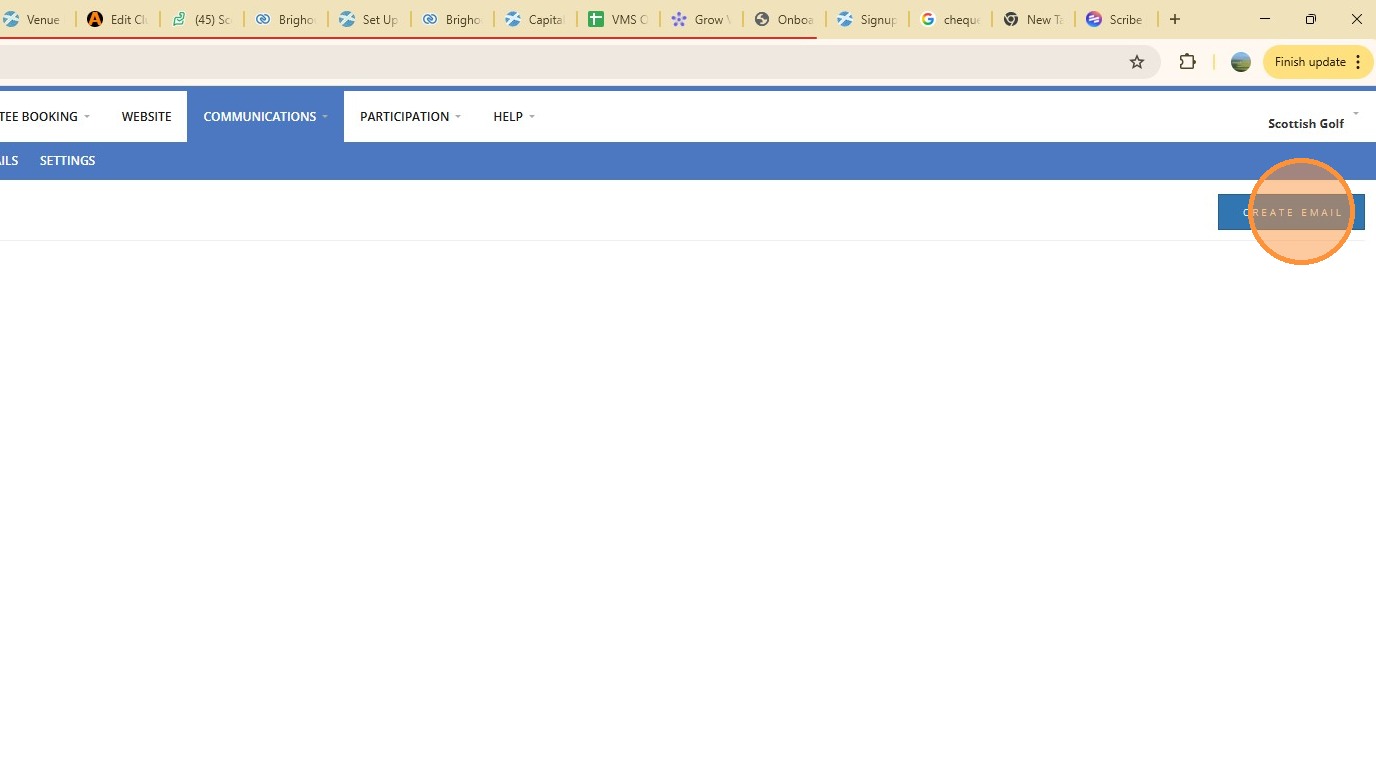
3. Click "CREATE EMAIL"
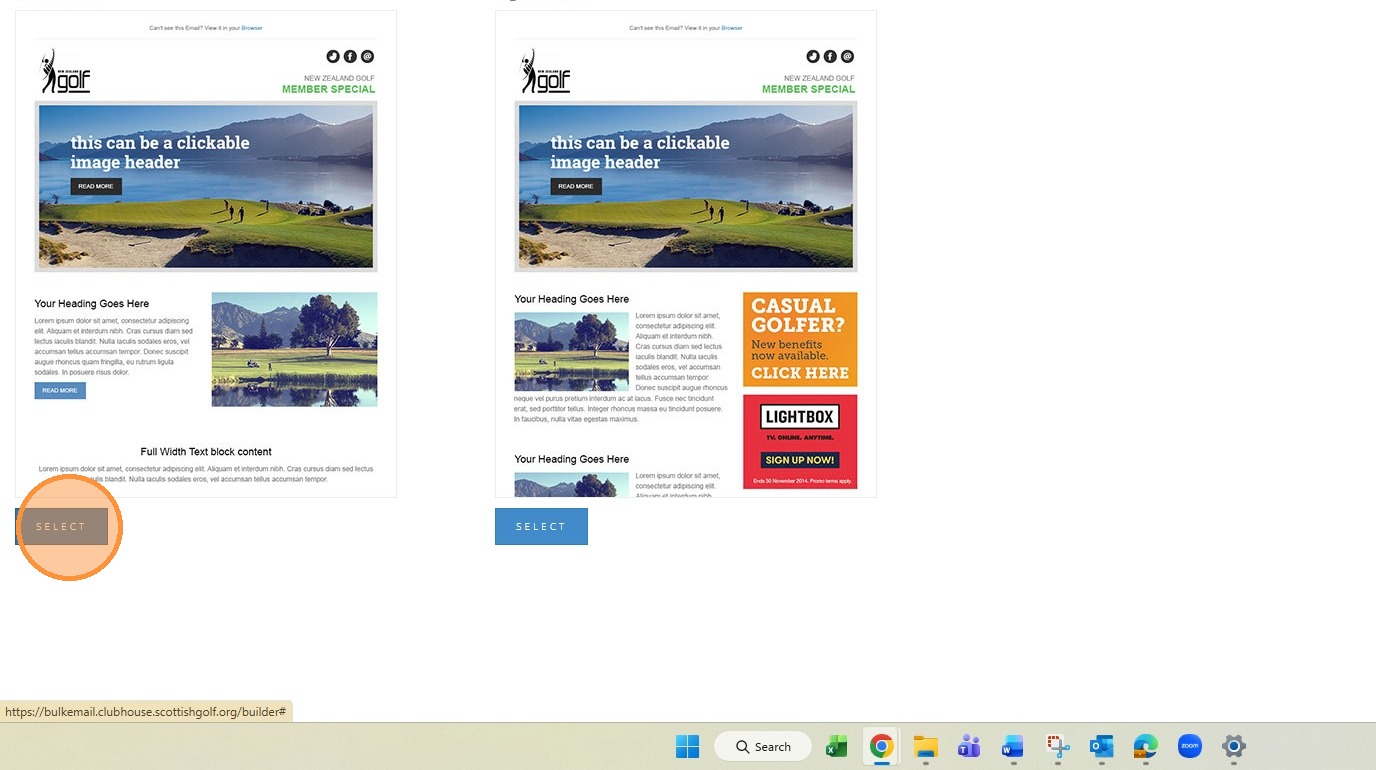
4. Click "SELECT" the template you wish to use
5. Click here to name the item
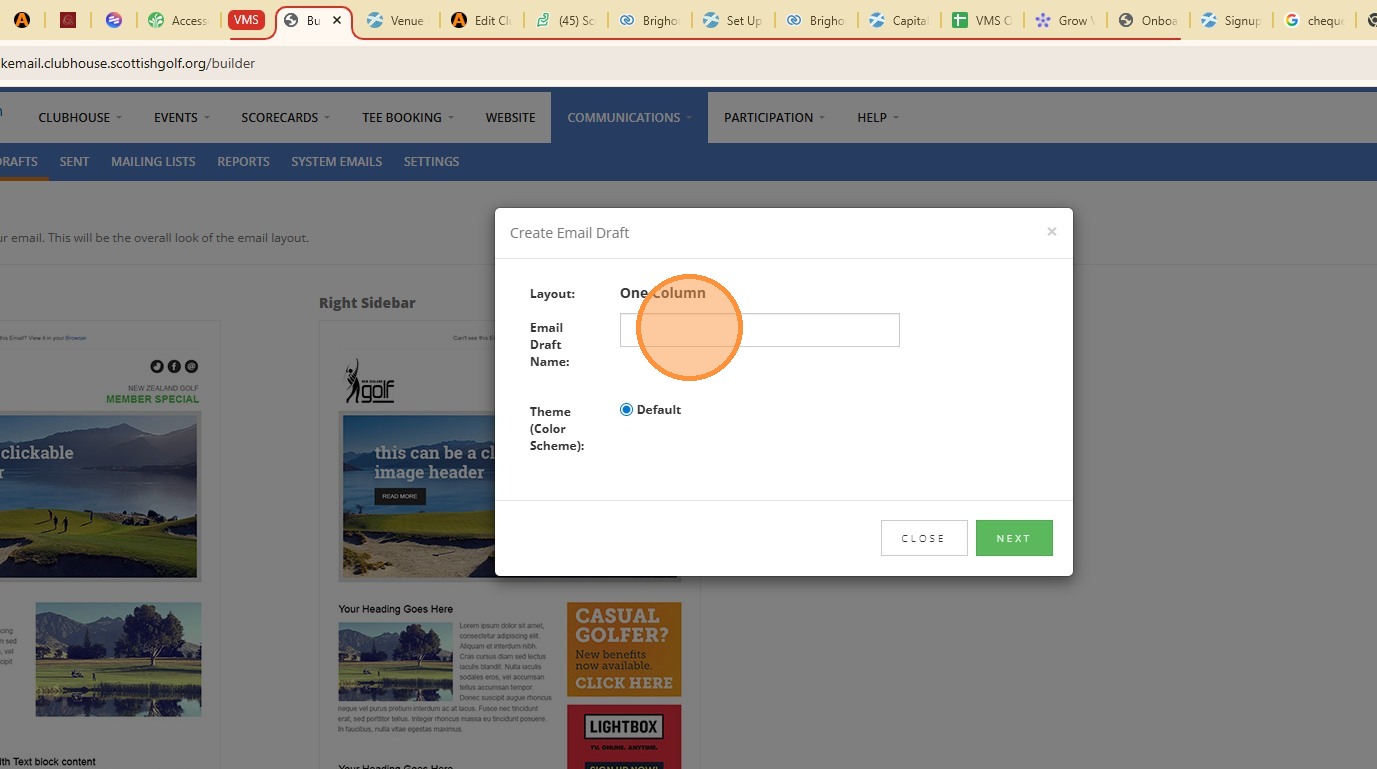
6. Click "NEXT"
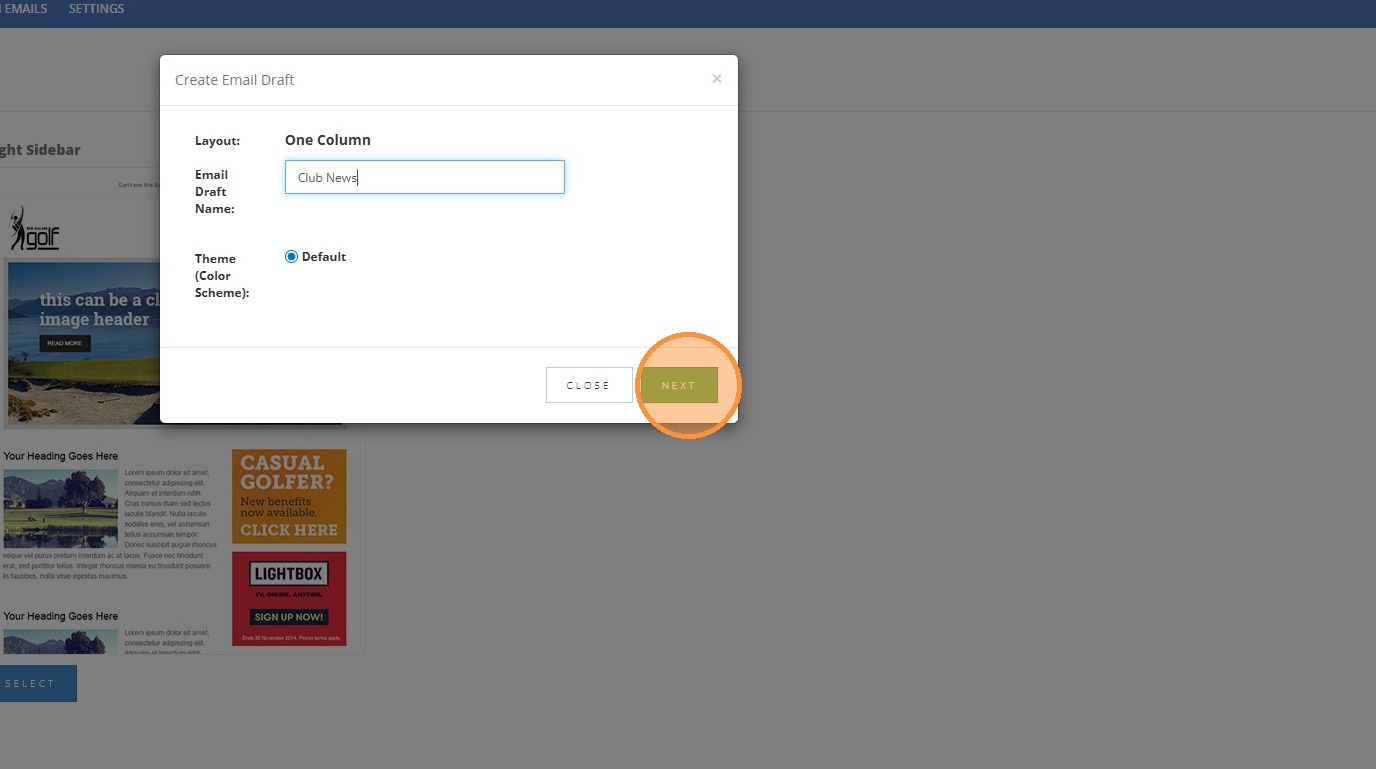
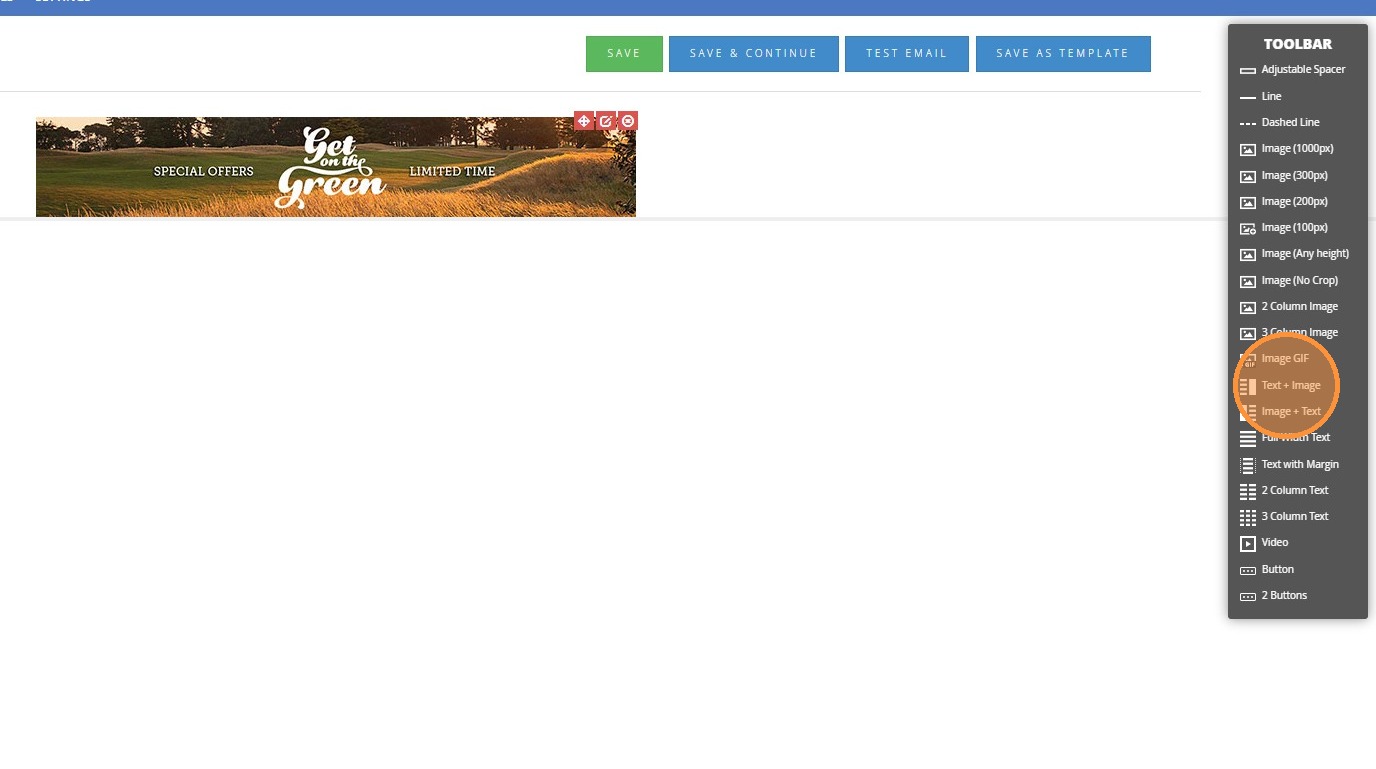
7. Drag items from the toolbar to use a templates to build your article
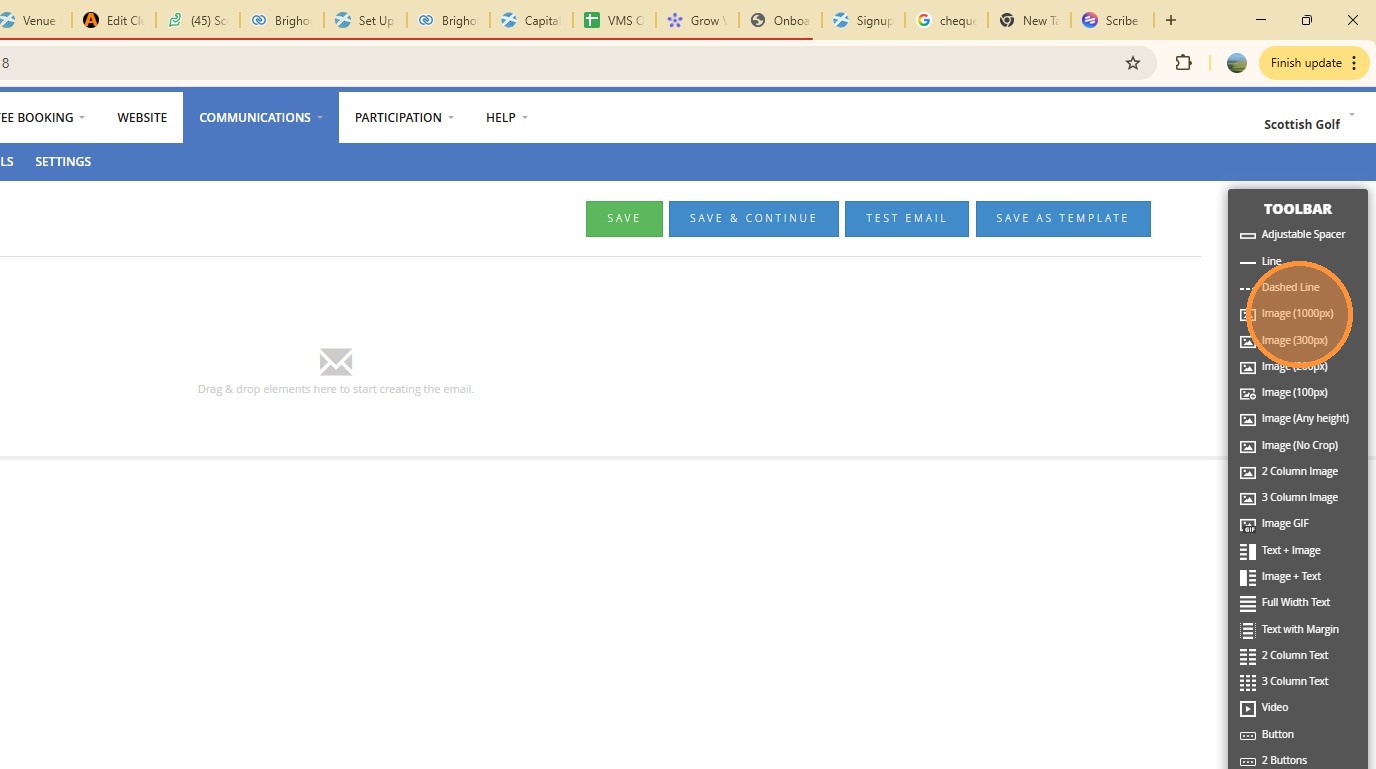
8. Click "Image (100px)"
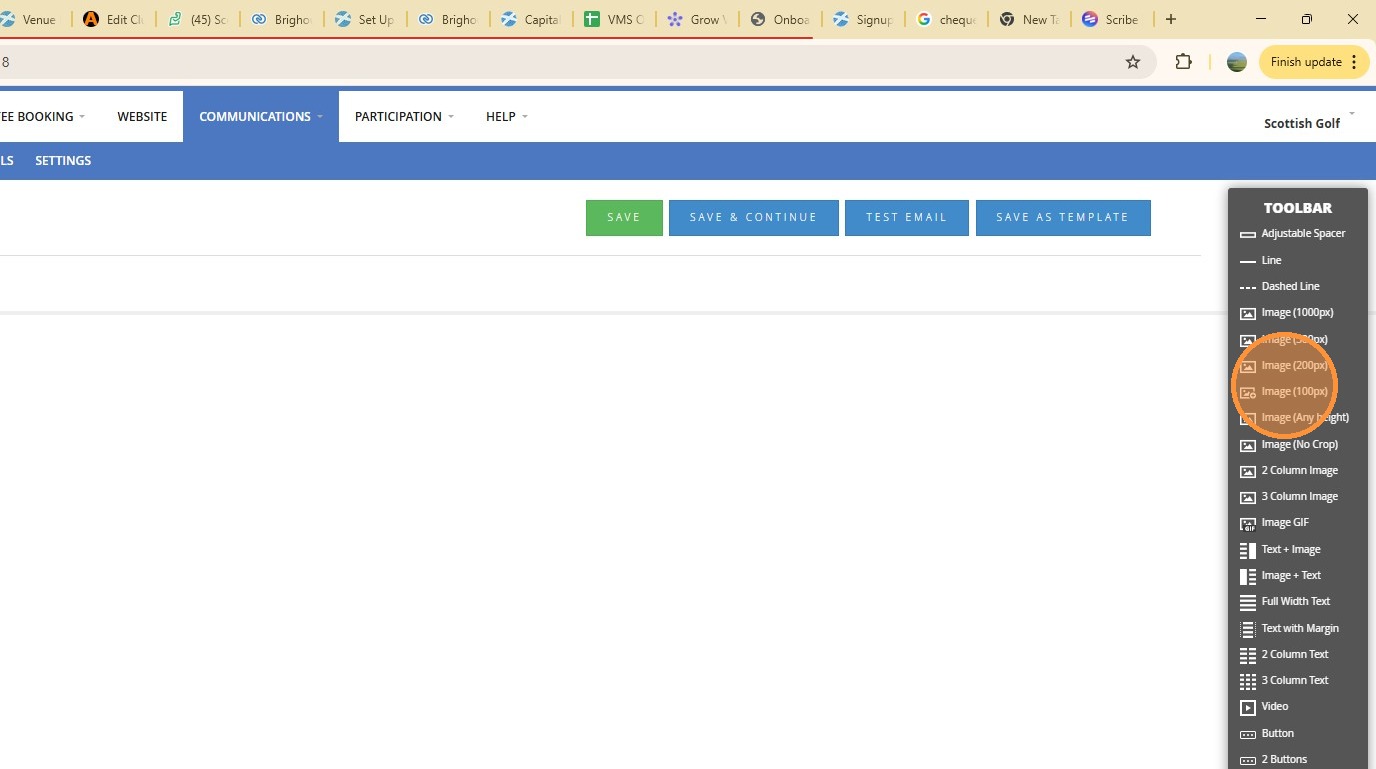
9. Click "Text + Image"
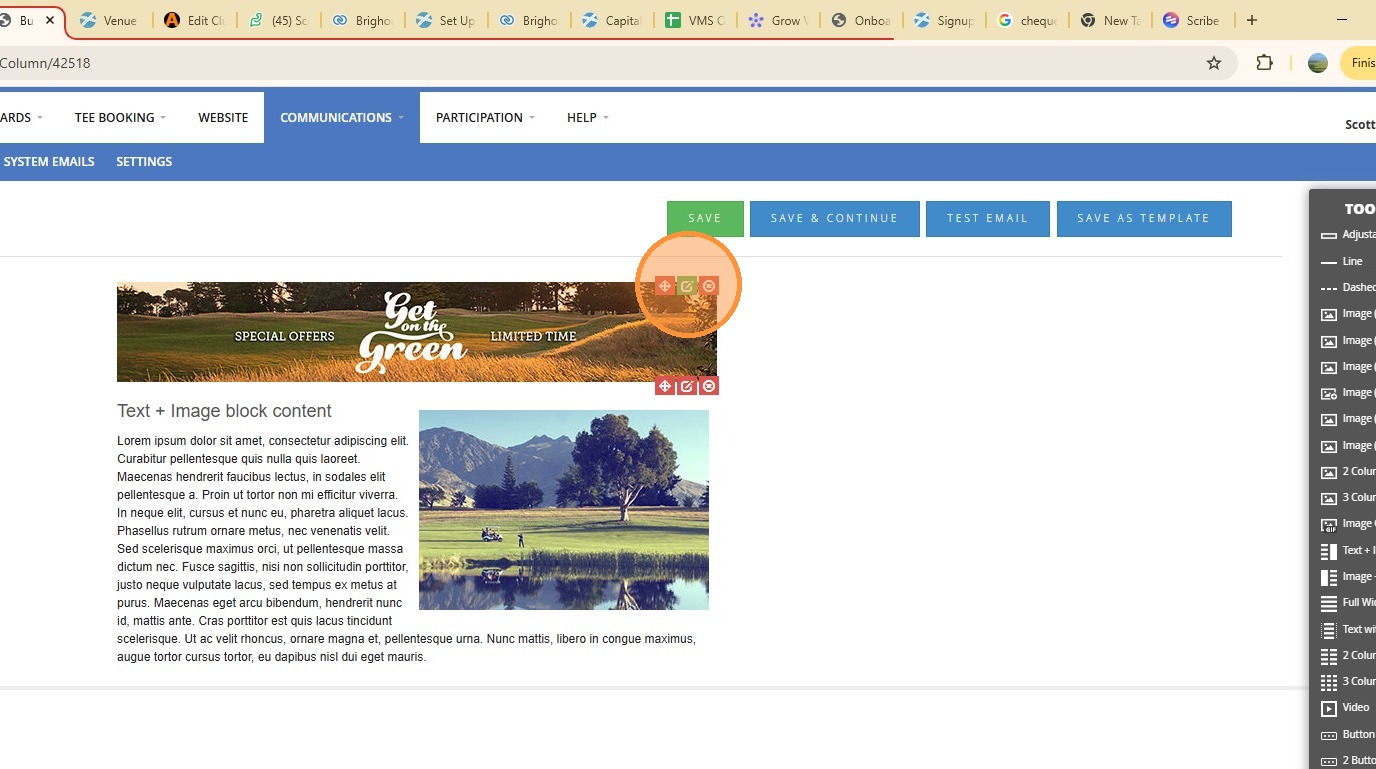
10. Click here
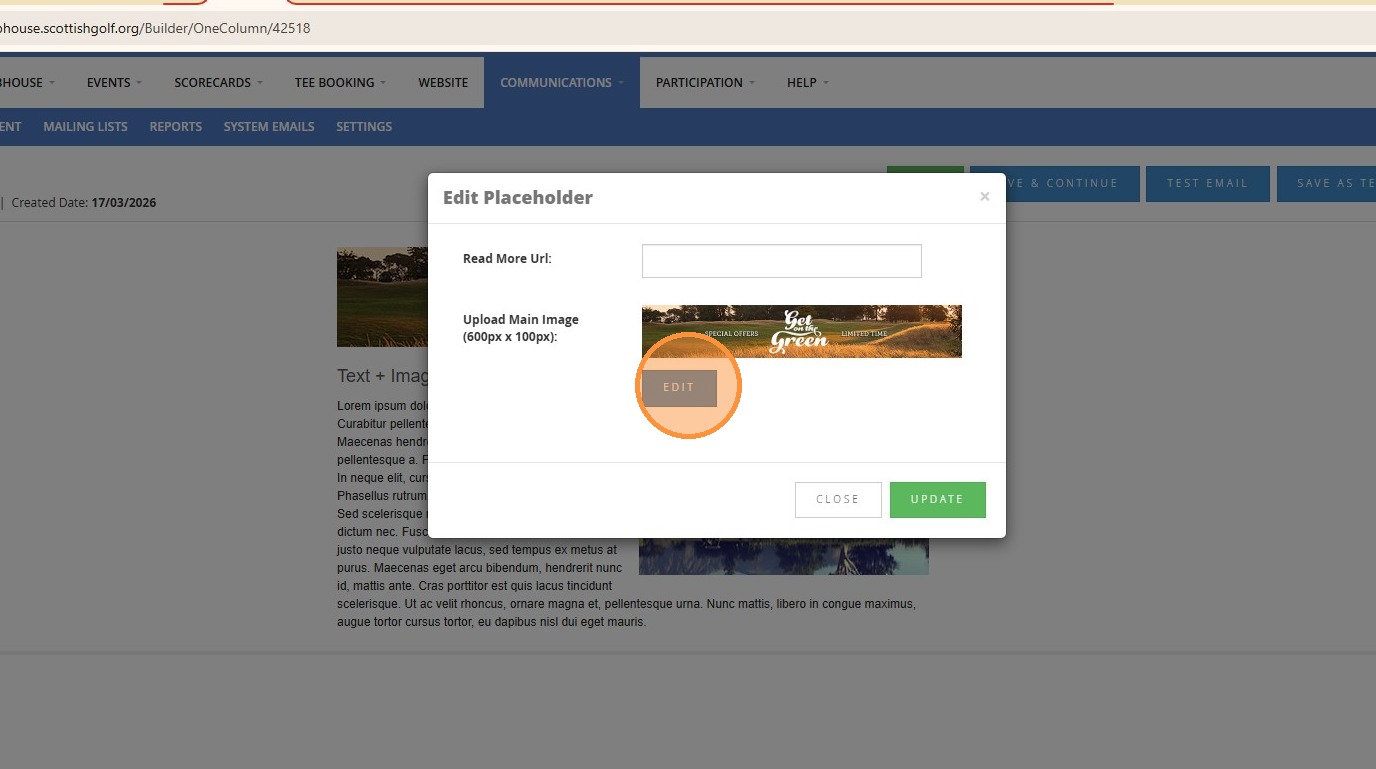
11. You can edit the place settings to add images and words Click "EDIT"
12. Click "CHOOSE IMAGE"
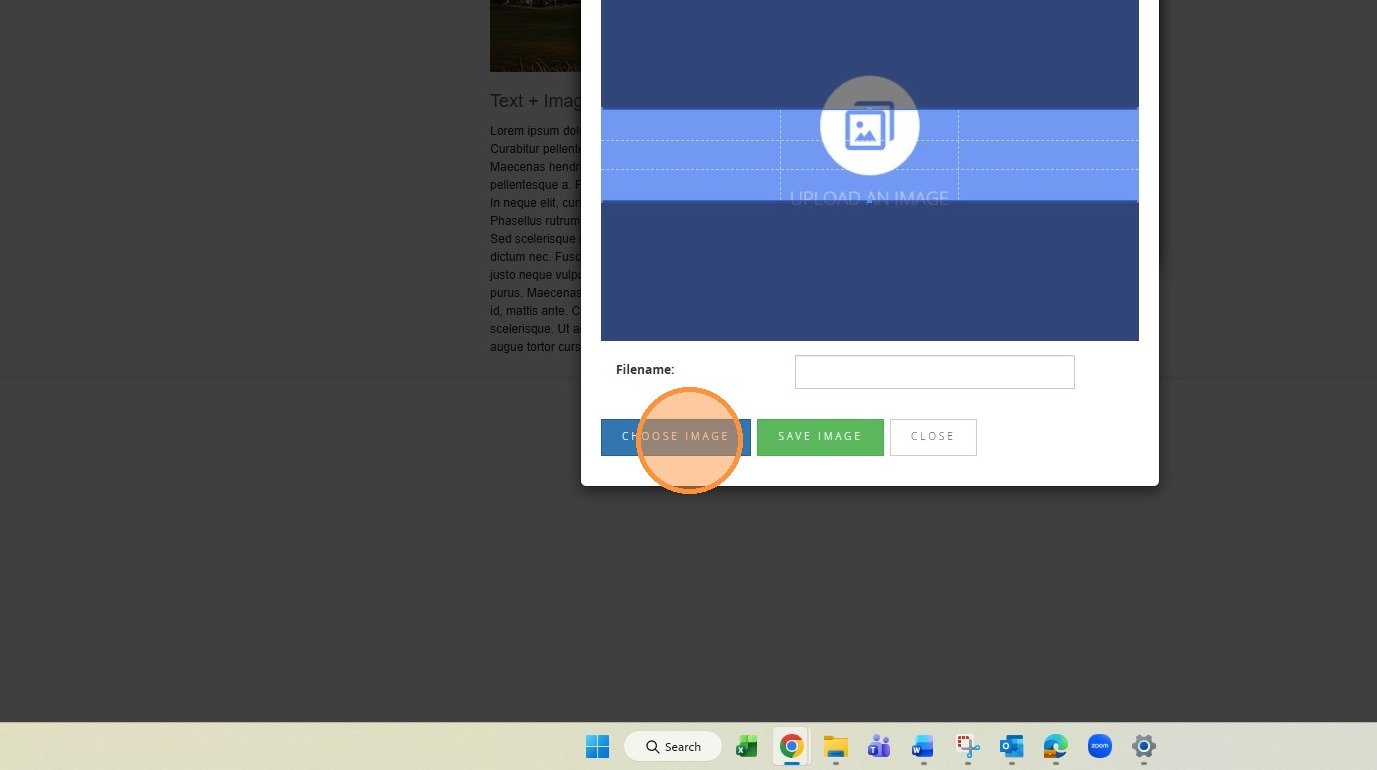
13. Select an Images from your PC and Click "Open"
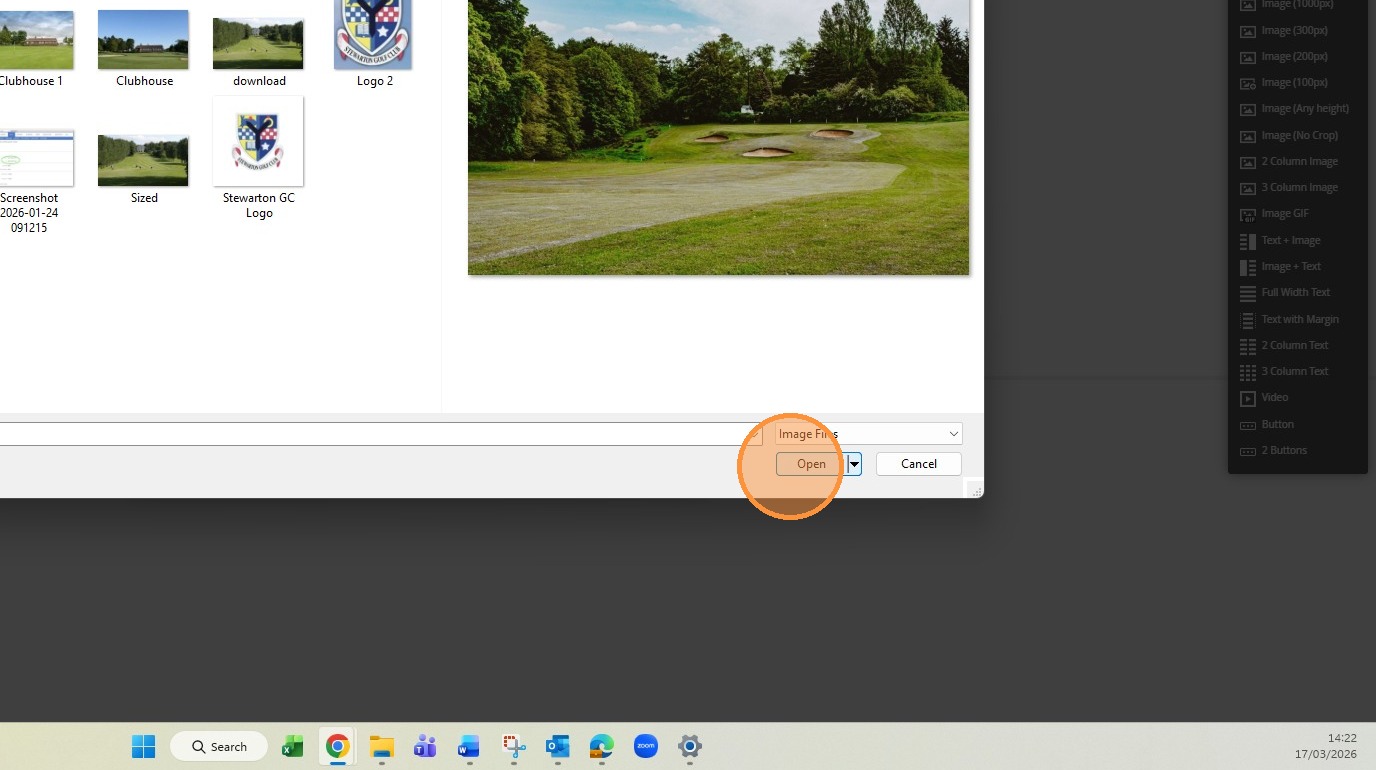
14. You can drag the image to suit - There is guidnac ein the Help section on how to size website images
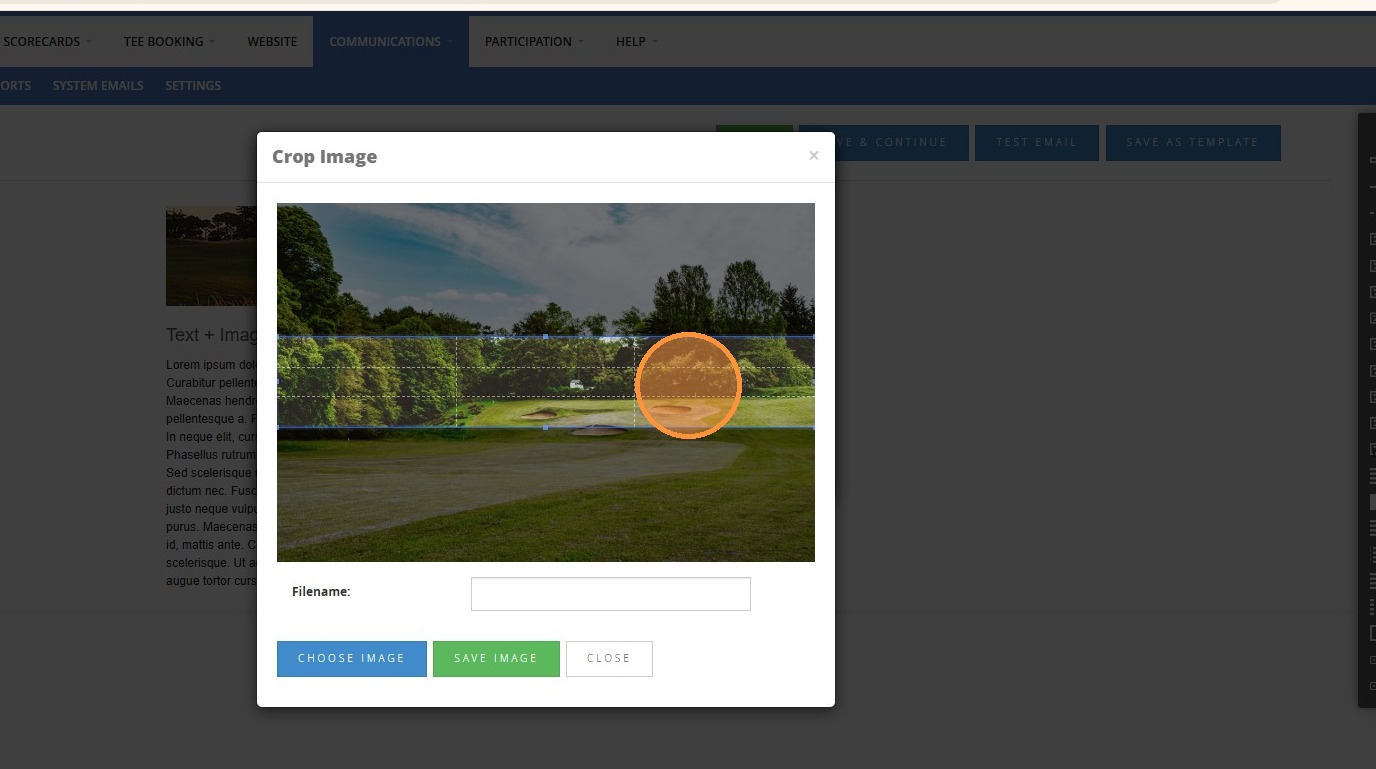
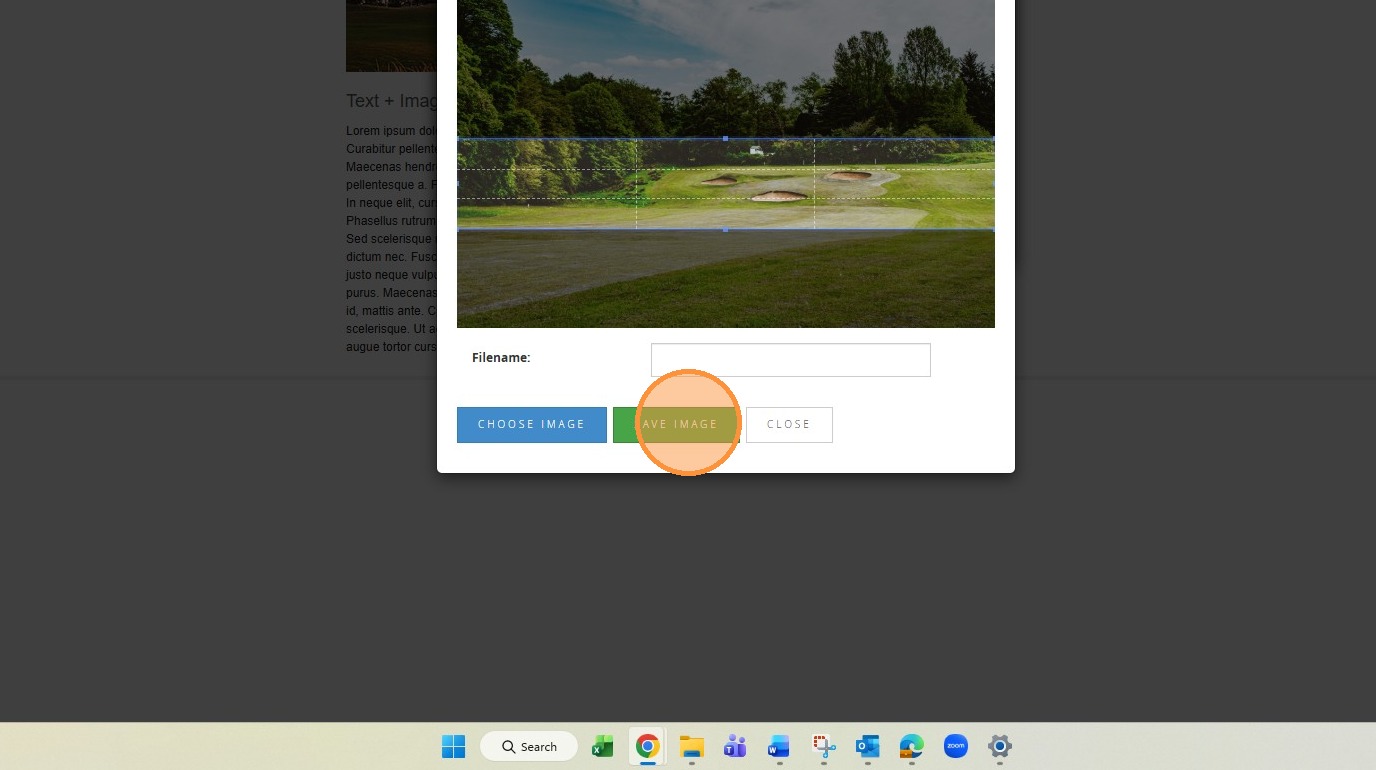
15. Click "SAVE IMAGE"
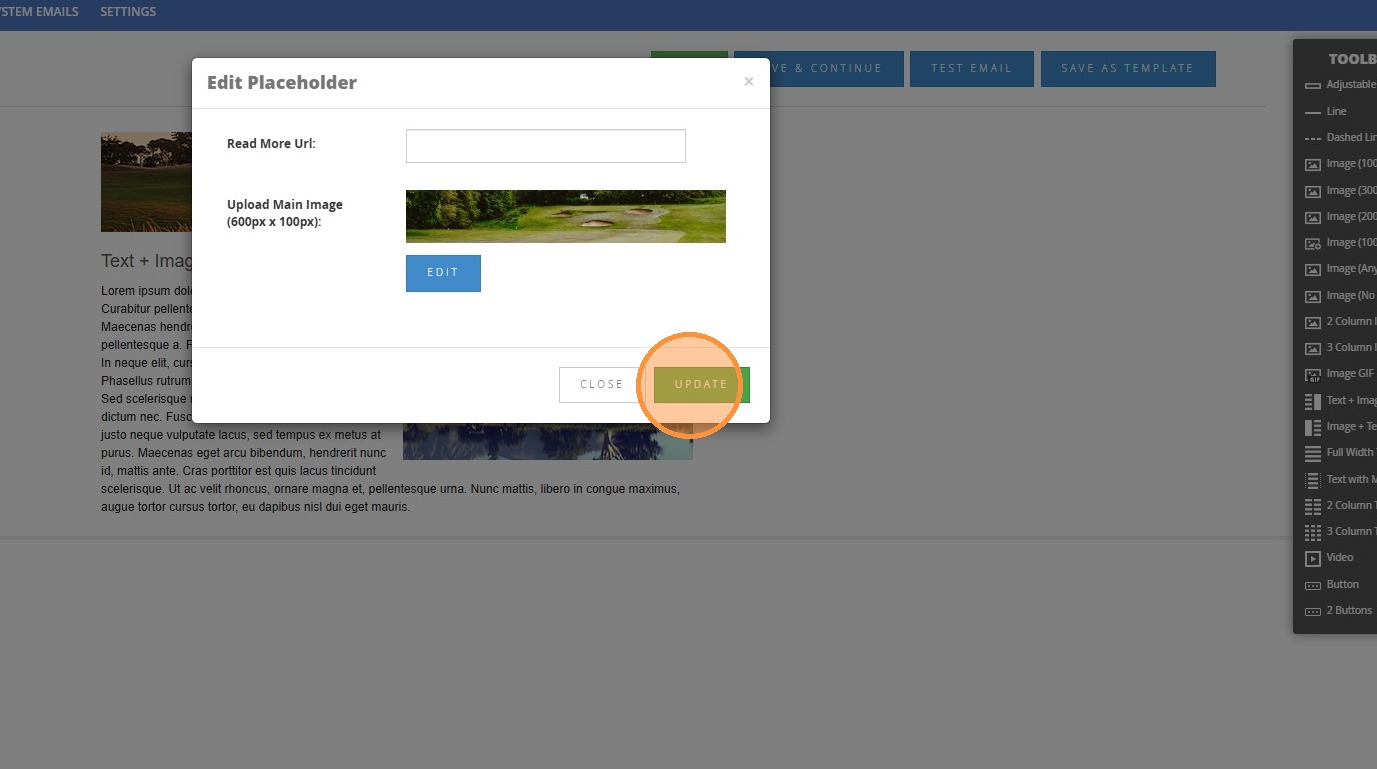
16. Click "UPDATE"
17. Click here to edit the wording of the place setting
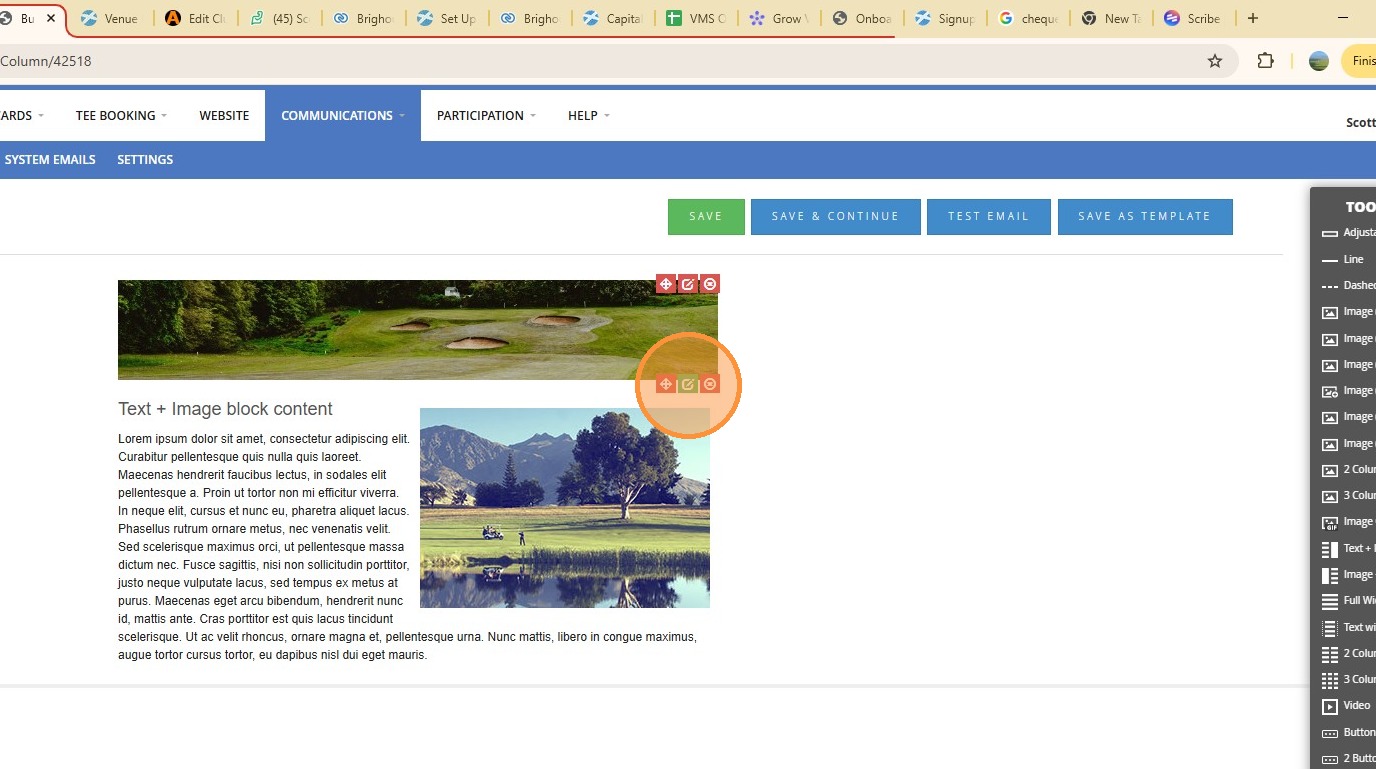
18. Click here
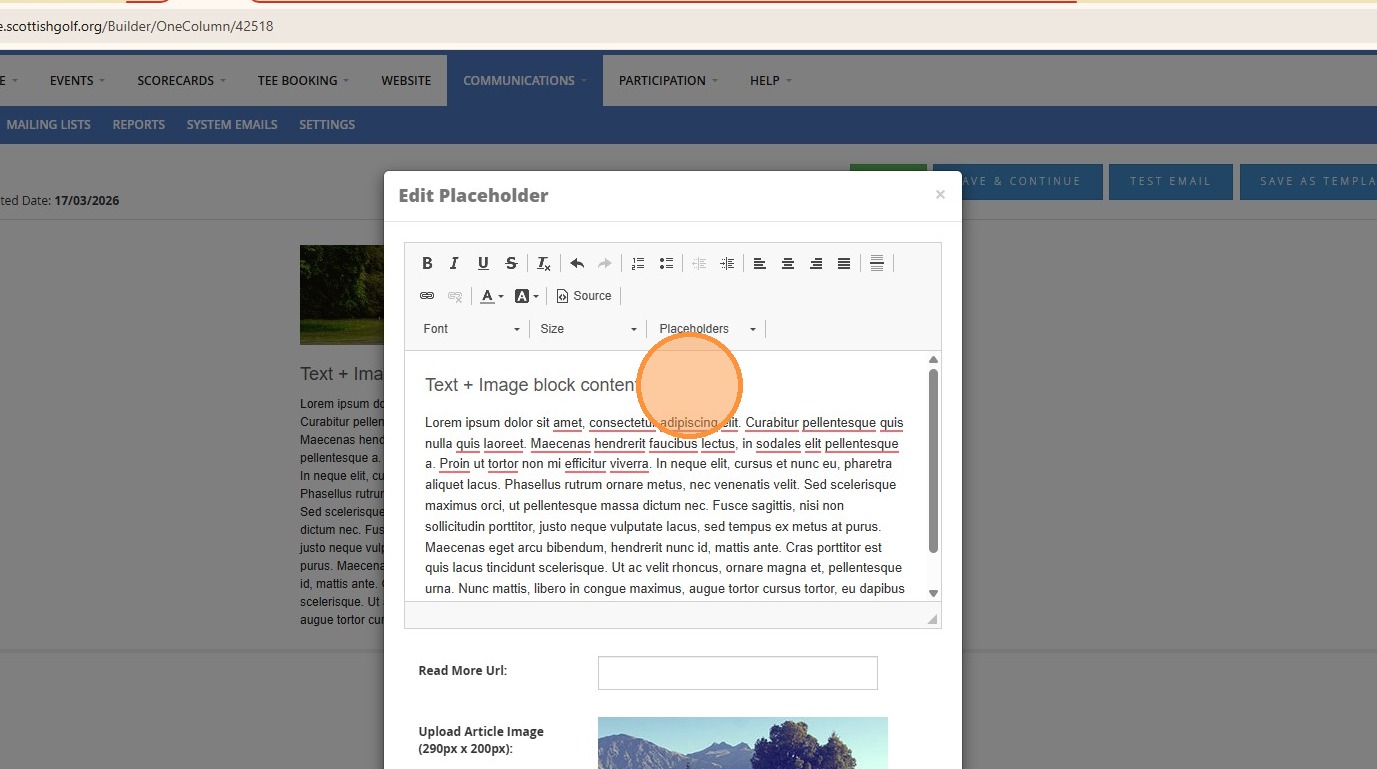
19. Click "Adding A club News Artilce"
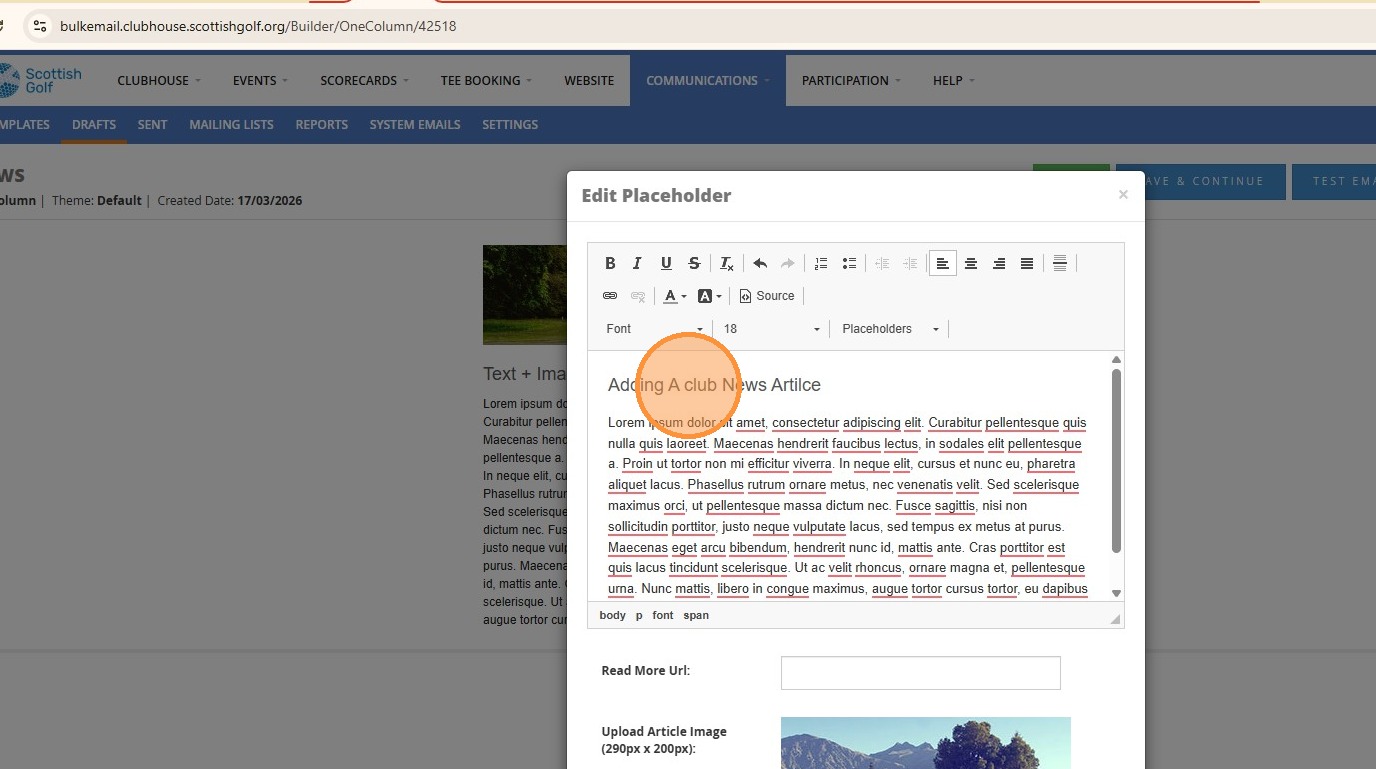
20. Click "Rich Text Editor, editor_ImageText"
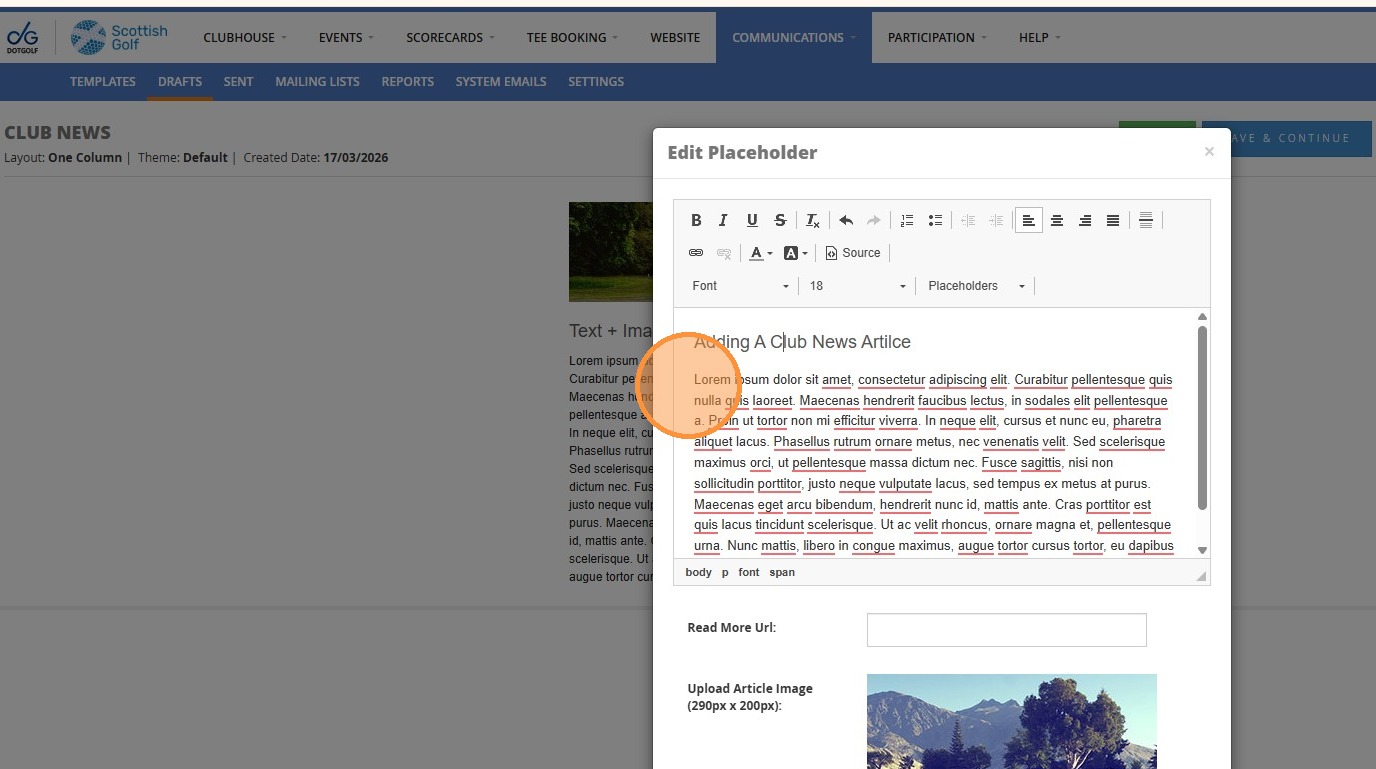
21. Click "EDIT"
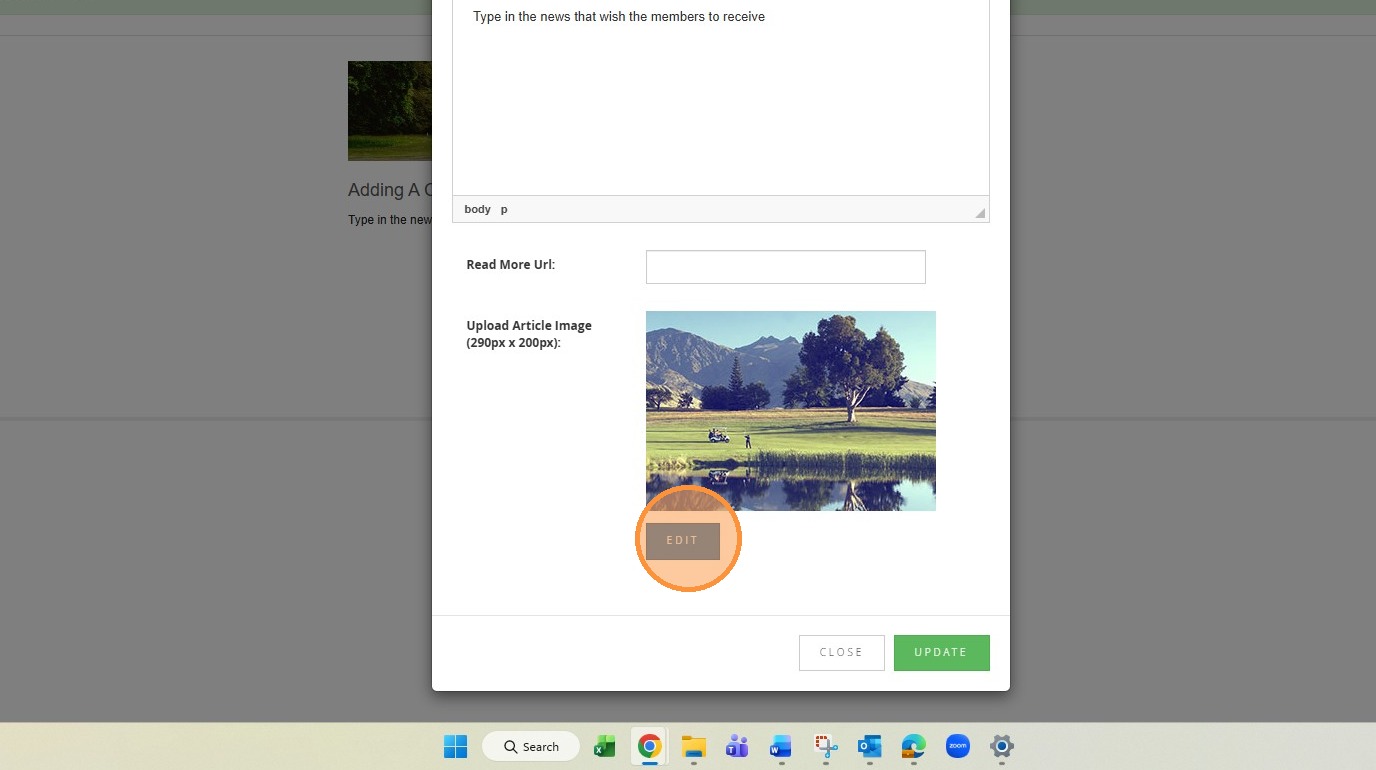
22. Click "Upload image file"
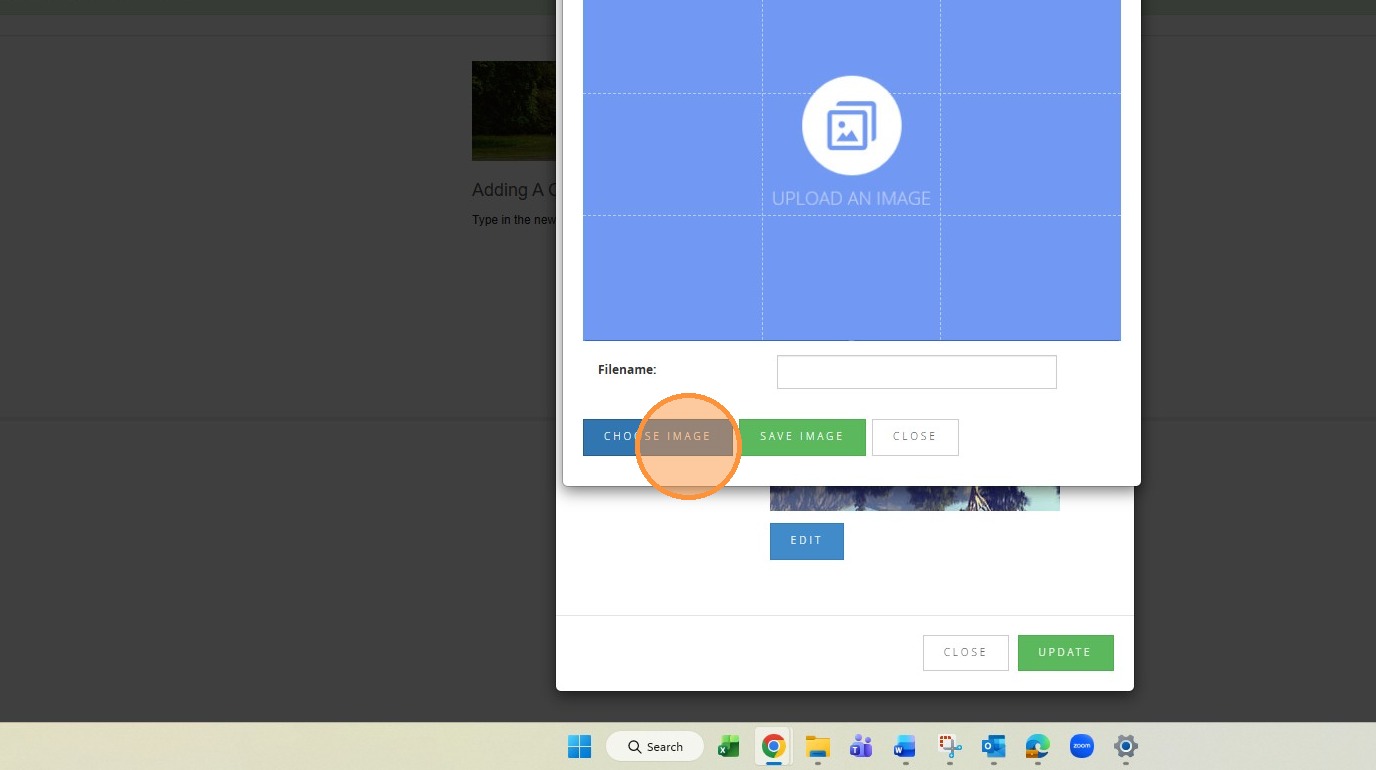
23. Click "Open"
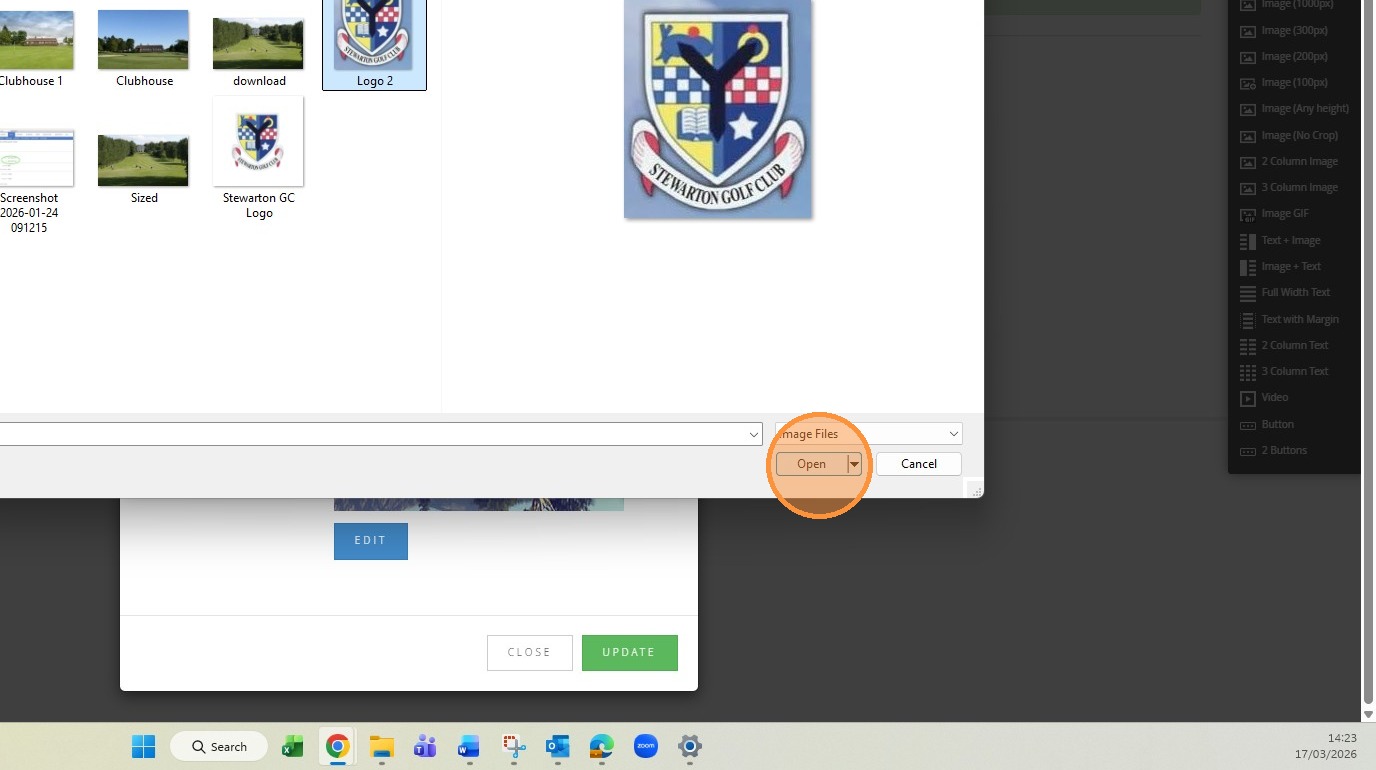
24. Click "SAVE IMAGE"
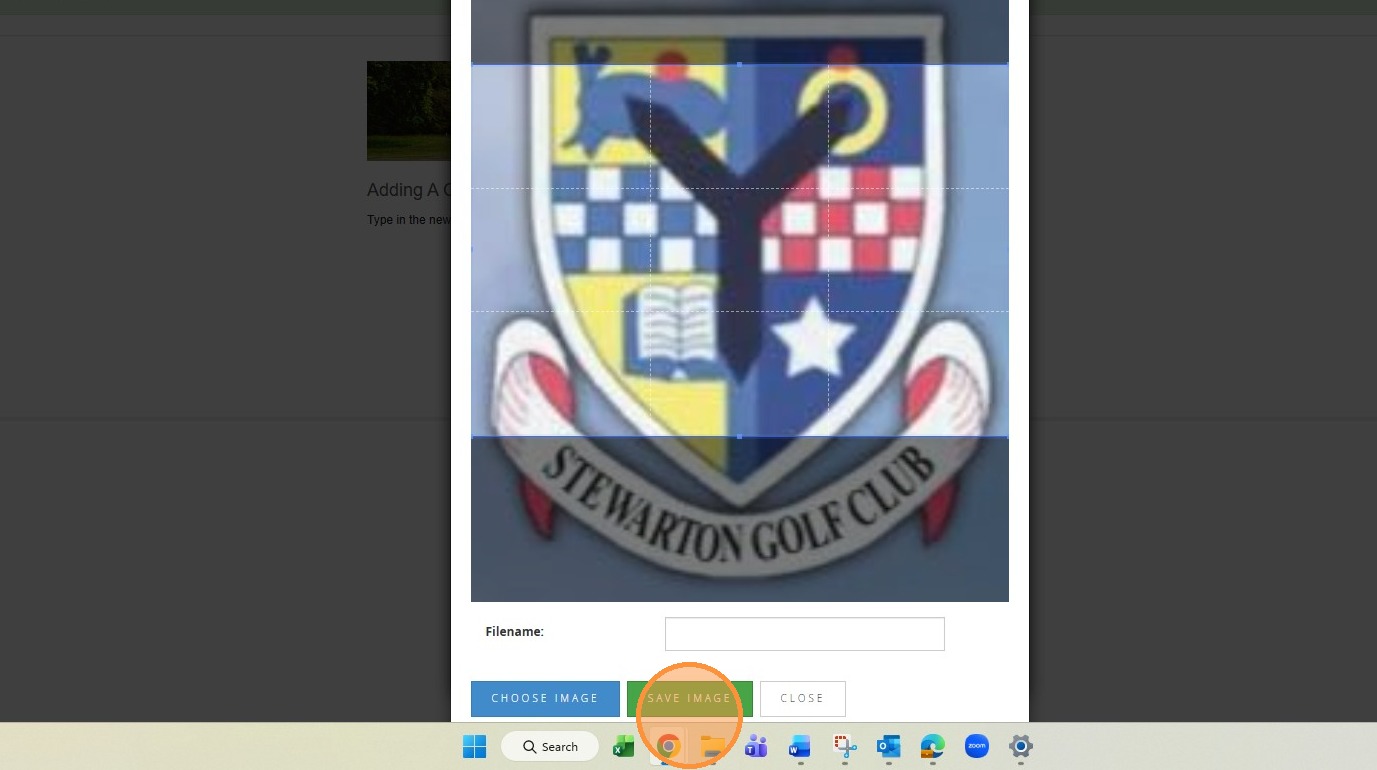
25. Click "UPDATE"
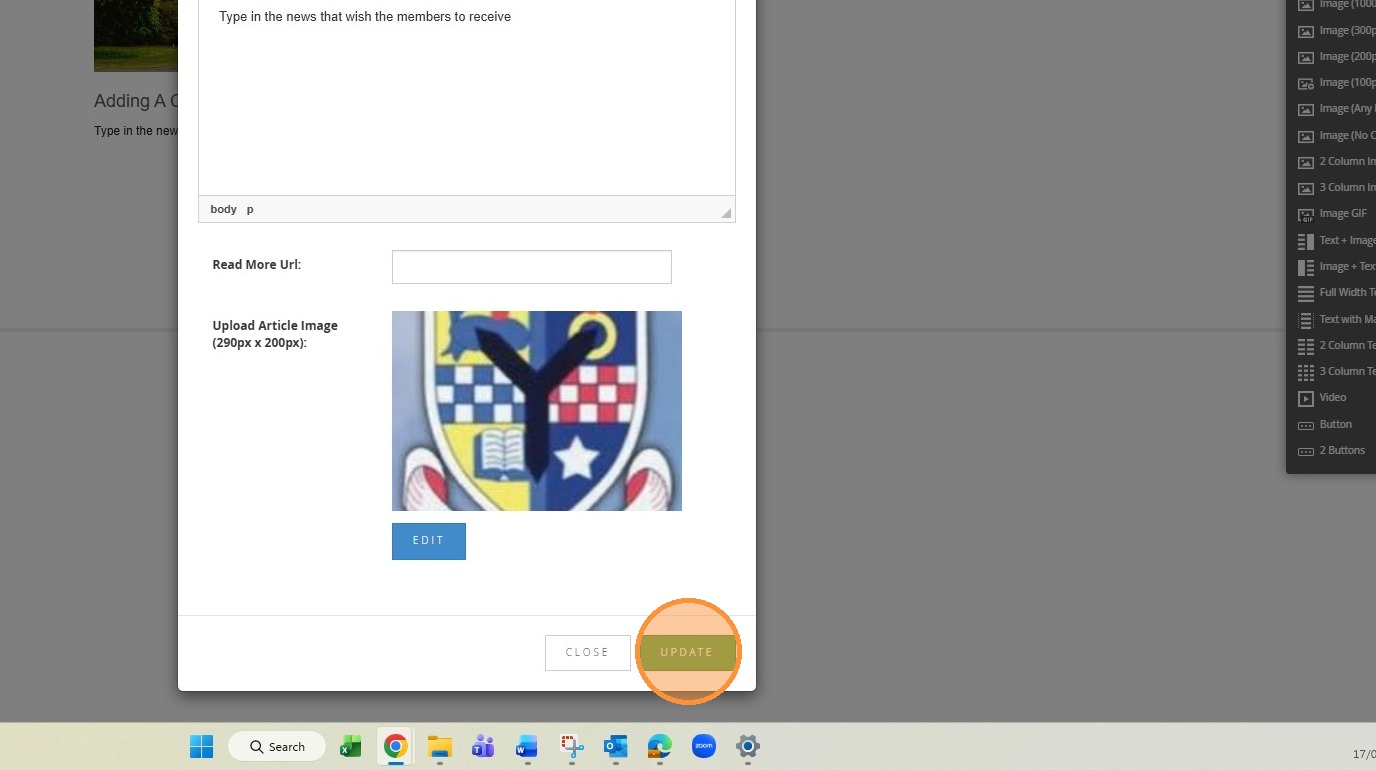
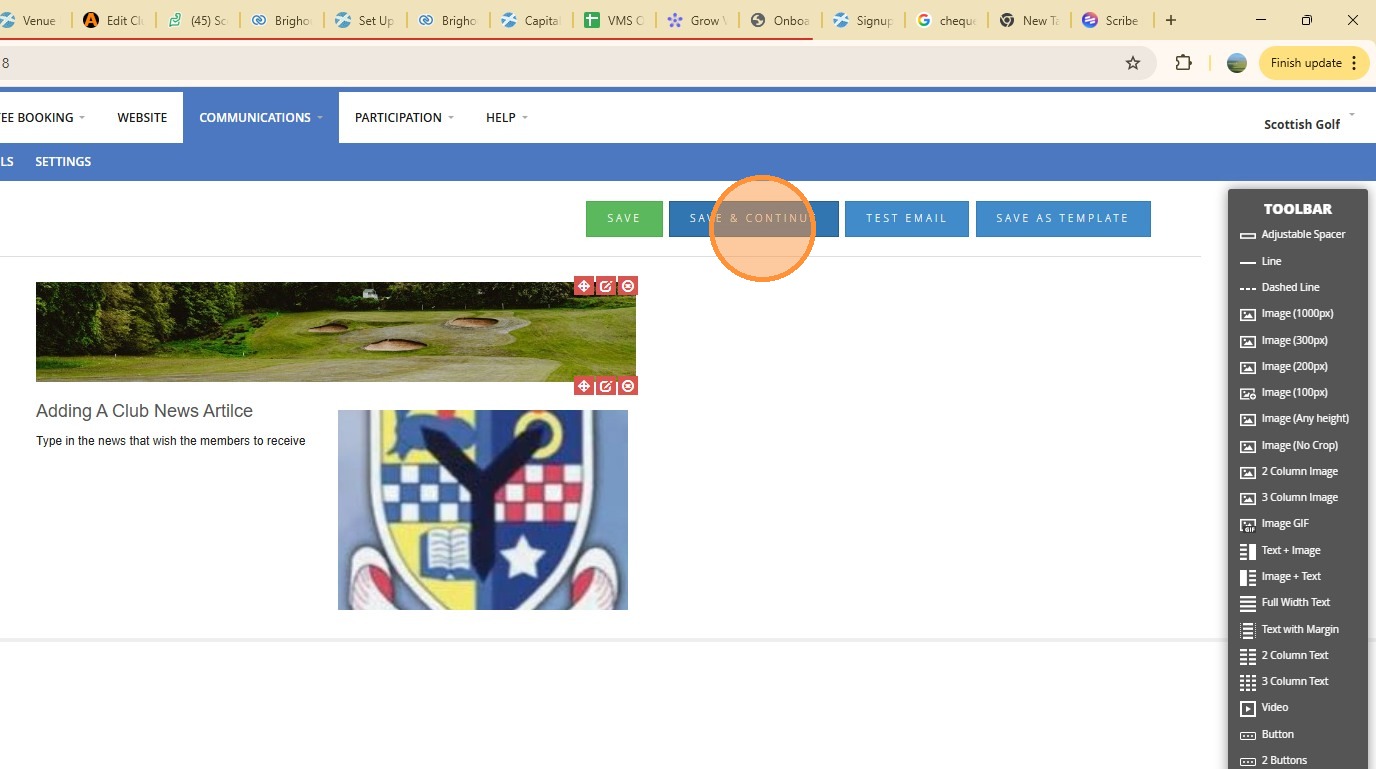
26. You are now ready to build your communication to members Click "SAVE & CONTINUE"
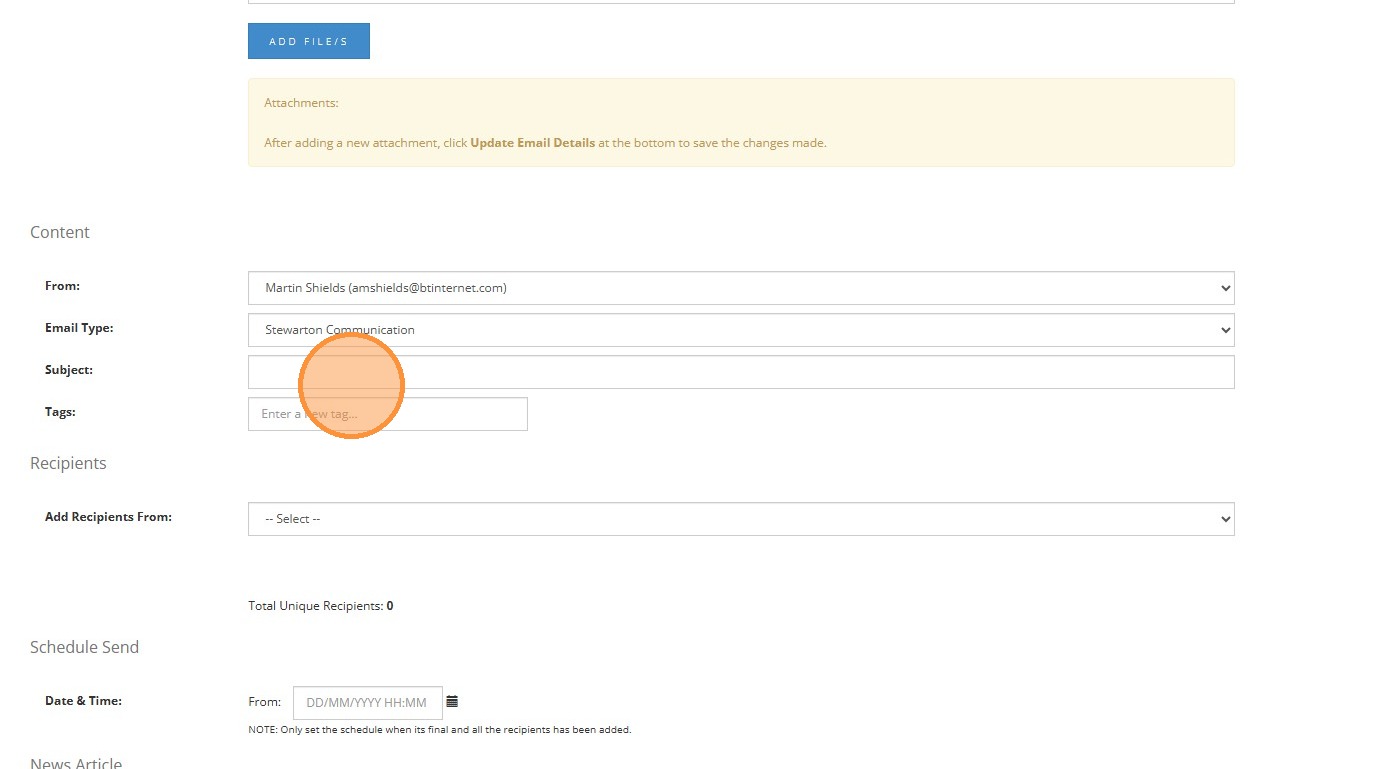
27. Click here to add a subject
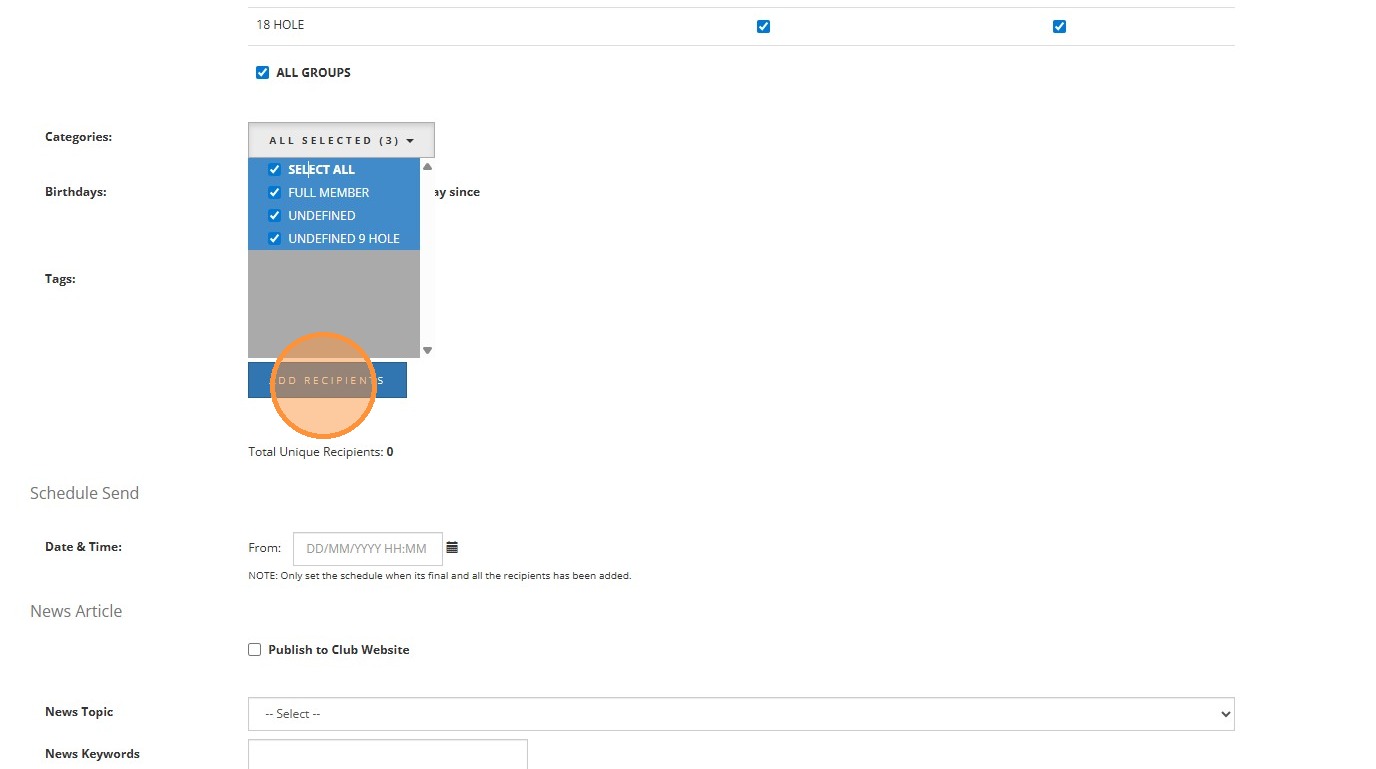
28. Click here to add recipients - there are various opens including tournament entrants
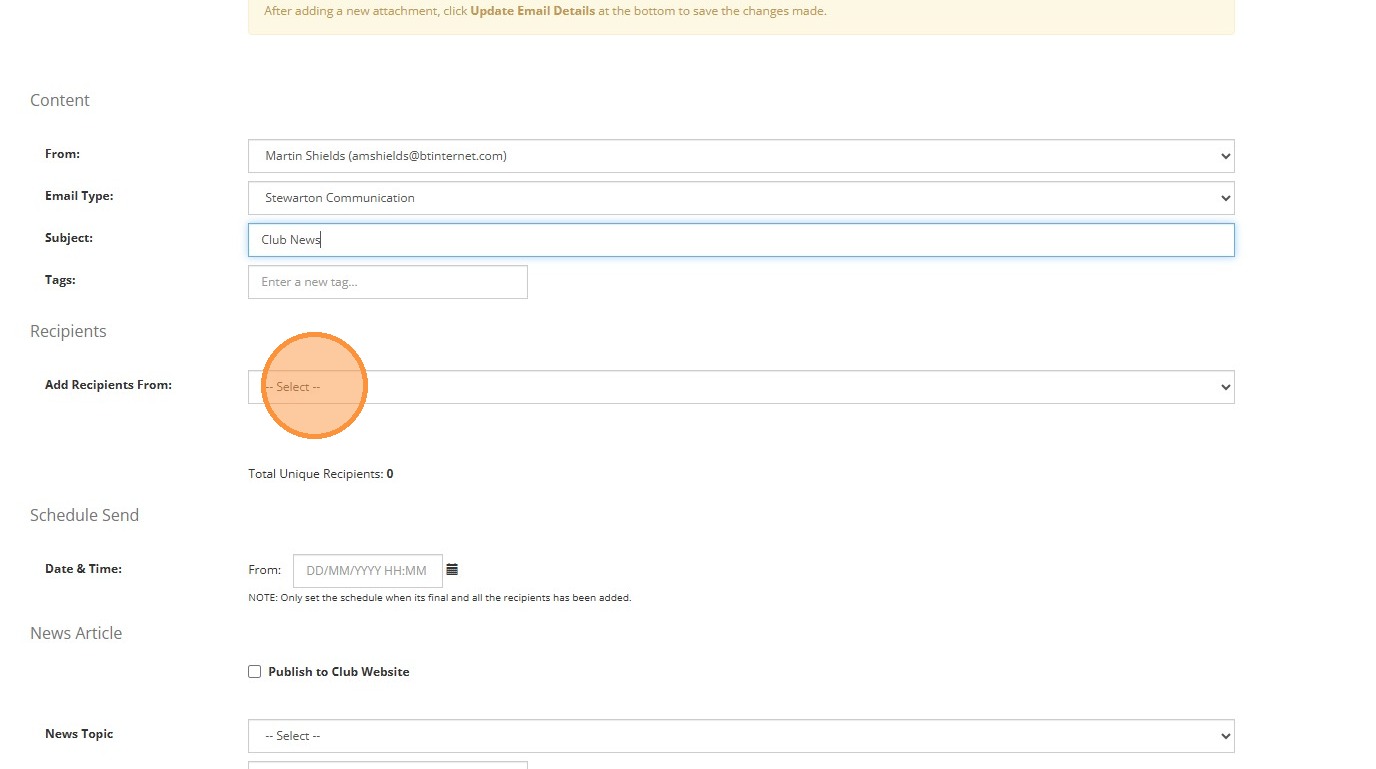
29. Click "ADD RECIPIENTS"
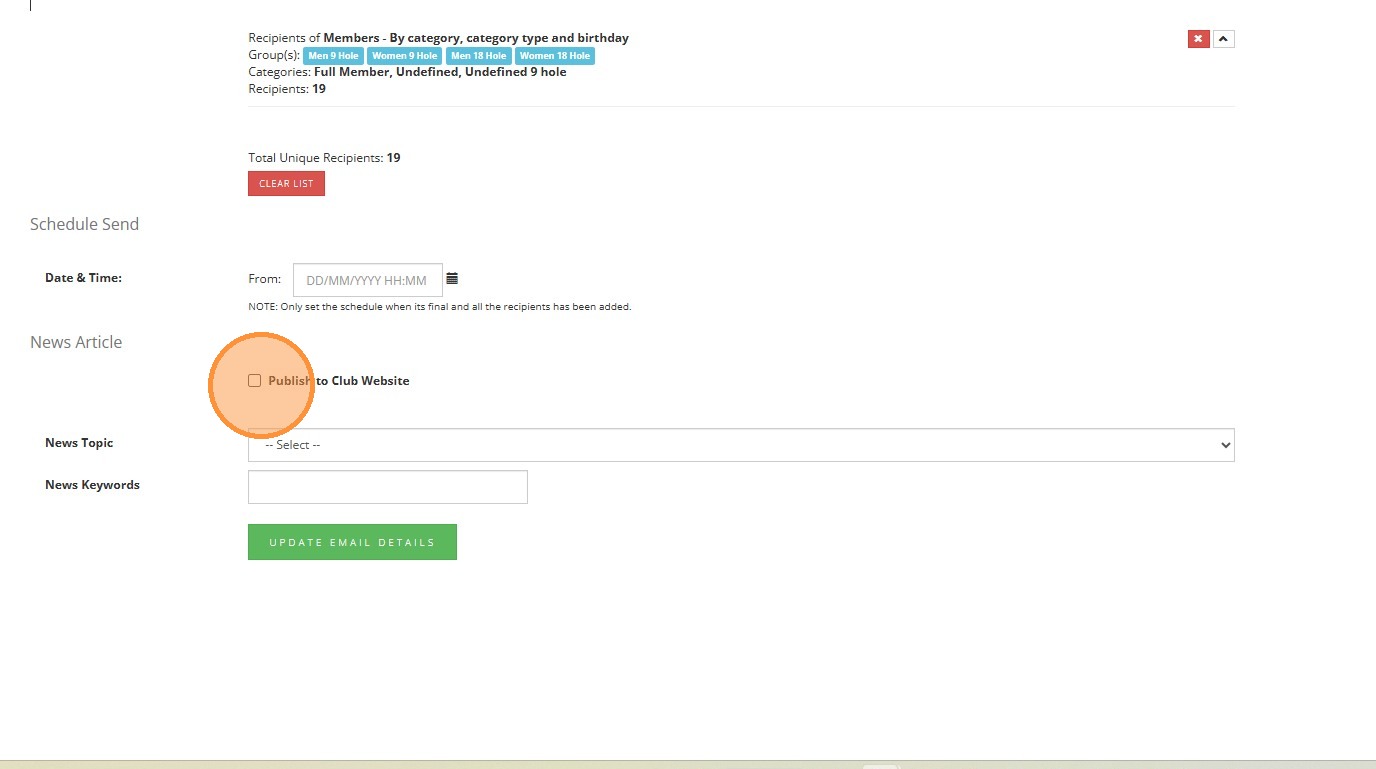
30. Click "Publish to Club Website"
31. Click "Bulk Email - Send"
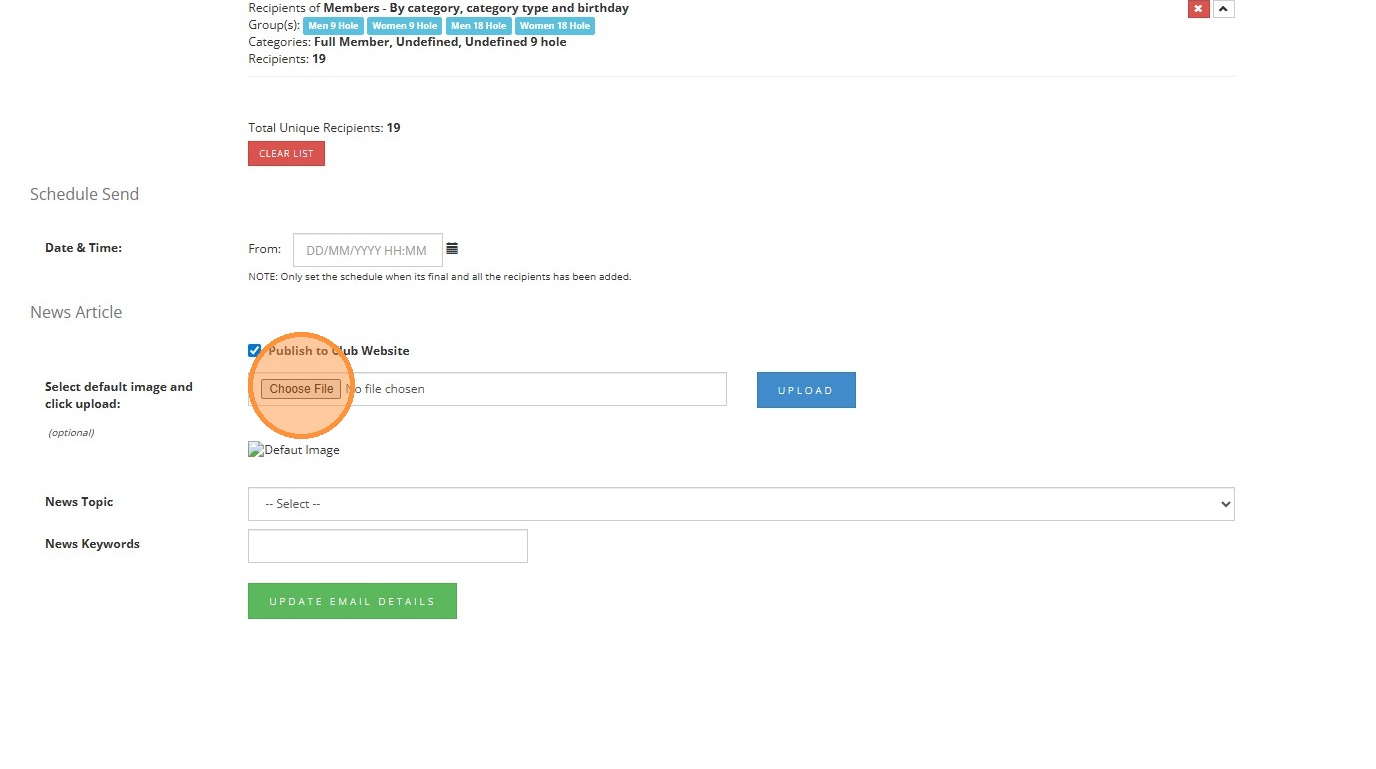
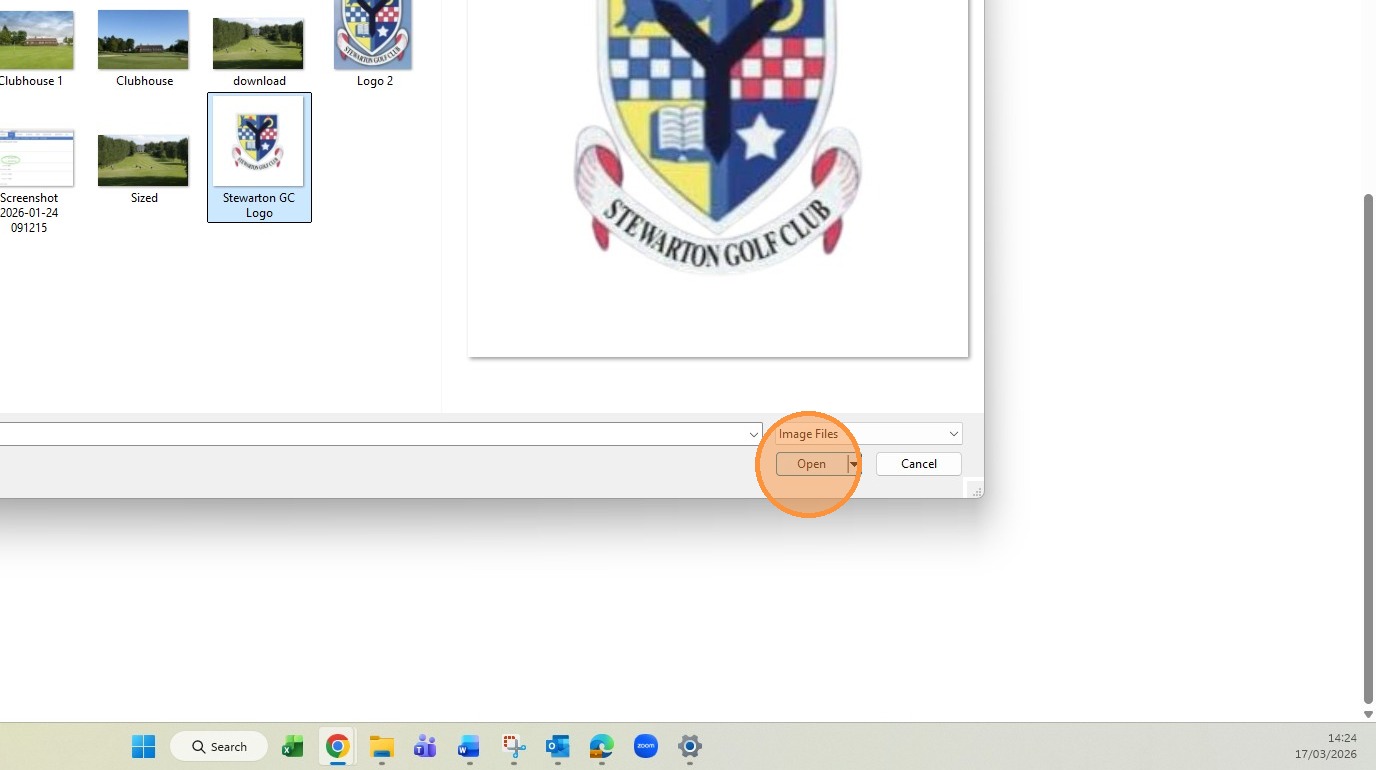
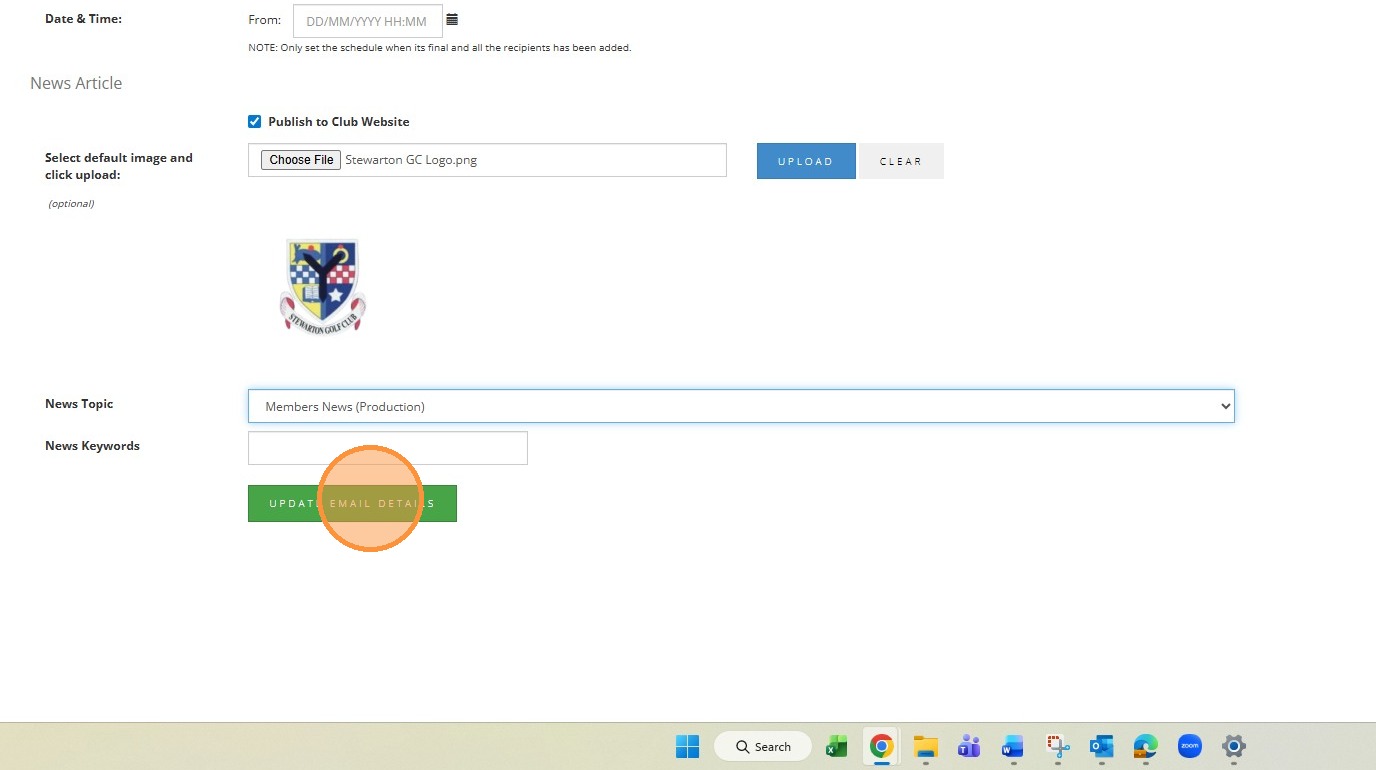
32. You can add a tile for your news article here = Click "Stewarton GC Logo"
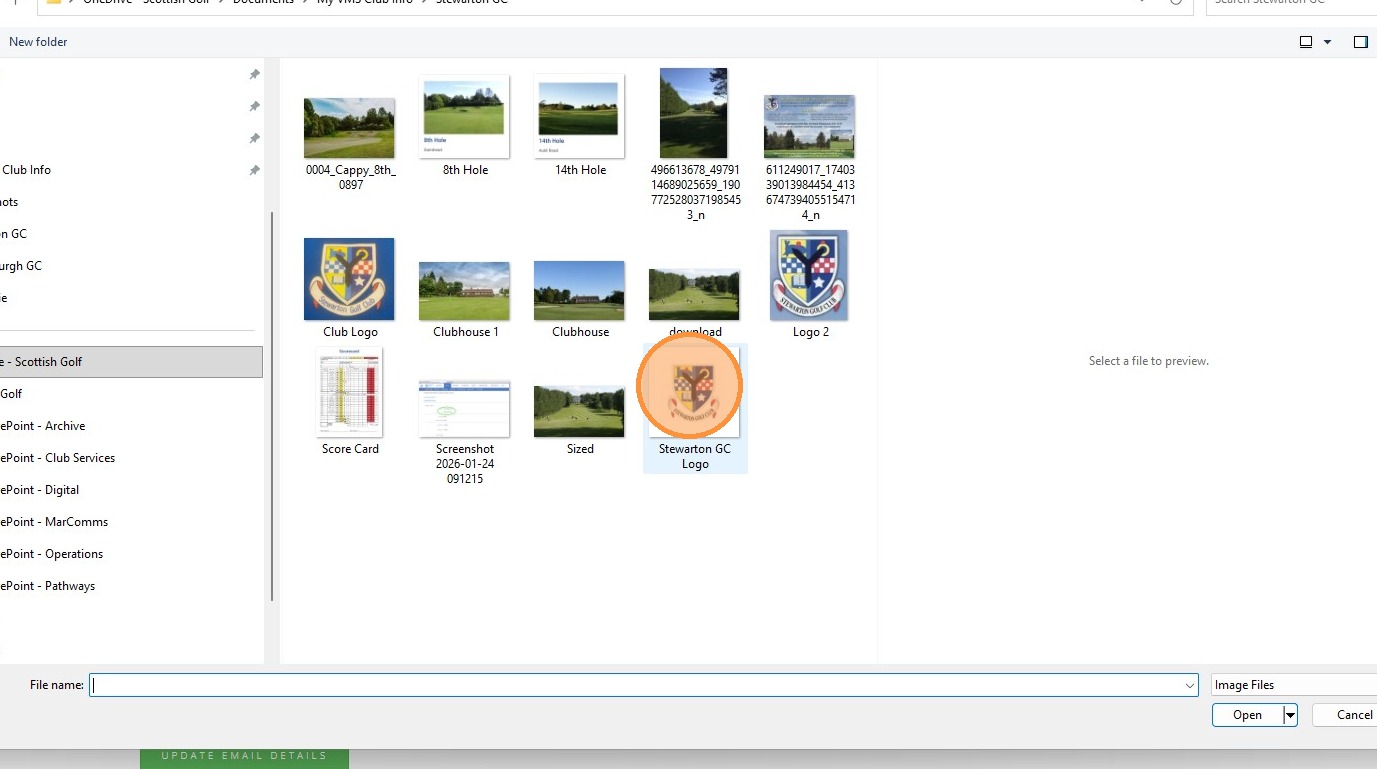
33. Click "Open"
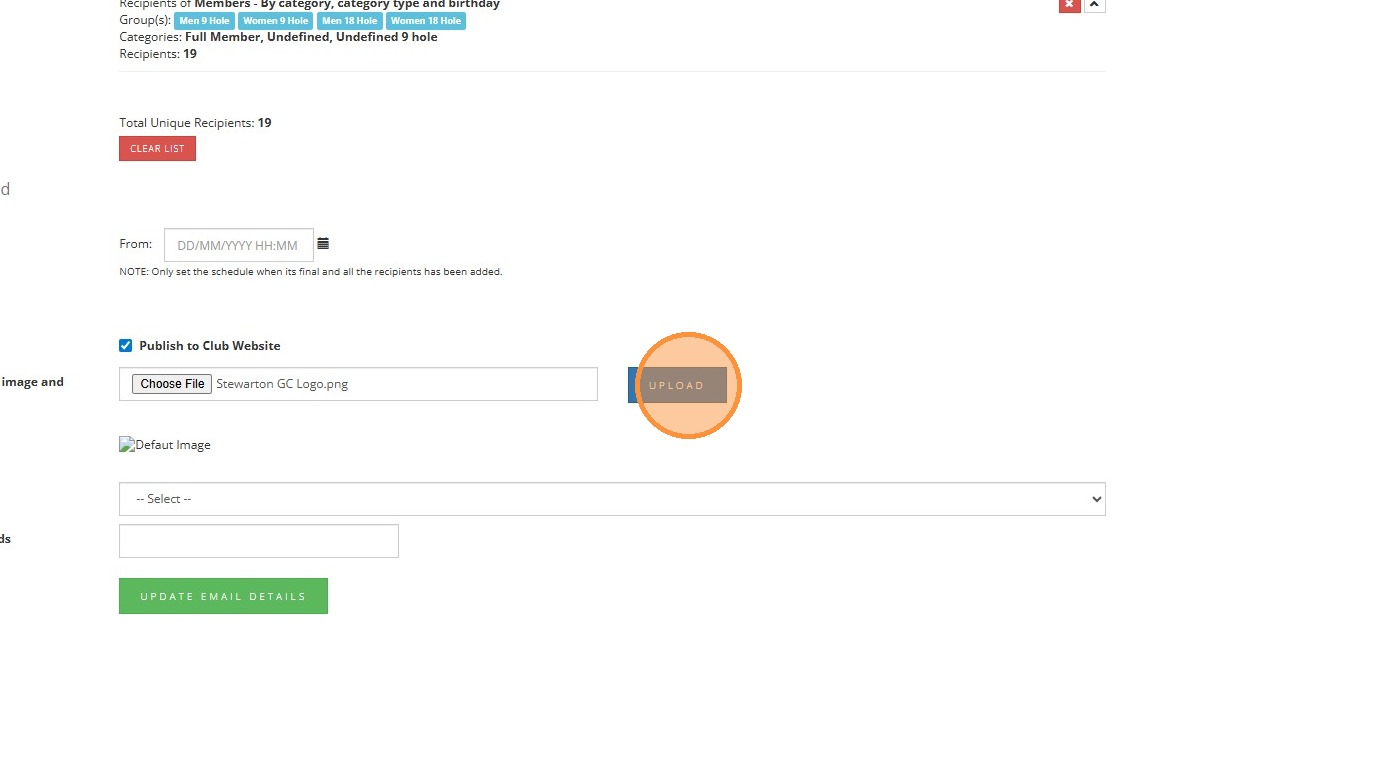
34. Click "UPLOAD"
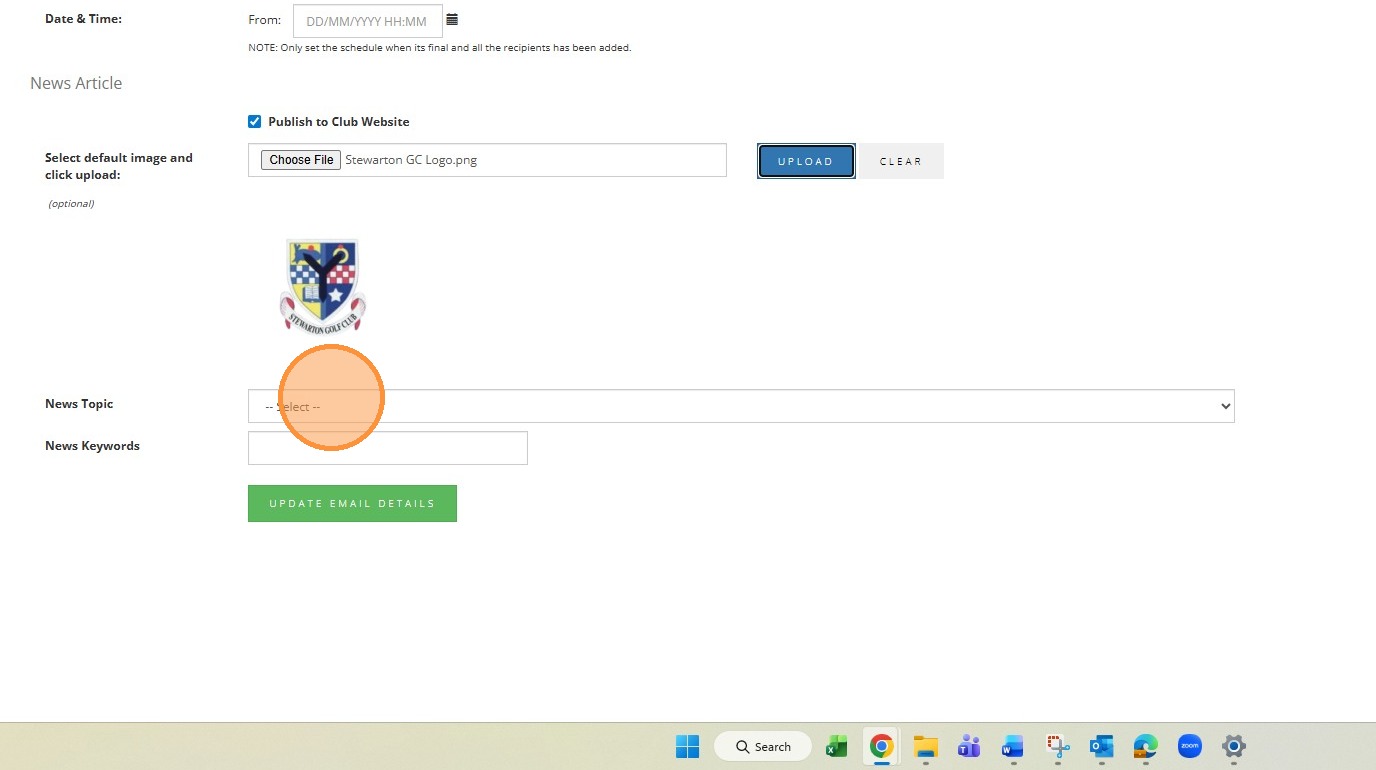
35. Click here to chose where the article is posted - General News of Members Only
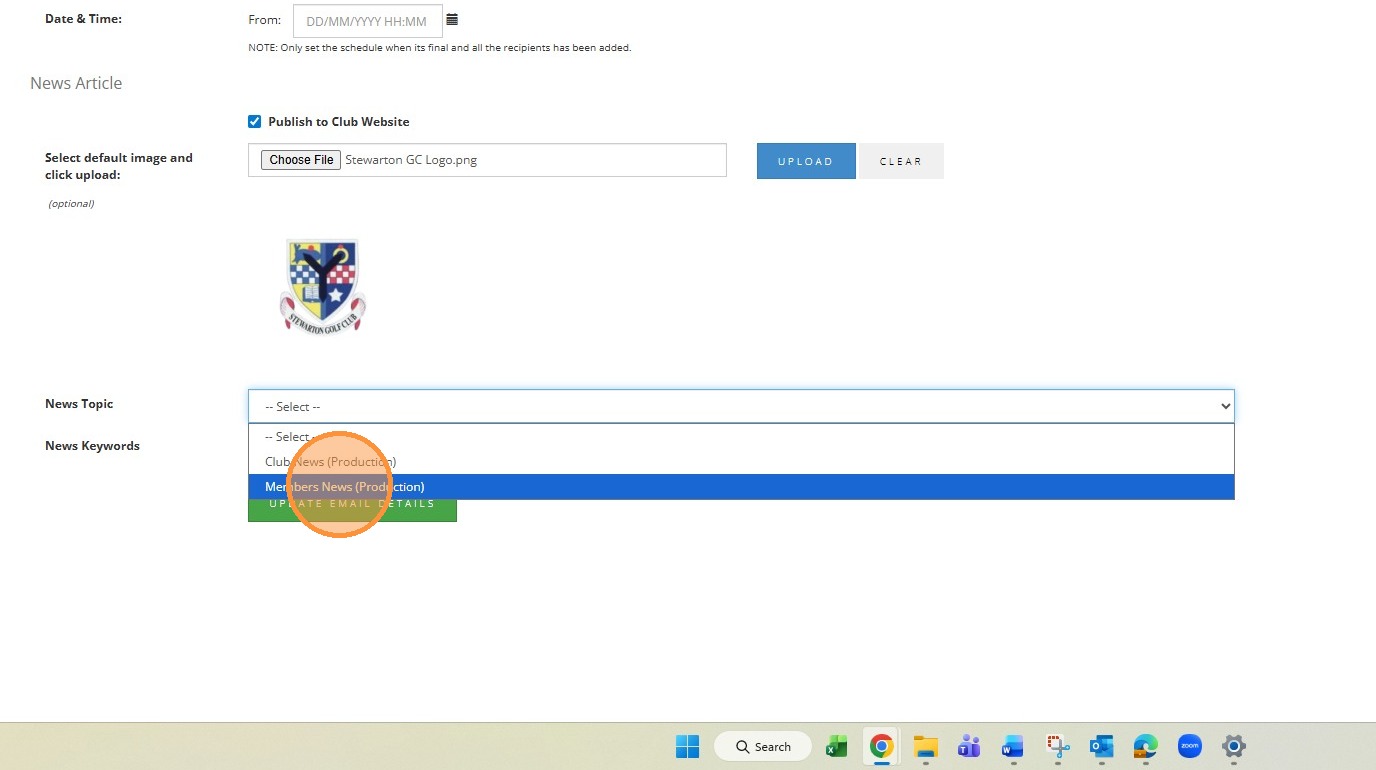
36. Click "Bulk Email - Send"
37. Click "UPDATE EMAIL DETAILS"
38. Click "OK"
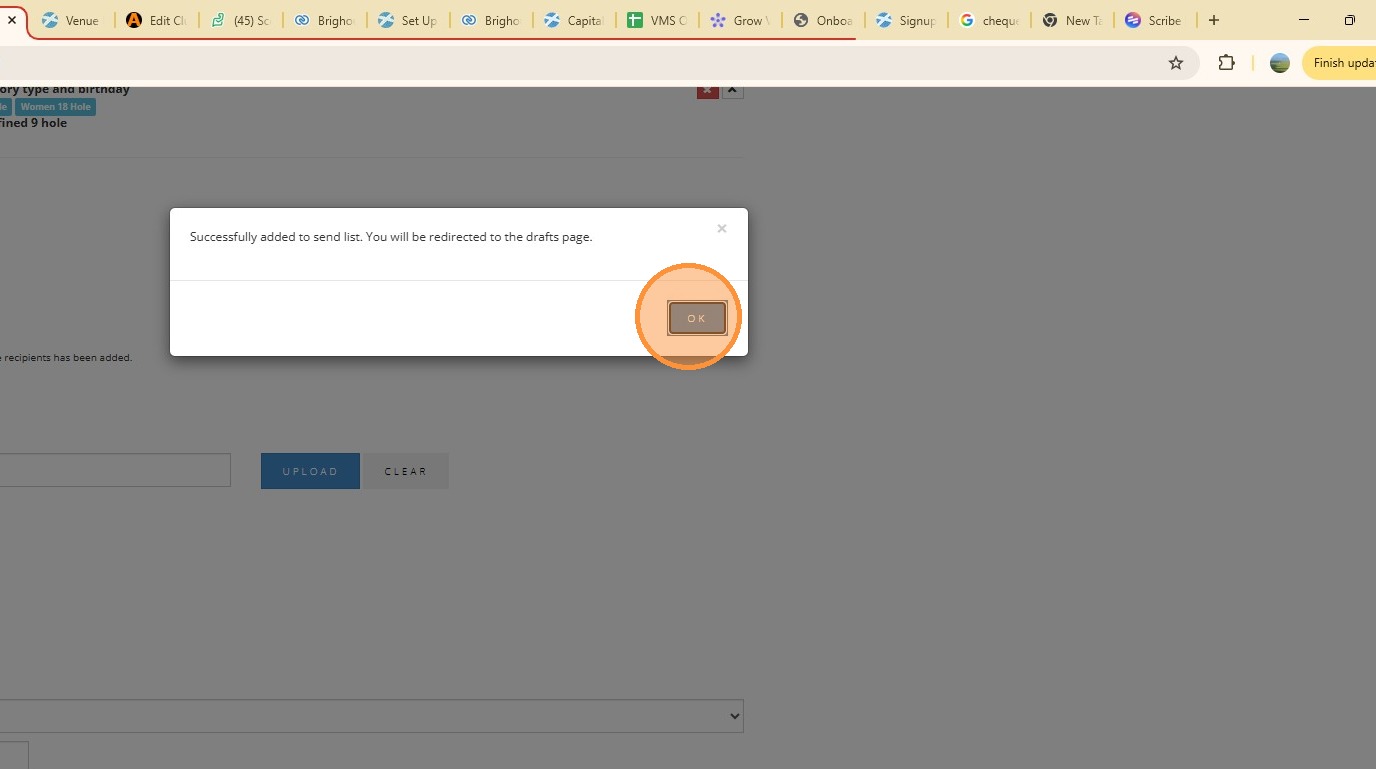
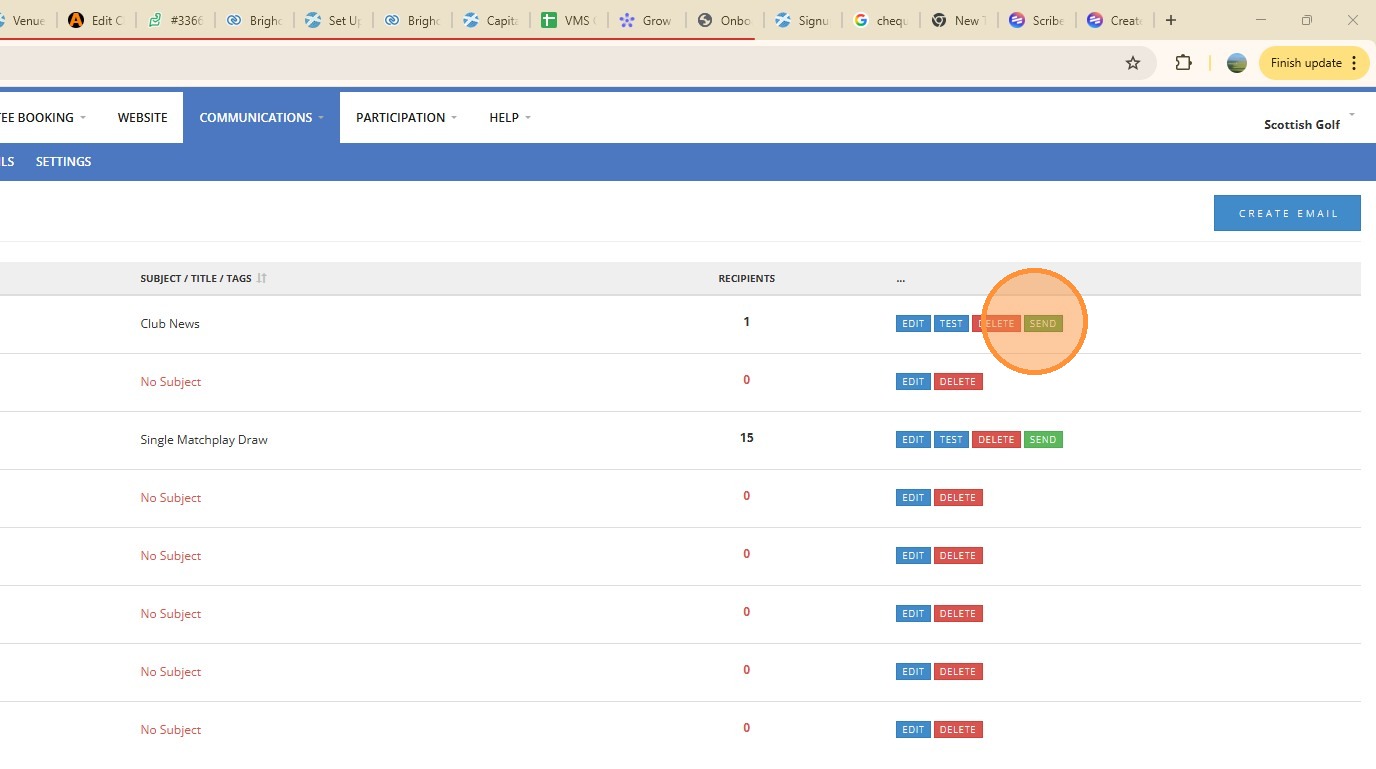
39. You are now ready to send the article and post it to your website Click "SEND" - There is the option to test it which is a good idea to make sure it looks and reads well. Just enter an email address and the test will be sent
40. Click "OK"
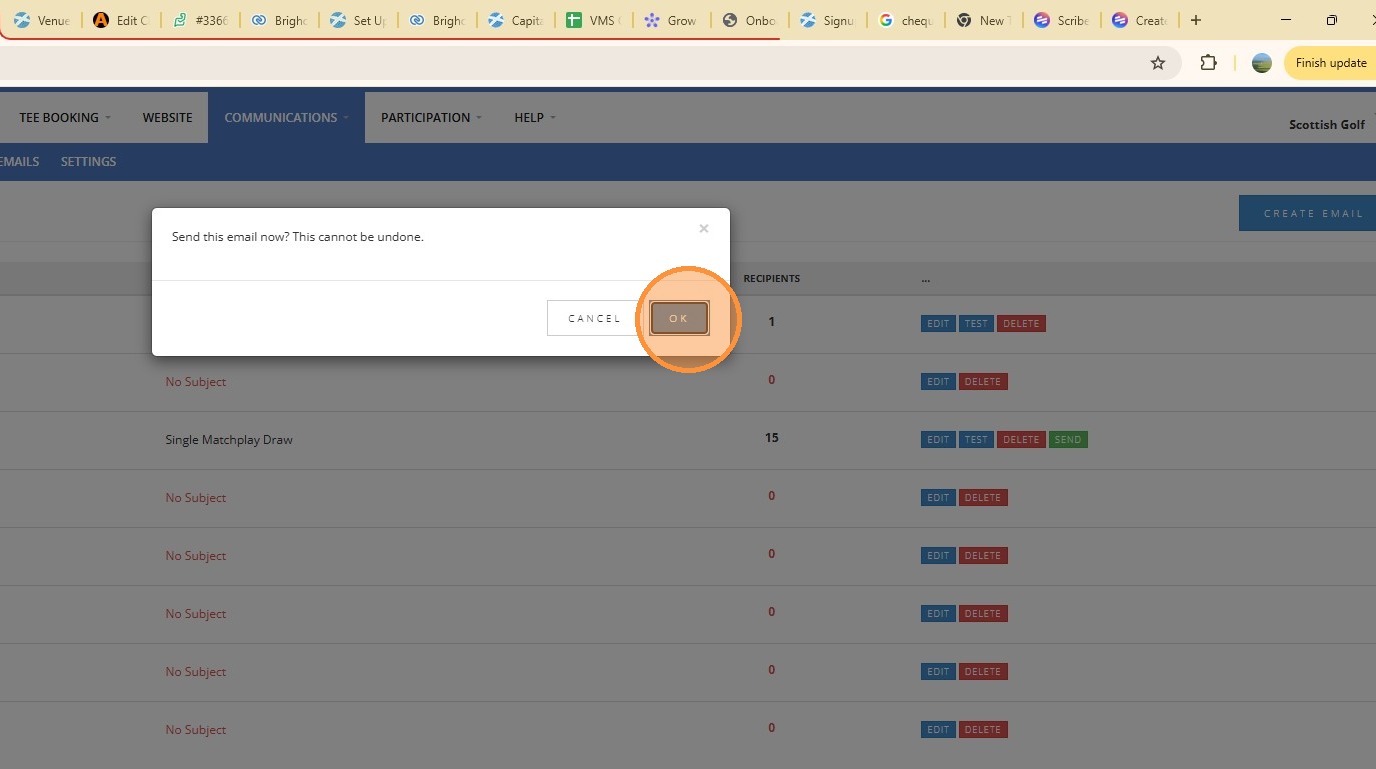
41. You can now check to see the article in the area of the website you picked during the set upClick "CLUB Members / Club News"
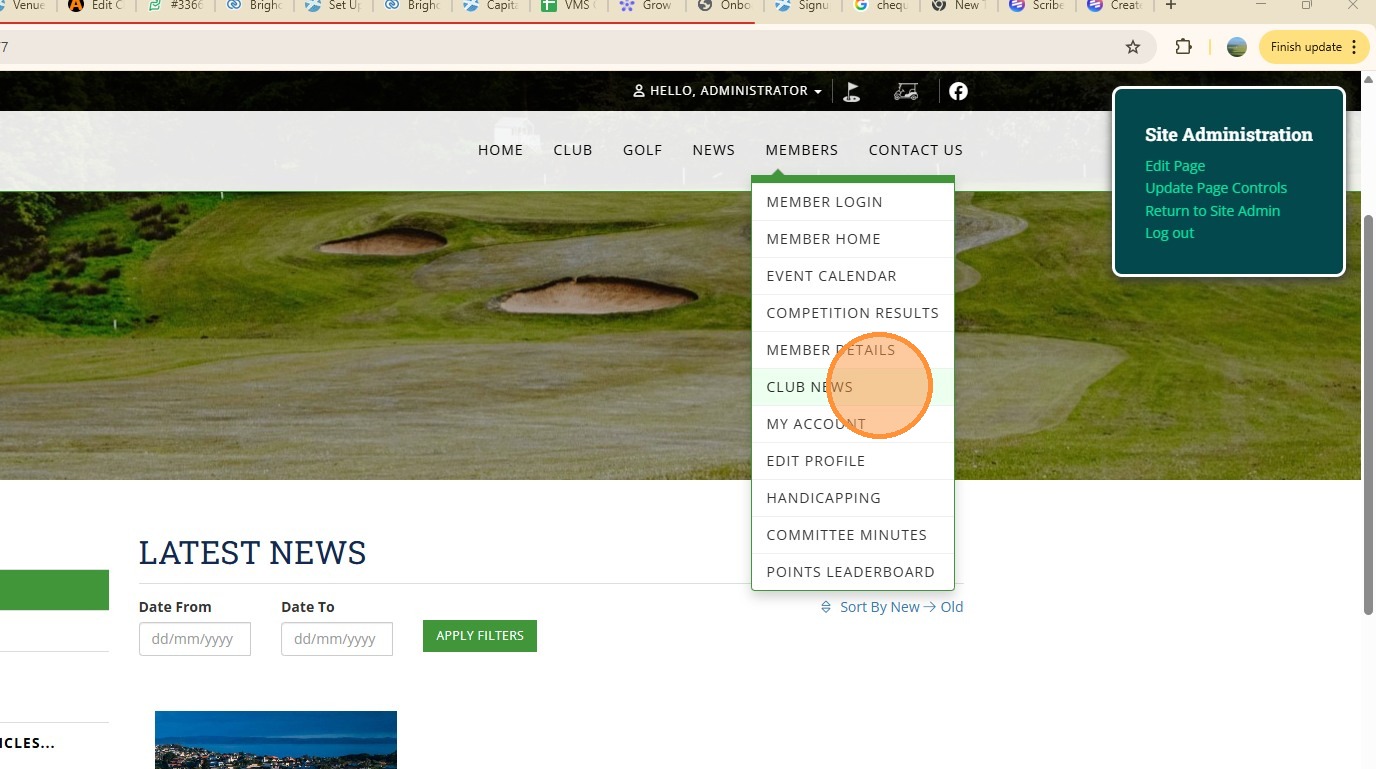
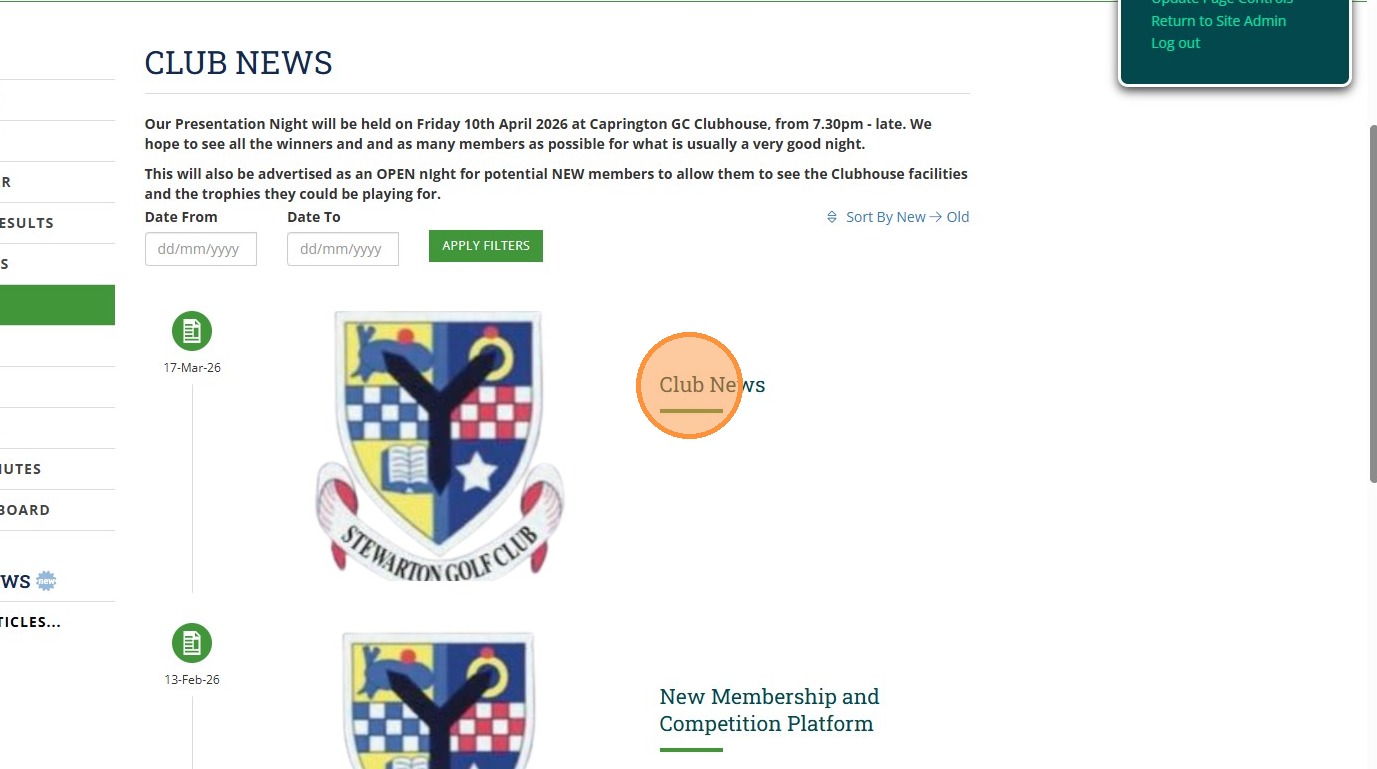
42. The article is now in the Members Only section of your wesbite Click "Club News" to open the artilce
Related Articles
Set Up your Subscription Payment Plan Using Your Club Members Account
Set Up your Subscription Payment Plan Using Your Club Members Account Made by Alan Brown with Scribe Follow these steps to commence payments to your Club Subscription Personal instalment plan. Learn how to log in, navigate your account, and complete ...Adding Responsive images on your DotGolf Website
Here's the steps for adding a new article; To create a new News Article for your Website, please log in as an administrative to your website. The easiest way to do this is to access the website via your DotGolf platform, click on the website tab and ...Creating & Sending an Email Communication
1 Select the communications tab in your VMS profile and select send Email 2 Chose a template 3 Name the Draft and then select Next 4 You are then able to build your email. By clicking and dragging on the items in the toolbar you can build the content ...Create and Send App Message
1. Navigate to the Communications tab 2. Click "CREATE APP MESSAGE" 3. Type in a Subject for your App Message and proceed to type your content of your message. 4. Click this dropdown to choose your recipients either from a group members, players in ...Webinar: Website & Communications. Feb 2023
Here is a webinar on how to manage your Website & Communications: